Admin Center#
The Admin Center is the central, cross-tenant administration interface of i-doit. Here you configure system-wide settings, manage tenants and licenses, and install add-ons.
Add-ons and subscriptions can now also be managed via the Add-on & Subscription Center.
Credentials and Login#
The Admin Center uses separate credentials — not your regular i-doit login. You set them during the installation of i-doit.
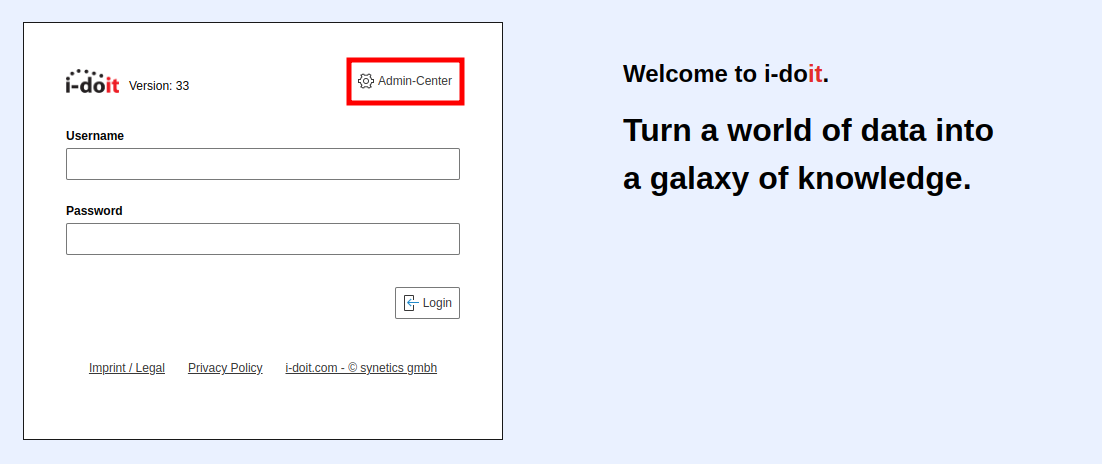
You can reach the Admin Center in two ways:
- Via the Admin Center link below the i-doit login form
- Directly via the URL
https://your-instance/admin/
Forgot your password?
If you can no longer log in, the password can only be reset via the i-doit console utility.
English interface
The Admin Center interface is entirely in English.
Overview (Home)#
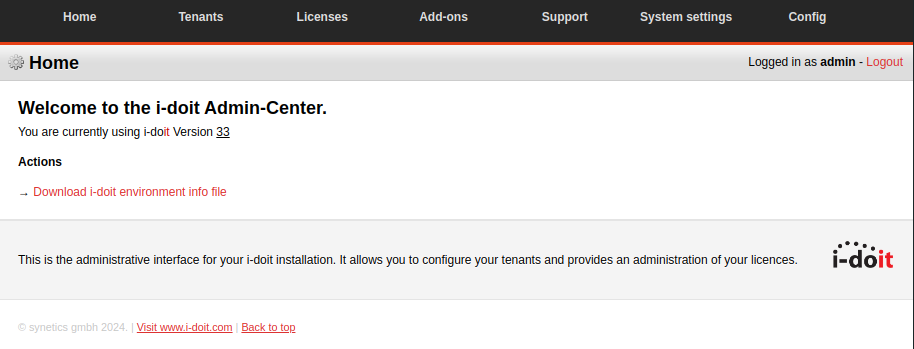
Shows the installed i-doit version. Under Actions you can download the i-doit environment info file — an XML file with system settings that is very helpful for troubleshooting.
Tenants#
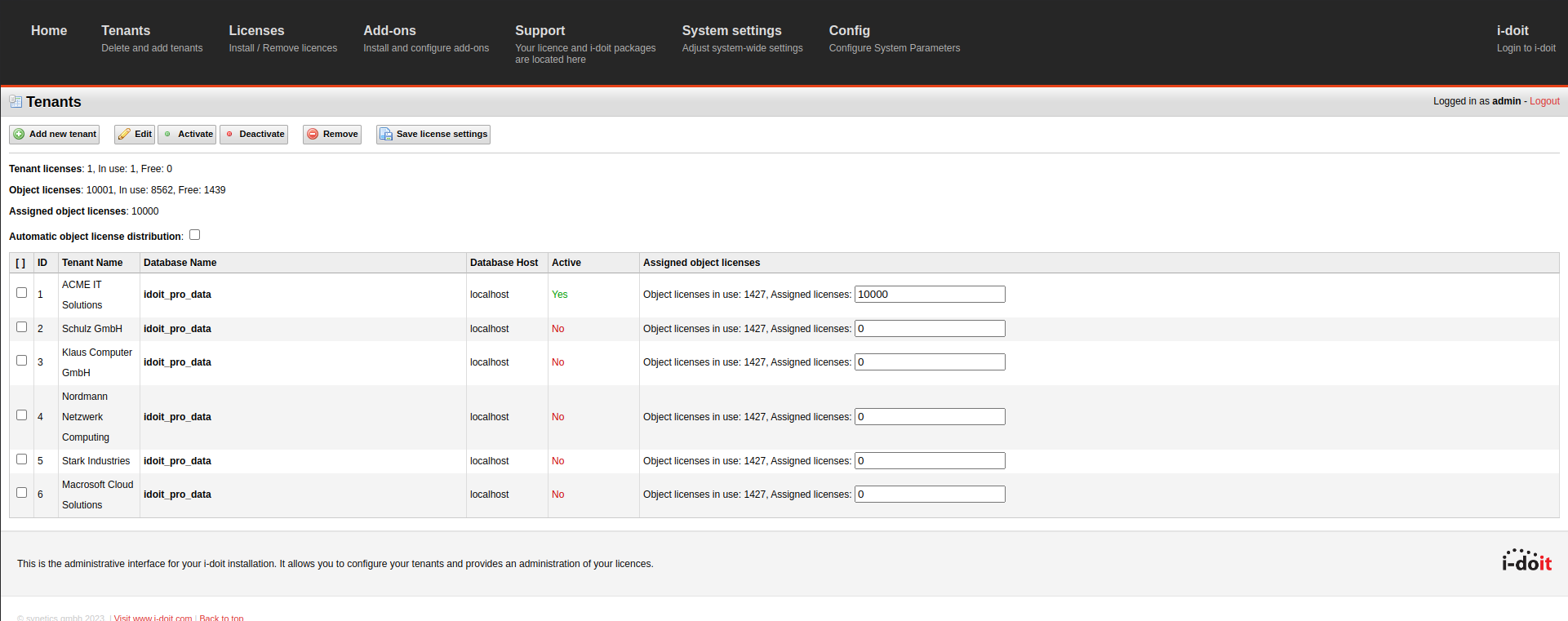
Here you manage tenants — relevant for multi-tenant licenses. You can create new tenants, (de)activate existing ones, or delete them.
A deleted tenant can only be restored from a backup.
Licenses#
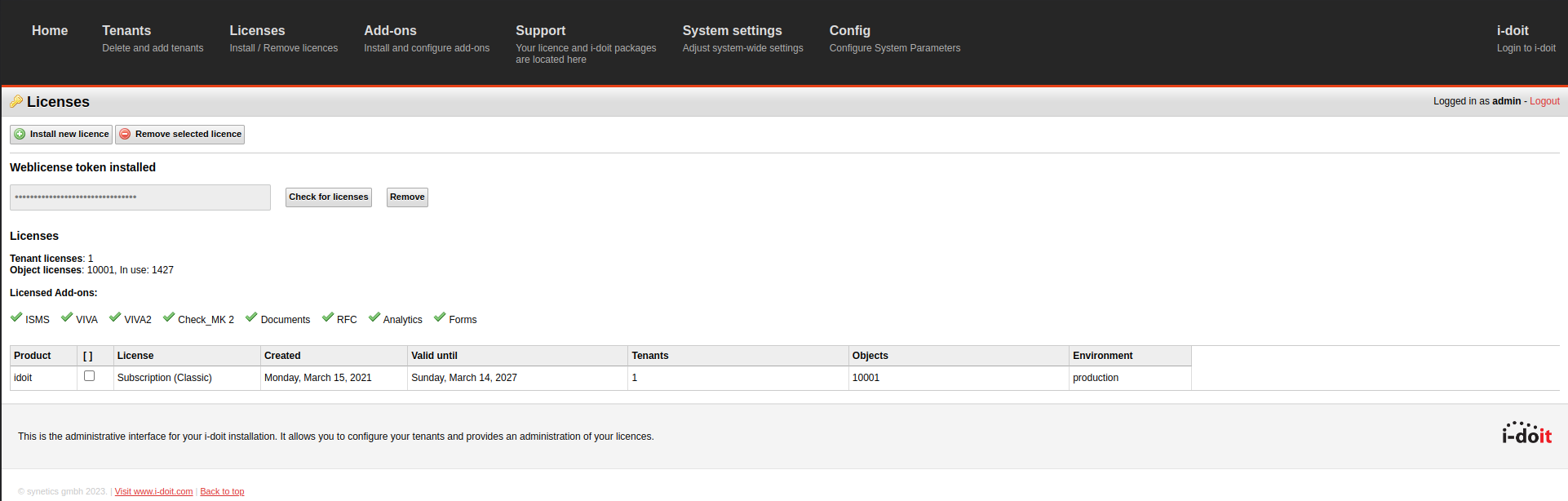
Here you import your license.
Add-ons#
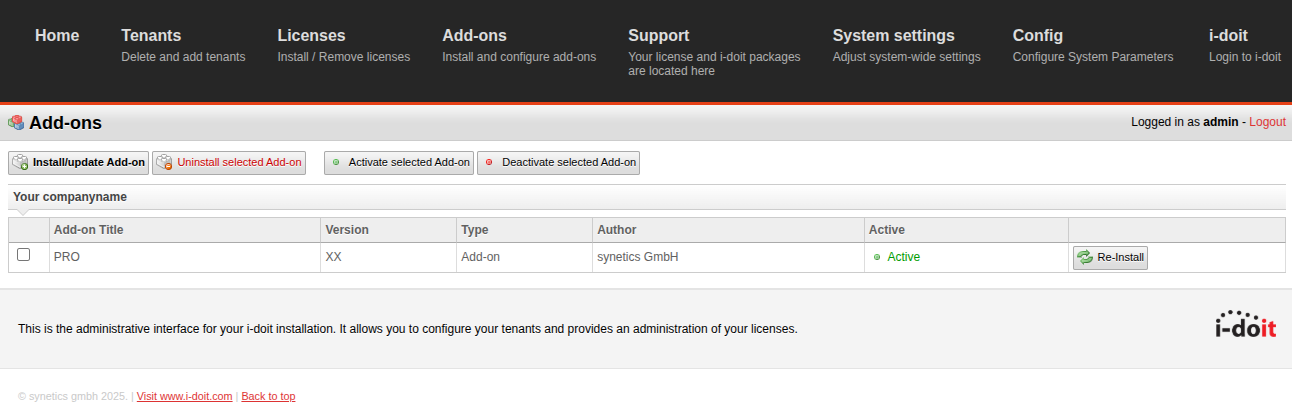
Here you install and manage i-doit add-ons.
System settings#
Since i-doit v25
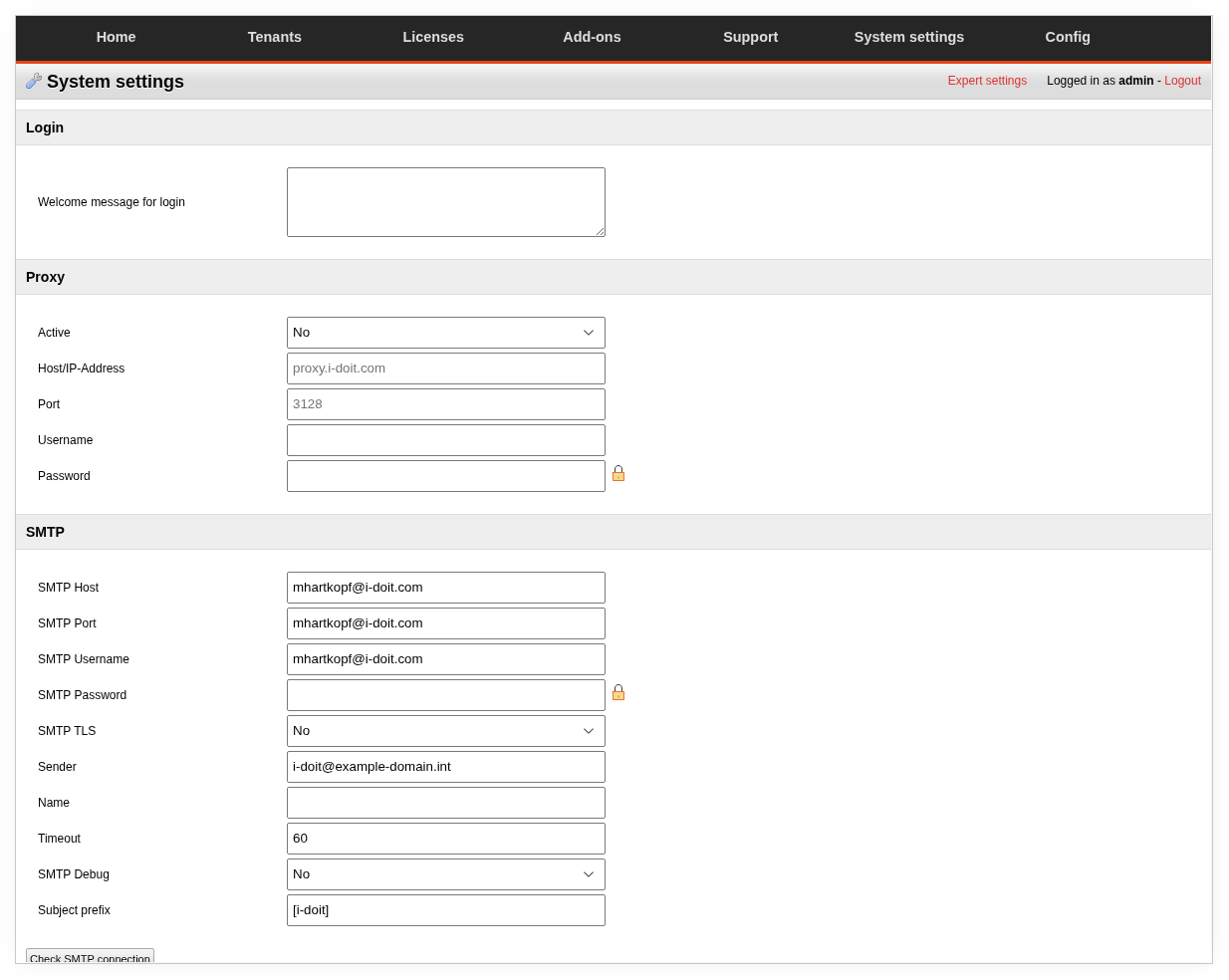
The system-wide settings have been moved to the Admin Center since version 25. Tenant-specific settings can still be found under Administration → Expert Settings.
Login#
| Setting | Description |
|---|---|
| Welcome message for login | Text displayed on the login page — e.g., "Maintenance window: Sunday 02:00-06:00" or notes for new users. HTML is supported. |
Proxy#
If your i-doit installation does not have direct internet access (e.g., for license verification or the Add-on & Subscription Center), configure the HTTP proxy here.
| Setting | Description |
|---|---|
| Active | Enable/disable proxy |
| Host/IP-Address | Hostname or IP of the proxy server |
| Port | Proxy port (default: 3128 for Squid) |
| Username/Password | If the proxy requires authentication |
| Verify SSL certificate | Verify the TLS certificate of the remote site for outgoing connections of the proxy and the updater (default: Yes). If your proxy replaces certificates with its own certificate, make sure the server trusts this certificate instead of setting this option to No. |
SMTP#
Email configuration for notifications, password reset emails, and maintenance contract reminders. Without a correct SMTP configuration, no emails will be sent.
| Setting | Description |
|---|---|
| SMTP Host | Hostname of the mail server, e.g., smtp.company.com |
| SMTP Port | Port — 587 for STARTTLS (recommended), 465 for SSL, 25 for unencrypted |
| SMTP Username/Password | Credentials for the mail server |
| SMTP TLS | Enable TLS encryption — always enable if your mail server supports it |
| Sender | Sender address, e.g., idoit@company.com. Must be accepted by the mail server. |
| Name | Display name of the sender, e.g., i-doit CMDB |
| Timeout | Connection timeout in seconds (default: 60) |
| SMTP Debug | When set to Yes, SMTP dialogs are written to the log — helpful when emails are not being delivered |
| Subject prefix | Prepended to every subject line, e.g., [i-doit]. Helps with filtering in Outlook/Thunderbird. |
Test connection
Below the SMTP configuration there is a Test button. Use it after every change to ensure that emails are actually being sent.
Security#
| Setting | Description |
|---|---|
| CSRF-Token | Protection against Cross-Site Request Forgery. When set to Yes (default), a token is verified with every form submission. Do not disable — unless an add-on has compatibility issues. |
Session#
| Setting | Description |
|---|---|
| Session timeout | After how many seconds of inactivity the user is automatically logged out. Default: 3600 (1 hour). In security-critical environments, set to 1800 (30 minutes) or less. |
Single Sign On#
| Setting | Description |
|---|---|
| Active | Enable/disable SSO. Prerequisite: an SSO method must be configured. |
| Default tenant | Which tenant is automatically selected during SSO login |
| Use Domain Part | When set to Yes, the domain part of the username (e.g., COMPANY\lfischer) is used for tenant assignment |
System parameters#
| Setting | Description |
|---|---|
| PHP Timezone | Timezone for date displays, e.g., Europe/Berlin. Must match the PHP timezone of the server. |
| File upload directory | Directory for uploaded files. Default: upload/files/ relative to the i-doit installation directory. |
| Image upload directory | Directory for uploaded images (object images, floorplan images). |
User interface#
| Setting | Description |
|---|---|
| Wiki URL | URL to an external wiki. Displayed as a link in the interface. |
| Sortfunction for login tenantlist | Sorting of the tenant list on the login page: by title or custom. |
Expert settings (system-wide)#
Via the Expert settings link at the top right of the System Settings page, you can access the system-wide key/value expert settings. Here are the most important ones:
Permission system#
| Key | Default | What happens when you change it? |
|---|---|---|
auth.active | 1 | When set to 0, the entire permission system is disabled — every user can see and edit everything. Use only in emergencies, e.g., when you have locked yourself out due to a faulty permission configuration. |
api.authenticated-users-only | 1 | When set to 1, API requests must be authenticated with valid user credentials (Basic Auth) — not just with the API key. Recommended for production environments. |
CMDB behavior#
| Key | Default | What happens when you change it? |
|---|---|---|
cmdb.quickpurge | 0 | When set to 1, objects can be directly and irrevocably deleted — without Archive → Delete → Purge. Dangerous in production. |
cmdb.unique.hostname | 0 | When set to 1, duplicate hostnames are prevented. |
cmdb.unique.ip-address | 0 | When set to 1, duplicate IP addresses are prevented. Recommended. |
cmdb.unique.object-title | 0 | When set to 1, object names must be unique. |
cmdb.unique.layer-2-net | 0 | When set to 1, duplicate VLAN IDs are prevented. |
cmdb.limits.obj-browser.objects-in-viewmode | 8 | Maximum number of objects in the object browser. |
cmdb.limits.port-lists-vlans | 5 | How many VLANs are displayed in the port list. |
cmdb.object.title.cable-prefix | KABEL_DEFAULT_ | Prefix for automatically generated cable object names. |
cmdb.objtype.X.auto-inventory-no | (empty) | Pattern for automatic inventory numbers. Replace X with the object type ID. Example: SRV-%COUNTER% → SRV-001. |
Security and passwords#
| Key | Default | What happens when you change it? |
|---|---|---|
security.passwort.minlength | (empty) | Minimum length for user passwords. Set this value to at least 8, preferably 12, in production environments. |
Login throttling#
These keys control how i-doit blocks the login after too many failed attempts. Failed attempts are counted per user name and per IP address. The login of the Admin Center is protected as well.
| Key | Default | What happens when you change it? |
|---|---|---|
system.security.login-throttle.active | 1 | When set to 0, failed logins are no longer limited. |
system.security.login-throttle.max-attempts | 5 | Number of failed attempts after which the login is blocked. |
system.security.login-throttle.window | 300 | Period in seconds in which failed attempts are counted. |
system.security.login-throttle.lockout | 900 | Duration of the block in seconds. |
system.security.login-throttle.trusted-proxies | (empty) | Comma separated IP addresses of trusted reverse proxies. Only for requests from these addresses is the client IP address taken from the X-Forwarded-For header. If i-doit runs behind a reverse proxy and this key is empty, all users share the IP address of the proxy. |
Logging and debug#
| Key | Default | What happens when you change it? |
|---|---|---|
ldap.debug | 1 | LDAP debug logging. Set to 0 to disable — saves log volume in production. |
logbook.changes | 1 | When set to 0, changes are no longer recorded in the logbook. Do not disable — you will lose traceability. |
logging.cmdb.import | 1 | Logging of import operations (CSV, JDisc). |
debug-bar.enabled | 1 | Display PHP Debug Bar. Set to 0 in production. |
GUI and email templates#
| Key | Default | Description |
|---|---|---|
gui.empty_value | (empty) | Display of empty fields in the UI, e.g., — or n/a. |
gui.wysiwyg | 1 | Enable WYSIWYG editor for description fields. |
email.template.maintenance | (template) | Email template for maintenance contract notifications. |
email.template.password | Your password is: | Email text when sending passwords. |
maxlength.dialog_plus | 110 | Maximum character length for Dialog+ entries. |
Configuration (Config)#
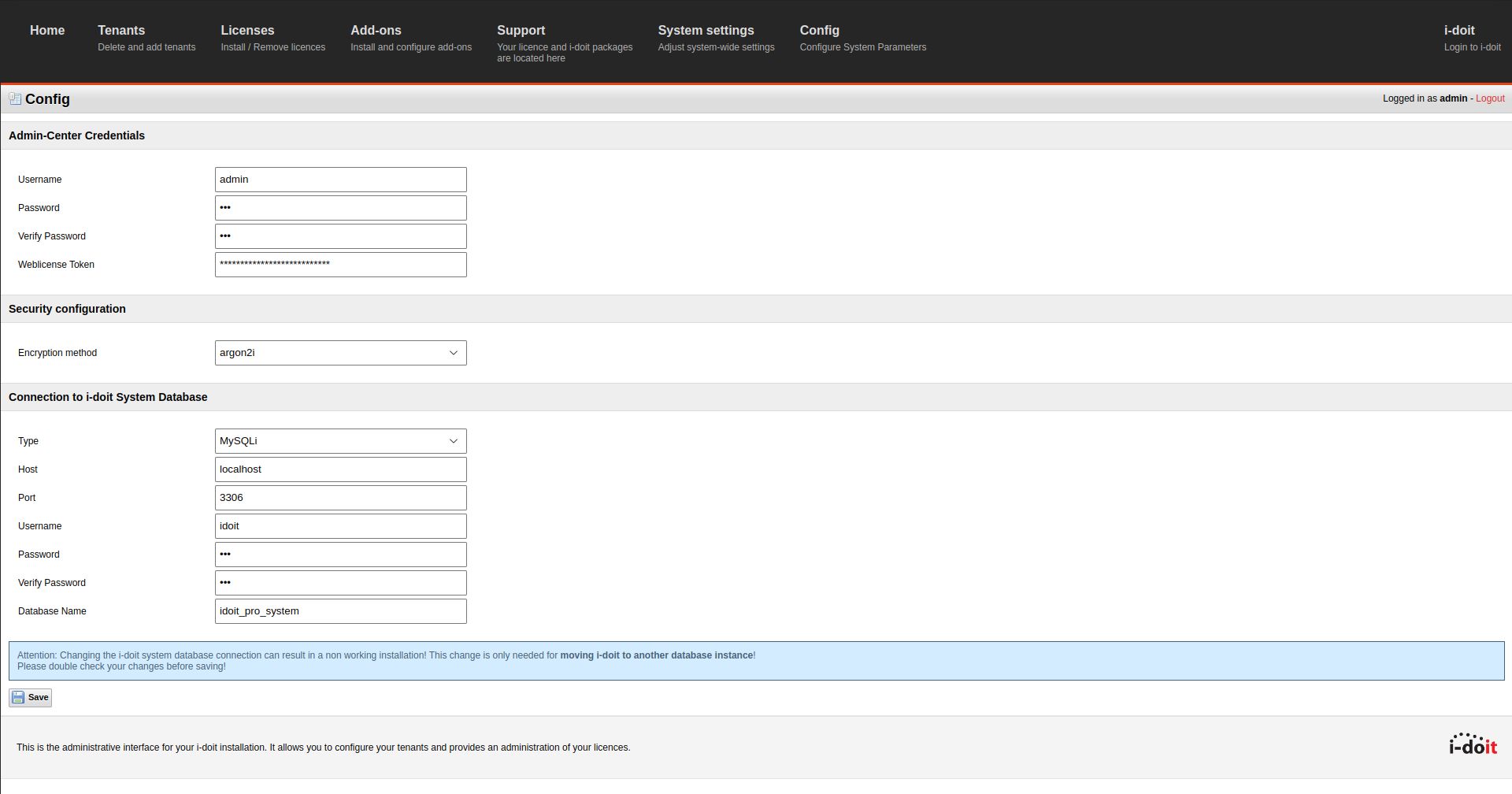
Here you change three basic settings:
- Admin Center Credentials — Change Admin Center credentials
- Security configuration — Select encryption method
- Connection to i-doit System Database — Change database credentials
Emergency access
In an emergency, you can change the database settings directly in the file src/config.inc.php in the installation directory. During an update, i-doit automatically creates a backup of this file.