Edit Data Structure#
With this function, you modify the data structure of your tenant -- i.e., the assignment of object types to groups and of categories to object types.
The configuration is divided into three columns: Object Type Groups, Object Types, and Categories. In each column, every row has a dotted area that you can use to change the order via drag and drop.
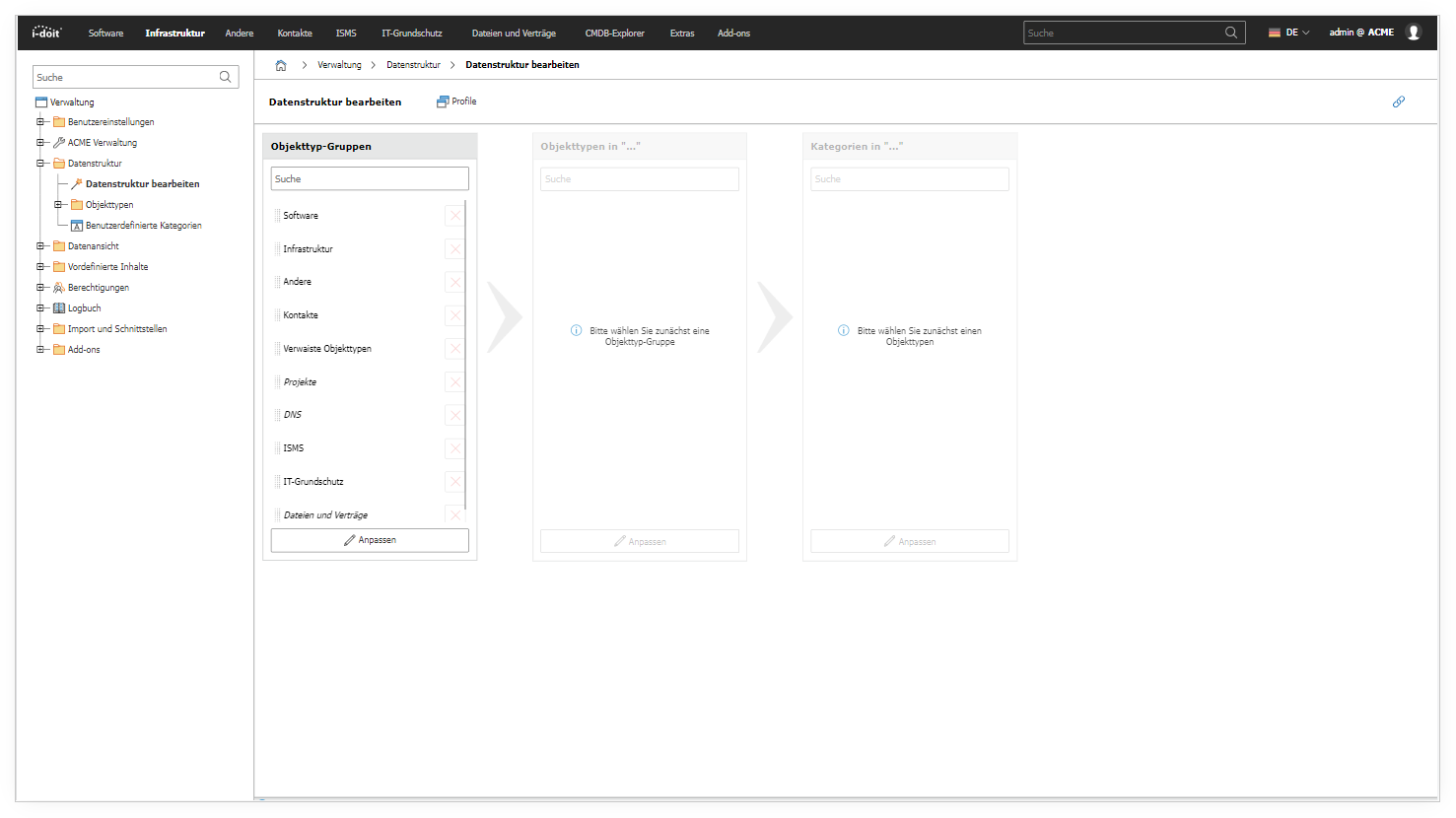
Customizing object groups, object types, and categories#
In all three main fields, you can switch to edit mode by pressing the Customize button. Here you can edit the assignments of the respective object groups, but also create and develop new groups, object types, or categories.
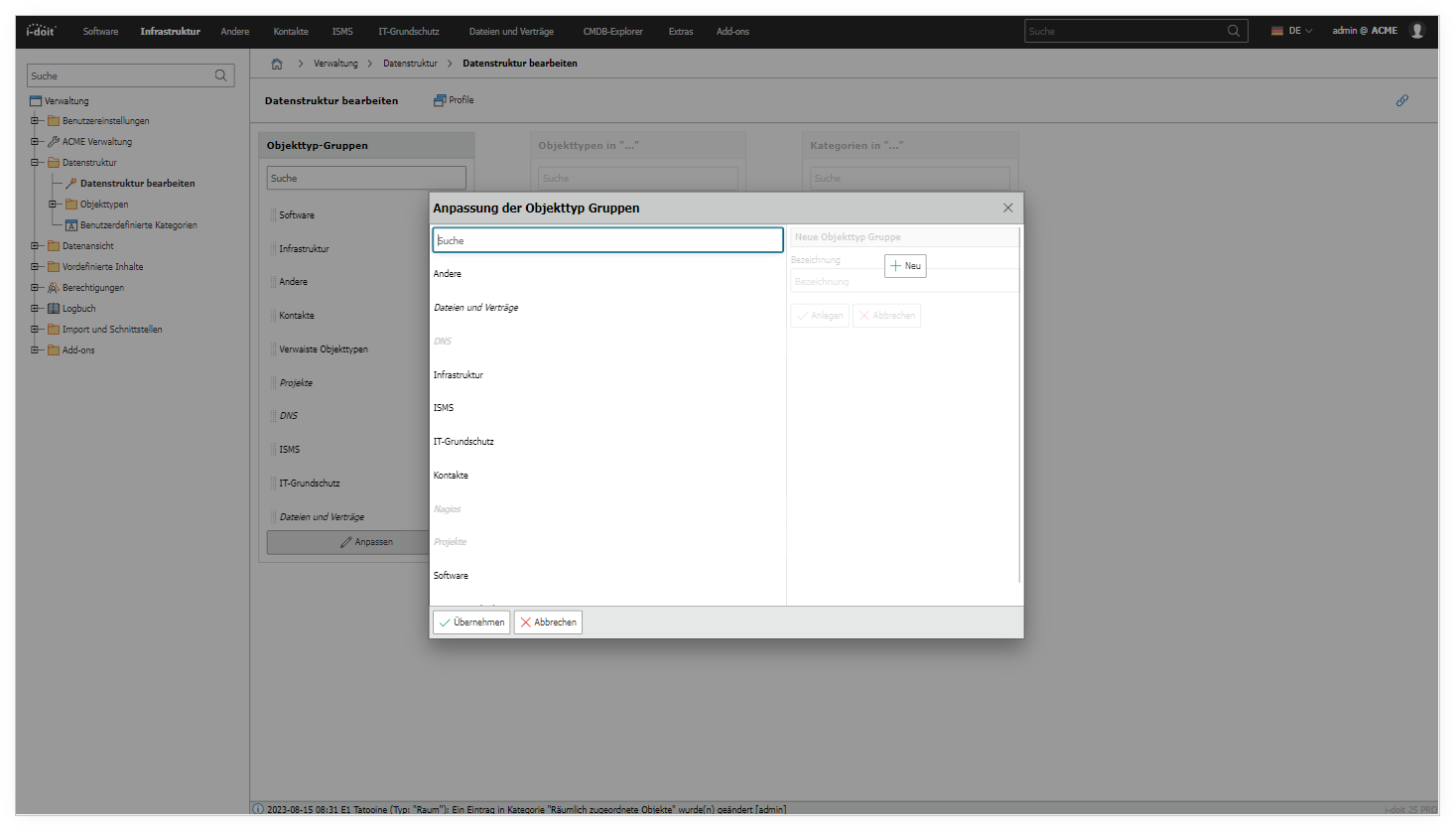
Editing the assignments#
Column 1: Object Type Groups#
Start in the left column. Select the object type group whose object type assignments you want to customize. Click on a group so that the associated object types appear in the middle column.
You can hide unneeded groups via the checkboxes or the Customize button. At the bottom of the column, you can add custom groups. Via the pencil icon, you edit or delete them.
Column 2: Object Types#
The middle column shows the object types of the selected group. Grayed-out object types are already assigned to other groups but can be reassigned.
Here you can also create custom object types. For comprehensive configuration, we recommend the Object Type Configuration.
Column 3: Categories#
Click on an object type in the middle column to activate the right column. Here you see the assigned categories and change the assignments via the checkboxes.
The Create custom categories button takes you directly to the function for creating custom categories.
Editing data structure profiles#
You can save your current configuration as a profile. To do so, enter a name under Save current profile. The profile then appears in the right column.
The following actions are available there:
- Load: Check the checkbox and click Load selected profile(s)
- Download: Export profile as an XML file
- Upload: Import a profile via Choose file
- Delete: Via the red X icon
Profiles are particularly useful for exchanging configuration data between multiple i-doit installations. A profile contains:
- Object type groups with name, order, and additional attributes
- Object types with name, assignments to object type groups, and additional attributes from the object type configuration
- Global, specific, and custom categories assigned to each object type
- Configuration of each custom category assigned to at least one object type
A profile therefore contains the configuration of the IT documentation, but no content. Neither objects, category entries, nor filled dialog fields are saved.
If you want a blank state to make assignments from scratch, you can use the Reset button to reset all assignments.