Attribute Settings#
With attribute settings, you define required fields, set advanced content defaults, and control the visibility of attributes. You can find this function in the Data View.
Attribute visibility#
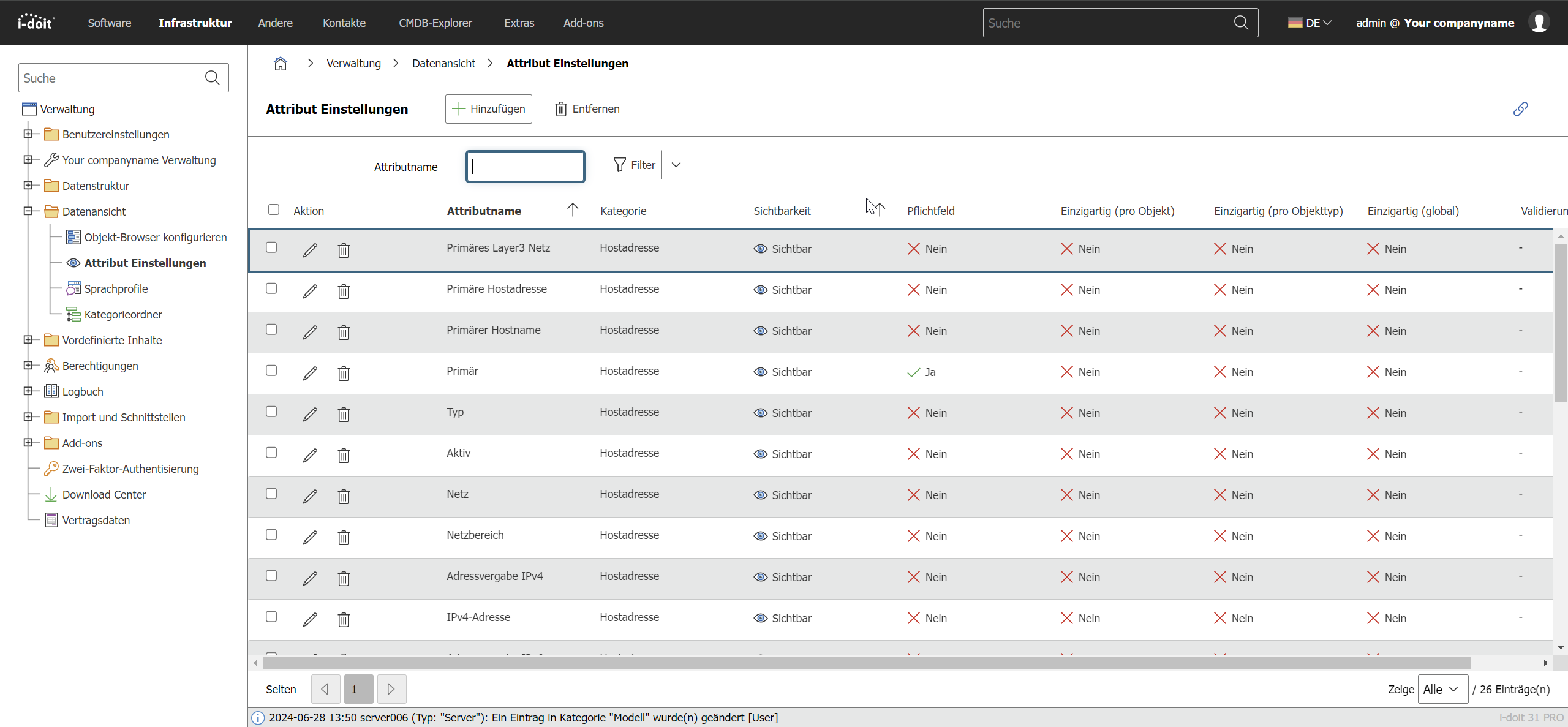
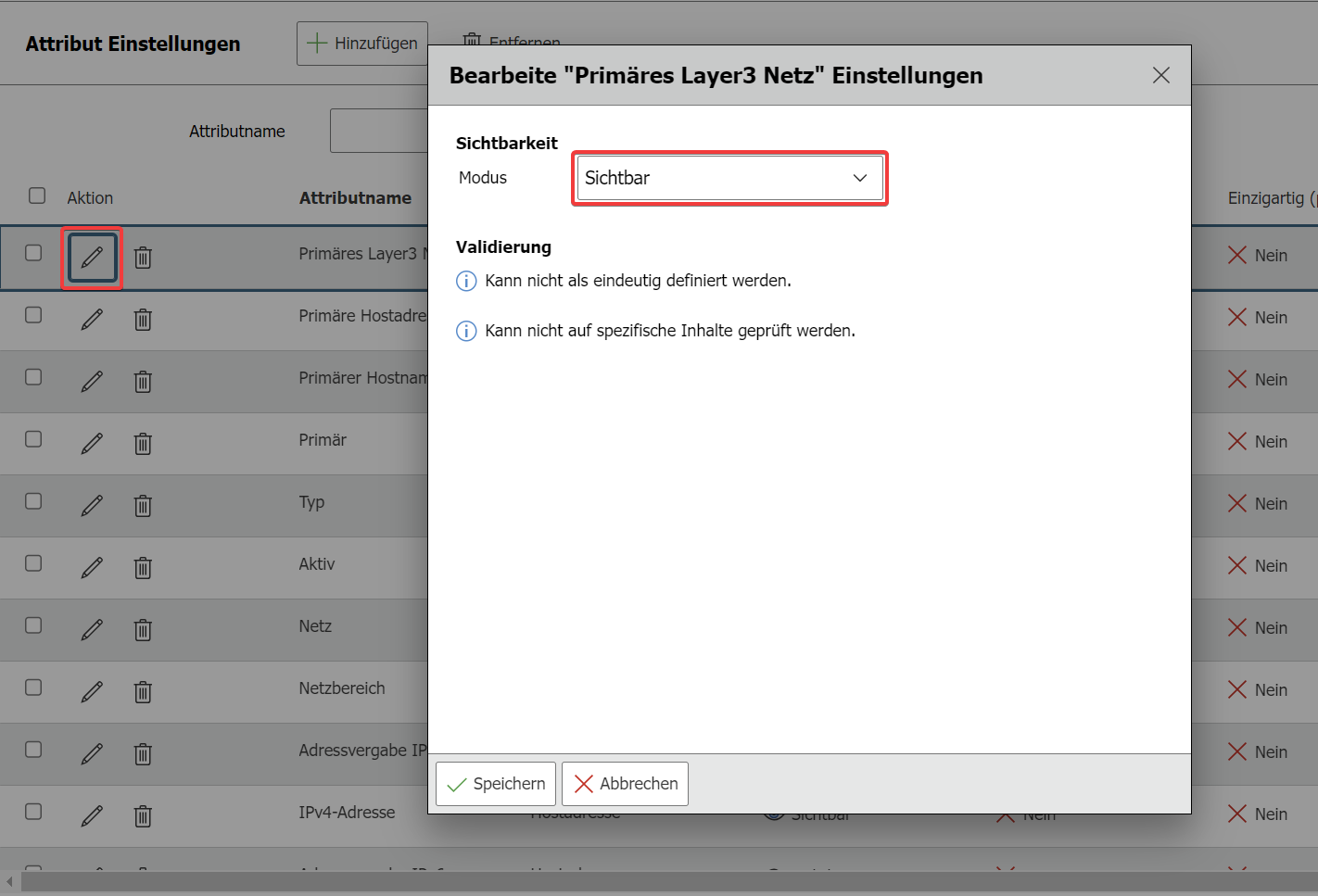
The visibility of attributes can be adjusted in the attribute settings. It is possible to show or hide specific attributes in categories and/or on the overview page of object types. To do this, click Edit next to the respective attribute name and select the desired setting under Visibility.
The configured visibility is applied for all users.
Setting permissions#
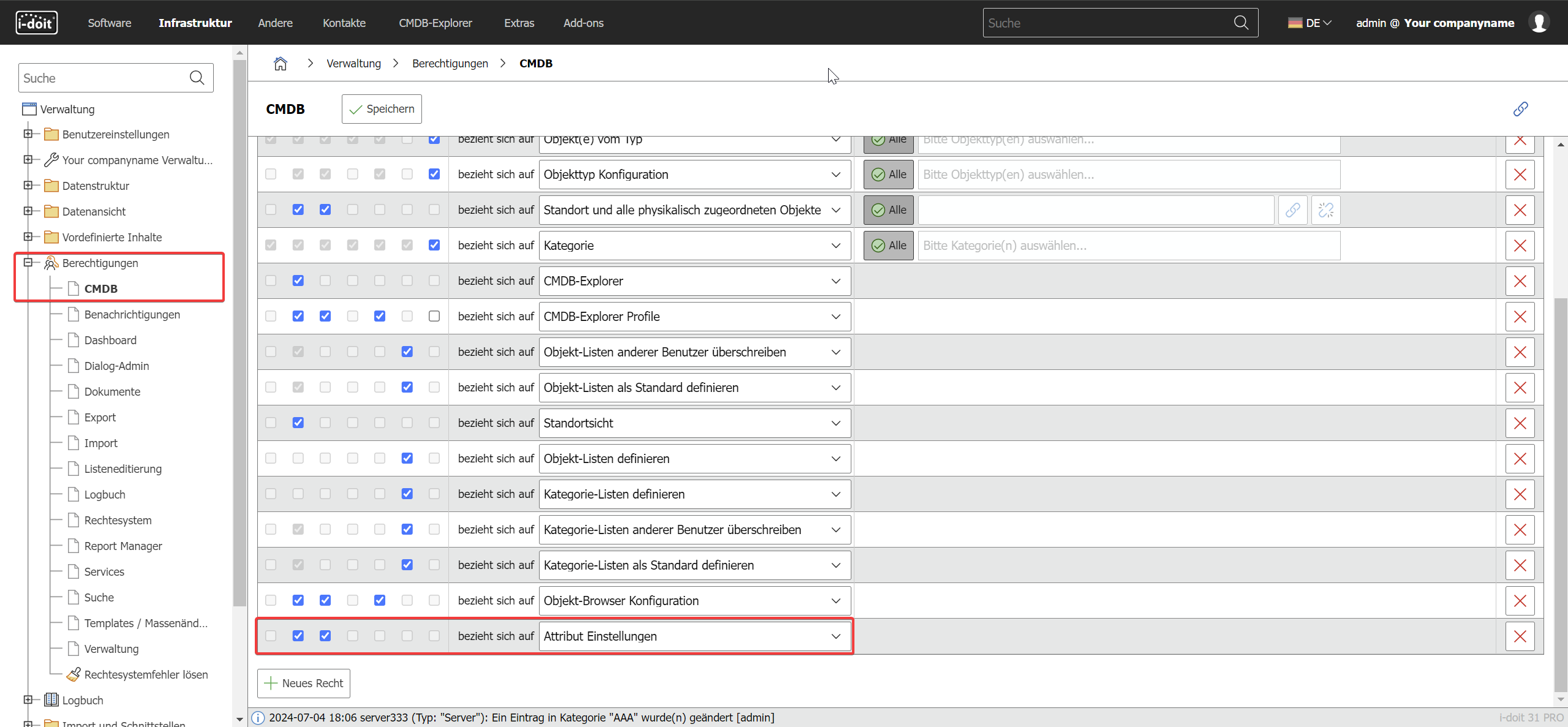
Permissions to view and edit attribute visibility can be assigned per user (group). For example, it is possible and often advisable that only certain user groups can hide attributes.
Usage#
Via the Add button, you select categories (global, specific, or custom). The new category is added as the bottom entry.
Via the pencil icon, you edit the visibility and validation of an attribute. By default, all attributes are visible.
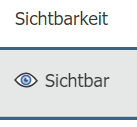
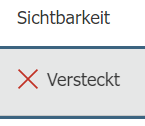
In this state, the visibility on the overview page is labeled Visible. If you set the visibility to Hidden, the display is adjusted accordingly
Object title, Status, and CMDB status cannot be hidden. The corresponding columns display a note "Cannot be hidden".
When an attribute is hidden, it is no longer displayed in the category for all objects (of all object types).
The third option allows you to hide the selected attributes only on overview pages; in the regular categories, these attributes continue to be displayed. This is also labeled accordingly on the overview page:
You remove unwanted entries by selecting them and clicking Remove.