System Repair and Cleanup#
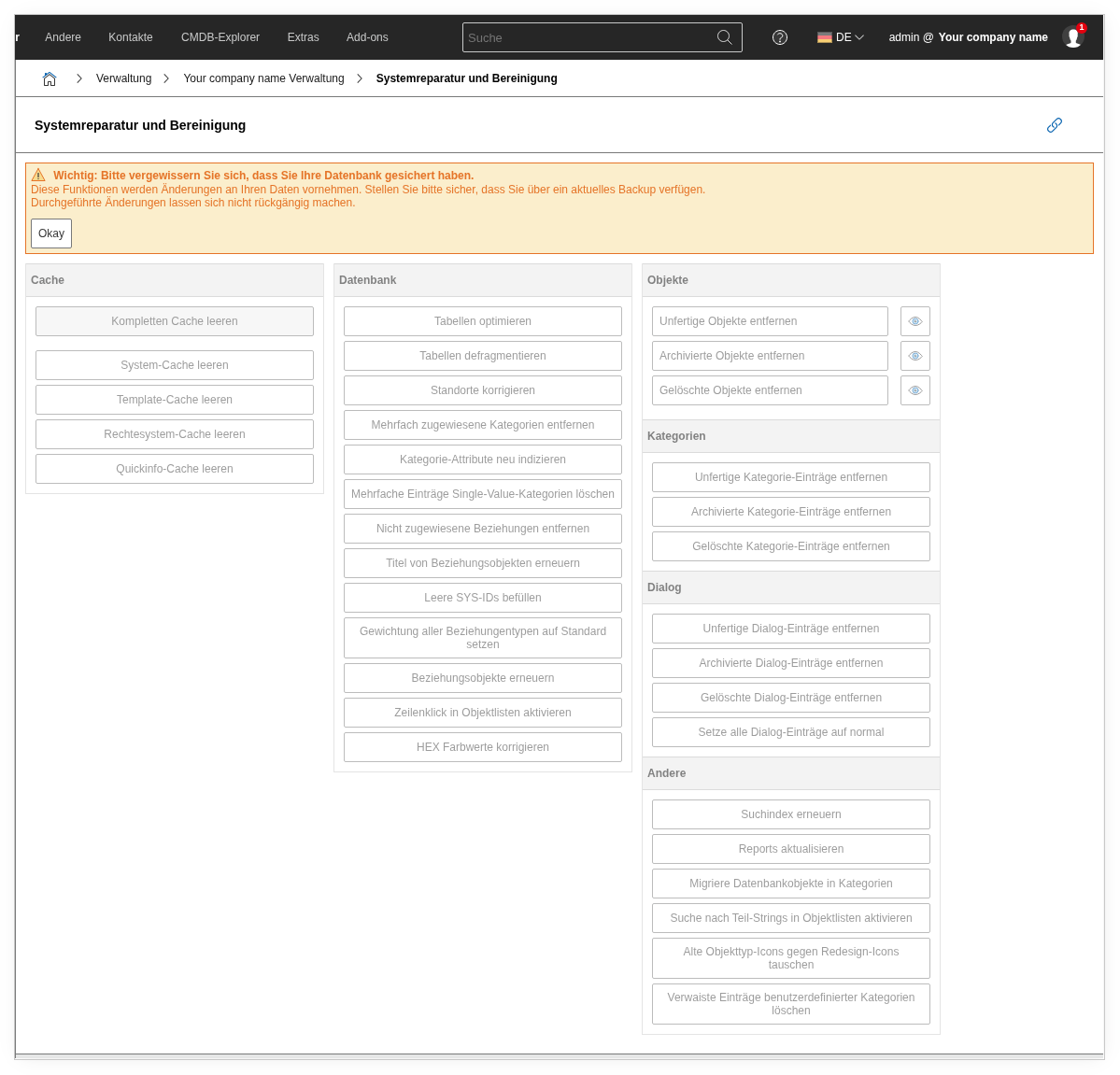
When i-doit behaves strangely — categories are missing, lists show wrong data, search finds nothing — System Repair is the first place to go. You can find the function under Administration → System Repair and Cleanup. Here you have a range of tools at your disposal to clear caches, repair database tables, and remove orphaned entries.
Safe to use
Most repair functions are safe — they do not delete data but rebuild caches and indexes. Functions that actually remove entries (e.g., delete archived objects) are described separately below and marked accordingly.
Do not forget the backup
Create a backup of your database before using these functions. All changes cannot be undone.
Common scenarios#
After an update#
After an i-doit update, it may happen that object lists are no longer displayed correctly or categories are missing. In this case, first clear the complete cache and then execute Re-index category attributes. If object lists still do not match, the setting cmdb.refresh-table-configurations in the Expert Settings also helps.
After deleting many objects#
If you have deleted or archived a large number of objects, fragments remain in the database: orphaned relationships, empty category entries, unassigned dialog values. Use Remove unassigned relationships, Defragment tables, and Optimize tables in sequence to clean up the database and restore performance.
When the search returns no results#
The i-doit search works with its own index. If this is damaged or outdated, the search delivers incomplete or no results. Clear the complete cache and then execute Re-index category attributes. Also check the Troubleshooting section for further measures.
Cache#
Cache functions are completely harmless. They delete temporary data that i-doit automatically regenerates on the next page load.
| Button | What happens | When useful |
|---|---|---|
| Clear complete cache | Removes all cached data — system, template, permission, and quick info cache all at once. | After updates, for unexplained behavior, as the first step in any troubleshooting. |
| Clear system cache | Clears the cache for system configuration and menu structure. | When menu items are missing or the navigation does not match the current state. |
| Clear template cache | Discards cached templates of the user interface. | When forms or views are not updated after a change. |
| Clear permission system cache | Rebuilds the cache of the permission system. | After changing user permissions or roles, when permissions do not take effect. |
| Clear quick info cache | Removes the tooltips that appear when hovering over object links. | When quick infos display outdated or incorrect information. |
| Renew validation cache | Updates the cache that holds the required field rules. | After adjusting validation profiles, when required fields are not checked correctly. |
Database#
These functions work directly on the database tables. They repair structures and indexes without deleting user data.
| Button | What happens | When useful |
|---|---|---|
| Optimize tables | Executes an OPTIMIZE TABLE on all i-doit tables. Frees unused storage and updates table statistics. | Regularly for performance maintenance, especially after deleting many records. |
| Defragment tables | Reorganizes fragmented tables. Similar to optimize, but targeted at physical fragmentation. | When the database has grown over a long period and queries are becoming slower. |
| Correct locations | Checks and repairs the location hierarchy. Ensures that all location assignments are consistent. | When the location browser shows faulty tree structures or objects appear in the wrong place. |
| Remove multiply assigned categories | Removes duplicate assignments of categories to object types. | When a category appears multiple times in an object type. |
| Re-index category attributes | Completely rebuilds the internal indexes for category attributes. | After updates, after import operations, or when search and filters do not deliver the expected results. |
| Delete multiple entries in single-value categories | Single-value categories may only have one entry per object. This function removes excess entries. | When imports or errors have created multiple entries in a single-value category. |
| Remove unassigned relationships | Deletes relationship objects whose source or target object no longer exists. | After deleting many objects, when orphaned relationships are cluttering the overview. |
| Renew titles of relationship objects | Updates the automatically generated titles of all relationship objects based on current object and relationship names. | When relationship objects have outdated or incorrect titles, e.g., after renames. |
| Fill empty SYS-IDs | Generates missing SYS-IDs for objects that do not have one. Every object requires a unique SYS-ID. | After migrations or imports where SYS-IDs were not transferred. |
| Reset weight of all relationship types to default | Resets the weight of all relationship types to the default value. | When custom weights lead to unexpected behavior in relationship evaluation. |
| Renew relationship objects | Recreates missing relationship objects and repairs damaged ones. | When entries are missing in the Relationships category even though links exist. |
| Enable row click in object lists | Enables the function where clicking a row in the object list opens the object. | When row click no longer works after an update or configuration change. |
Export#
| Button | What happens | When useful |
|---|---|---|
| "mysqldump" path | Allows you to specify the path to the mysqldump binary and trigger a database export directly from the interface. You can select the database to export. | When you want to create a quick backup via the web interface without switching to the command line. |
Objects#
Caution: Data loss possible
These functions irrevocably remove objects from the database. Make sure you no longer need the affected objects.
| Button | What happens | When useful |
|---|---|---|
| Remove unfinished objects | Deletes objects with the status Unfinished. These are objects whose creation was aborted and that were never fully created. | Regularly, to clean up the database of incomplete objects. |
| Remove archived objects | Permanently removes all objects with the status Archived from the database. | When you are sure that archived objects do not need to be restored. |
| Remove deleted objects | Permanently removes all objects with the status Deleted (purge). | To free the database of objects already marked as deleted. |
Categories#
Caution: Data loss possible
Category entries are irrevocably removed.
| Button | What happens | When useful |
|---|---|---|
| Remove unfinished category entries | Deletes entries in categories that have the status Unfinished. | When incomplete entries have been created by aborted editing operations. |
| Remove archived category entries | Removes archived entries from all categories. | To free storage space and improve clarity in categories. |
| Remove deleted category entries | Permanently removes entries with the status Deleted. | For final cleanup after tidying up category data. |
Dialog#
| Button | What happens | When useful |
|---|---|---|
| Remove unfinished dialog entries | Deletes dialog entries (dropdown values) with the status Unfinished. | When incomplete dropdown values appear in selection lists. |
| Remove archived dialog entries | Removes archived dialog entries. | When outdated values should no longer burden the dropdown lists. |
| Remove deleted dialog entries | Permanently removes dialog entries marked as deleted. | For final cleanup of dialog fields. |
| Set all dialog entries to normal | Resets the status of all dialog entries to Normal. This also affects archived and deleted entries — they become visible again. | When you have accidentally archived or deleted dialog entries and want to restore them all. |
Other#
| Button | What happens | When useful |
|---|---|---|
| Migrate database objects to categories | Moves data from outdated database structures to the current category structure. | After a major version upgrade, when old data structures need to be migrated. |
| Enable partial string search in object lists | Enables wildcard search in object lists so that partial terms are also found. | When you can only search with exact matches in object lists and need partial terms. |
| Replace old object type icons with redesign icons | Replaces outdated icons with the current redesign icons. | After an update to a version with a new icon set, when old icons are still displayed. |
| Delete exported Check_MK tags | Removes tags that were created for the Checkmk export. | When the Checkmk integration is no longer used or tags need to be re-synchronized. |
| Delete orphaned entries of custom categories | Removes entries in custom categories that are no longer assigned to any object. | After deleting objects, when remnants remain in custom categories. |
Further information#
- In the Expert Settings, you can find the option
cmdb.refresh-table-configurations, which allows you to reset object list configurations — helpful when lists are not displayed correctly after an update. - General help with problems can be found in the Troubleshooting section.