Settings for [Tenant Name]#
Under Administration → [Tenant Name] Administration → Settings, you find all configuration options that affect the currently selected tenant. The settings are grouped into expandable sections that you can control via Expand all and Collapse all.
This page is aimed at i-doit administrators who want to customize the behavior of the CMDB, the interface, the search, or the security mechanisms for their tenant. Changes here affect only the current tenant — system-wide settings (e.g., SMTP, Proxy, login behavior) are configured in the Admin Center. For lower-level configuration with key-value pairs, the Expert Settings are available.
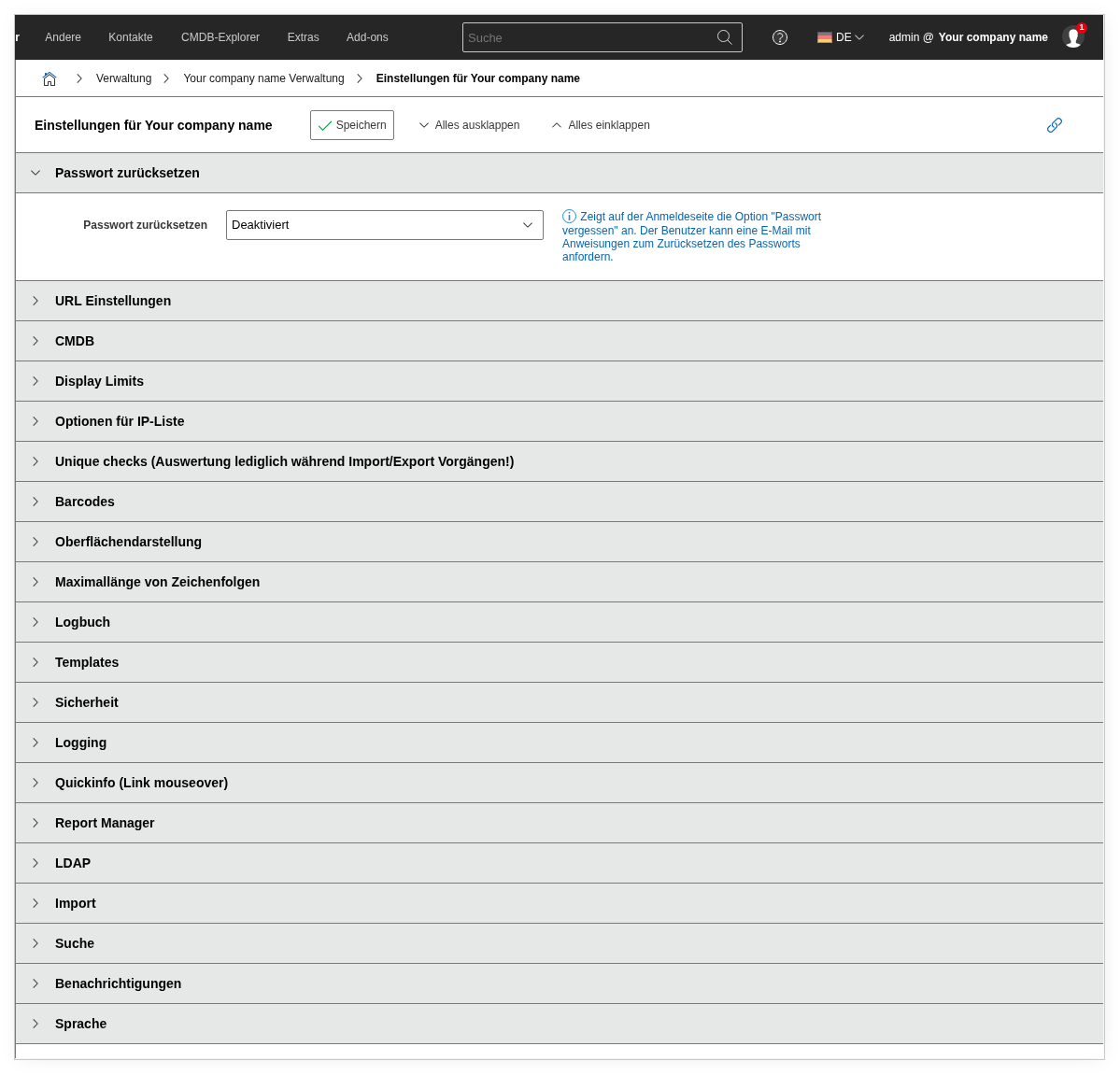
Reset password#
| Option | Value |
|---|---|
| Reset password | Enabled / Disabled |
When this option is enabled, users can reset their password on the login page via a link. i-doit then sends an email with a reset link to the address stored in the user account.
Disable this function if you manage passwords exclusively via LDAP/AD or an external identity management and a self-service reset is not desired.
URL settings#
| Option | Value |
|---|---|
| i-doit address (URL) | URL to the i-doit installation |
Here you enter the base URL under which your i-doit instance is accessible (e.g., https://cmdb.example.com/i-doit). This URL is used for generating links in email notifications, exports, and API responses.
Correct URL is important
If the URL is not set correctly, links in notifications and exported reports will lead nowhere. Make sure that protocol (https://), hostname, and path are specified correctly.
CMDB#
This section contains the most options and controls the basic behavior of the Configuration Management Database.
| Option | Value |
|---|---|
| CSV export delimiter | Comma, Semicolon, Hash, or Tab |
| One-Click-Edit | Yes / No |
| Global SYS-ID prefix | String |
| Allowed file extensions for CMDB category uploads | Comma-separated list or empty |
| Set CMDB status of cables to "In operation" after cabling | Yes / No |
| Set CMDB status of cables to "Out of operation" after uncabling | Yes / No |
| Object type constant for segmentation templates | String |
| Numbering of vertical rack slots | Default / From top left to bottom right, both sides / From top left to bottom right, per side |
| Mirror vertical rack slots on the rear side | Yes / No |
| Enumeration of rack height units | From top / From bottom |
| Resolved segmentation objects… | do not change / archive / purge |
| Detach objects from chassis when relocating | Yes / No |
| Enable interaction between "Logical location" and "Location"? | Yes / No |
| Enable object type filter for workstations? | Yes / No |
| Remove object IDs from CSV export of lists | Yes / No |
| Disable validation for MAC addresses | Yes / No |
| SYS-ID read-only | Yes / No |
| Release IP addresses of an object when deleting or archiving | Yes / No |
| Keep status of imported objects? | Yes / No |
| Prefix for automatic naming of cable objects | Empty or String |
| Enable quick purge button | Yes / No |
| WYSIWYG editor in categories | Yes / No |
| Enable all WYSIWYG editor functions | Yes / No |
| Save my-doit CMDB status selection | Yes / No |
Explanations for selected CMDB options#
CSV export delimiter — Choose the delimiter used for CSV exports from object lists and reports. Semicolon is the default for German-language Excel installations, comma for English-language ones.
One-Click-Edit — When enabled, you can edit attribute values in the list view directly by clicking, without opening the object's detail page. This speeds up maintenance but increases the risk of accidental changes.
Global SYS-ID prefix — Every new object automatically receives a SYS-ID with this prefix (e.g., CMDB-). Only change the prefix if you operate multiple i-doit instances and want to keep the SYS-IDs distinguishable.
Allowed file extensions for CMDB category uploads: Comma-separated list of file extensions that i-doit accepts when files are uploaded to file objects or in the category File assignment. Files with other extensions are rejected. New installations come with the system-wide default list pdf, doc, docx, xls, xlsx, ppt, pptx, odt, ods, odp, txt, csv, rtf, png, jpg, jpeg, gif, bmp, zip. If the field in the tenant is empty, this default list applies. After an update from an earlier version there is no system-wide default list, so an empty field allows all extensions until you fill it.
Automatically set cable status — The two options for the CMDB status of cables ensure that cable objects are automatically set to "In operation" when cabled and to "Out of operation" when uncabled. This saves manual effort in cabling documentation.
Release IP addresses on delete/archive — When enabled, IP addresses of an object are released as soon as it is archived or deleted. This makes the addresses immediately available for other objects. Disable this option if you want to track IP histories without gaps.
Enable quick purge button — Displays a button in the object view that allows objects to be immediately and permanently deleted (purged), bypassing the Archive → Delete → Purge workflow.
Quick purge
The quick purge button irrevocably removes objects from the database. Only enable it if you are sure that users with delete permissions are aware of the consequences.
SYS-ID read-only — Prevents users from manually changing the SYS-ID. Recommended if the SYS-ID is used as a stable identifier in external systems or interfaces.
WYSIWYG editor — Enables a rich-text editor for description fields in categories. With "Enable all WYSIWYG editor functions", additional formatting options such as tables and images are available.
Display Limits#
These settings limit the number of displayed elements in various areas of the interface. Lower values improve loading time; higher values show more information at a glance.
| Option | Value |
|---|---|
| Display limit of linked objects in object browser | Number |
| Display mode of linked objects in object browser | Comma-separated / As list |
| Number of preloaded pages in report lists | Number |
| Display limit for columns in multi-value categories | Number |
| Object browser result limit | Number |
| Display limit VLANs in port lists | Number |
| Display limit Layer-2 networks in port lists | Number |
| Show only default VLAN in port overview | Yes / No |
| Display limit of connected connectors in connector lists | Number |
| Display limit of host addresses | Number |
| Display limit of services in CMDB Explorer popup | Number |
| Limit of location path depth | Number |
| MyDoIt task entries | Number |
Adjust these limits if you notice performance problems in large environments or if users complain that not all relevant entries are displayed. In environments with thousands of VLANs or host addresses, a limit that is too high can significantly worsen loading times.
Options for IP list#
These settings control the behavior of the IP list view within network objects.
| Option | Value |
|---|---|
| Cache period (in seconds) | Number |
| Ping function | Ping via NMAP / Ping via FPING |
| NMAP parameters (for ping) | PE/PP/PM (ICMP) / sP (Ping Scan) / PR (ARP Scan) / sT (TCP Connect Scan) |
Cache period — Specifies how long the ping results are cached. A shorter period provides more current results but generates more server load.
Ping function — Choose between NMAP and FPING as the backend for reachability checks. FPING is generally faster with many hosts; NMAP offers more scan options.
Prerequisite
NMAP or FPING must be installed on the i-doit server and executable by the web server user for the ping function to work correctly.
Unique Checks#
These checks are evaluated exclusively during import/export operations. They prevent duplicate values from being imported into the CMDB.
| Option | Value |
|---|---|
| Object title | Yes / No |
| Layer-2 networks | Yes / No |
| IP addresses | Yes / No |
| Hostname | Yes / No |
Enable these checks if you regularly import data from external sources (e.g., JDisc, CSV, API) and want to ensure that no duplicates are created. Note that the check only applies during import — existing duplicates in the CMDB are not cleaned up by this.
Barcodes#
| Option | Value |
|---|---|
| Display barcodes in i-doit | Yes / No |
| Barcode format | QR Code / Code39 |
When enabled, i-doit displays a barcode in the object view that encodes the object ID or SYS-ID. QR codes are suitable for mobile scanner apps; Code39 for classic barcode handheld scanners. Useful for inventory processes and the physical assignment of assets.
Interface display#
These options affect how information is displayed in the user interface.
| Option | Value |
|---|---|
| Display empty values as | String (e.g., - or N/A) |
| String for separation of locations | String (e.g., >) |
| Orientation of the location path | Left-aligned (default) / Right-aligned |
| String for separation of connectors | String |
| Drag 'n' drop of objects | Yes / No |
| Object type sorting | Alphabetical / Manual |
Display empty values as — Determines which placeholder is displayed when an attribute has no value. A hyphen (-) is common; an empty string can reduce readability.
Location separators — The separator string is inserted between the individual levels of the location path (e.g., Building A > Room 101 > Rack 3). Adapt it to the reading habits of your users.
Drag 'n' drop — Allows moving objects via drag & drop in location and object lists. Disable it if users accidentally move objects.
Object type sorting — "Alphabetical" sorts the object type groups and types in the navigation automatically. "Manual" allows a custom order via the object type configuration. New installations use "Alphabetical" by default. Existing installations keep their previous setting after an update.
Maximum length of strings#
| Option | Value |
|---|---|
| Dialog-Plus | Number |
| Object title in location path | Number |
| Complete location path | Number |
Specifies after how many characters texts are truncated in the interface. Increase the values if long object names or deep location hierarchies are not fully displayed. Values that are too high can disrupt the layout of the interface.
Logbook#
| Option | Value |
|---|---|
| Log detailed CMDB changes | Yes / No |
| Disable "Change comment" | Yes / No |
| Completely delete logbook entries for purged objects | Yes / No |
Log detailed changes — When enabled, the logbook stores the old and new value of an attribute with every change. This enables complete traceability but increases the database size over time.
Disable change comment — Removes the comment field that appears when saving changes. Enable this option if users find the comment requirement disruptive; disable it if you want to enforce a justification requirement for changes.
Delete logbook entries for purged objects — When an object is purged, the associated logbook entries are also removed. This saves storage space but reduces audit traceability.
Compliance requirements
If you are subject to regulatory requirements (e.g., ISO 27001, BSI IT-Grundschutz), you should keep detailed logging enabled and not automatically delete logbook entries.
Templates#
| Option | Value |
|---|---|
| Show template filter in object lists | Yes / No |
| Highlight template links/references with color | Yes / No |
| In the following color | Color picker / Hex value |
Templates allow you to create objects with predefined attribute values. When the template filter is active, users can filter by templates in the object lists. The color highlighting emphasizes attributes that were adopted from a template, helping to distinguish between manually maintained and pre-filled values.
Security#
| Option | Value |
|---|---|
| Permission system | Active / Inactive |
| Minimum length of user password | Number |
| Passwords in plain text | Yes / No |
| Information about last login | Active / Inactive |
| Last login information | Yes / No |
| Sanitize input data | Yes / No |
| Allowed URL schemes | Comma-separated list |
Do not disable the permission system carelessly
If you disable the permission system, all authenticated users have full access to all objects, categories, and administration functions of the tenant. Only disable the permission system for testing purposes or in single-user installations.
Minimum length of user password — Sets the minimum number of characters for local user passwords. A value of at least 10 is recommended. This setting does not apply to LDAP/SSO users, whose password policies are managed externally.
Passwords in plain text — When enabled, passwords in the "Passwords" category are displayed in plain text instead of being masked. Disable this option in environments where shoulder surfing is a risk.
Passwords in plain text
This option affects the display in the "Passwords" category. Even when disabled, passwords are stored in the database — this option only controls visibility on the interface.
Sanitize input data — Filters markup that can execute code in the browser (for example <script> elements, event handler attributes such as onclick, <iframe> elements, and javascript: links) out of attribute contents when they are displayed. The filter applies to the output, not to the stored data: what you save is written to the database unchanged. The option also reduces the toolbar of the HTML editor, which is why links, fonts, and colors are missing there by default. Keep this option enabled unless you have a specific reason to output unfiltered HTML.
Allowed URL schemes: Comma-separated list of URL schemes that are allowed in link fields, for example in the categories File assignment and Access. Links with another scheme, such as javascript:, cannot be saved and are not displayed as clickable links. URLs without a scheme automatically get http:// prepended. The default is http, https, ftp, ftps, mailto, tel, both for new installations and after an update.
Logging#
| Option | Value |
|---|---|
| Permission system log | Yes / No |
| Exception log | Yes / No |
| CMDB Import | Yes / No |
These options enable additional log files on the server. Enable them for troubleshooting or for monitoring security-relevant processes:
- Permission system log — Logs when and why access requests were denied. Helpful when debugging permission configurations.
- Exception log — Writes technical error messages to a log file. Important for analyzing application errors.
- CMDB Import — Logs import operations (CSV, JDisc, API). Enable it when you want to trace import problems.
Quick info (Link Mouseover)#
| Option | Value |
|---|---|
| Cache duration | Minute / Hour / Day |
| Rows per category | Number |
The quick info shows a preview with the most important attributes when hovering over an object link. The cache duration determines how long this preview is cached. Shorter intervals provide more up-to-date data; longer intervals reduce server load.
LDAP#
| Option | Value |
|---|---|
| Default LDAP group | Comma-separated list of person group IDs |
| LDAP Config | JSON string |
| Salutation Mr | Comma-separated list with mapped values for the LDAP salutation attribute |
| Salutation Ms | Comma-separated list with mapped values for the LDAP salutation attribute |
Default LDAP group — New users who log in via LDAP for the first time are automatically assigned to the person groups specified here. Enter the i-doit object IDs of the desired groups (e.g., 15,42).
LDAP Config — Advanced LDAP configuration as a JSON string. Only use this option if the standard LDAP configuration under Administration is not sufficient.
Salutation mapping — LDAP directories use different values for gender (e.g., male, m, 1). Here you enter the mapping to the i-doit salutation fields.
Report Manager#
| Option | Value |
|---|---|
| Default filter | ID / Title / Category / Created with query editor / Variable report / Description |
Specifies which filter is preselected when opening the Report Manager. Choose the filter that corresponds to the most common use case of your users.
Import#
| Option | Value |
|---|---|
| Abort process on validation errors? | Yes / No |
| Only clear affected attributes on validation errors? | Yes / No |
| Can CSV import override the object type? | Yes / No |
| Number of rows per import batch | Number |
Abort on validation errors — When enabled, the entire import is aborted as soon as an invalid record is detected. Disable this option if you prefer to skip faulty rows and import the rest.
Clear affected attributes — On a validation error, only the faulty attributes are cleared; the rest of the record is imported normally. Useful when you do not want to lose partially correct data.
Override object type — Allows the CSV import to change the object type of an existing object. Be careful here — an incorrect object type can change category assignments and permissions.
Rows per import batch — Determines how many rows are processed per database transaction. Higher values speed up the import but can cause memory problems with very large data sets.
Search#
| Option | Value |
|---|---|
| Default search mode | Normal / Deep Search |
| Use fuzzy search | Yes / No |
| Automatic DeepSearch | Active / Active when no results are found / Disabled |
| Highlight search string | Yes / No |
| Minimum search word length | Number |
| Include archived/deleted objects in search | Yes / No |
| Include location paths in search | Yes / No |
Default search mode — "Normal" searches the search index and delivers fast results. "Deep Search" additionally searches the database directly and also finds attributes that are not in the index — but takes significantly longer.
Fuzzy search — Also finds matches that are similar to the search term (e.g., typos). Can make the result list unwieldy in large databases.
Automatic DeepSearch — The option "Active when no results are found" is a good compromise: the fast normal search is executed first, and only if it returns no hits is a deep search automatically triggered.
Minimum search word length — Search terms with fewer characters than the configured value are ignored. Prevents single-character searches from burdening the database and returning an unusable number of results.
JDisc#
| Option | Value |
|---|---|
| Threshold | Number |
| Threshold unit | Days / Weeks / Months |
| Maximum length of import pause | Time in minutes |
| Behavior of paused import | Abort / Continue |
The threshold determines the maximum age of JDisc data for import. Devices whose last scan timestamp is older than the threshold are skipped. This prevents outdated information from being written to the CMDB.
Import pause — During large JDisc imports, the process can be temporarily paused (e.g., due to server load). The maximum length of the import pause specifies after how many minutes a paused import is automatically aborted or continued.
Language#
| Option | Value |
|---|---|
| Default language for new users | German / English |
Specifies the language that is assigned to new user accounts by default. Each user can change the language later in their personal settings.
Notifications#
| Option | Value |
|---|---|
| Skip expired licenses | Yes / No |
| Only notify on exact threshold match | Yes / No |
Skip expired licenses — When enabled, no notifications are triggered for already expired licenses. Useful if you are only interested in upcoming expirations and do not want to be repeatedly notified about long-expired licenses.
Exact threshold match — Sends the notification only on the exact day of the threshold (e.g., exactly 30 days before expiration) instead of on every day within the threshold period. Reduces the number of notifications but carries the risk that the message is lost if the notification service is down on that exact day.
Installed Add-on related settings#
When add-ons are installed, additional settings appear here. Availability depends on the installed add-ons.
| Option | Value |
|---|---|
| ISMS Filter report views by location permissions | Yes / No |
| ISMS Show risk indicator | Yes / No |
| ISMS Show risk title | Yes / No |
| Documents Comment on revisions | Yes / No |
| Documents Cache generated documents | Yes / No |
| Maintenance Extract email addresses from | Resolve contact groups and notify members individually / Use email addresses of selected contacts without resolution |
| Events Base64 Decode Event parameters | Yes / No |
| Check_MK Tags may only consist of letters, numbers, hyphens, and underscores during export | Yes / No |
| Workflows Hide checklists in the my-doit area | Yes / No |
| IT-Grundschutz URL prefix for IT-Grundschutz compendium | URL |
| IT-Grundschutz Upload directory for IT-Grundschutz compendium | Directory path |
| CI Relocation After a physical relocation, the logical location should be removed | Yes / No |
| CI Relocation After a logical relocation, the physical location should be updated | Yes / No |
| CI Relocation Write logbook entries to all positioned objects of a relocated object | Yes / No |
| Forms Add-on Forms Server | URL |
| Forms Add-on Username | String |
| Forms Add-on API Key | String |
Add-on documentation
Details on the individual add-on settings can be found in the respective add-on documentation, which is linked in the table.
Further information#
- Expert Settings — Key-value-based configuration for advanced settings that are not available on this page.
- Admin Center — System-wide settings that affect all tenants (e.g., Login, Proxy, SMTP, system security).