Multi-Tenancy#
What is multi-tenancy?#
Multi-tenancy means that you can run multiple completely separate IT documentations with a single i-doit installation. Each tenant operates in its own isolated data set — as if it were a separate i-doit instance, but without the effort of maintaining multiple installations.
Typical reasons for using tenants:
- Organizational separation: Subsidiaries, locations, or departments should each maintain their own independent IT documentation without data being mixed.
- Customer separation for service providers: System integrators or managed service providers document their customers' IT in dedicated tenants — cleanly separated and individually transferable if needed.
- Staging environments: You run a test or development tenant alongside the production tenant to safely try out changes to categories, templates, or workflows before deploying them to production.
Licensing
A special license is required to operate multiple tenants with a single installation. Further information is available upon request.
Technical architecture#
i-doit implements multi-tenancy through strict database separation:
- One installation, multiple databases: Each tenant gets its own MySQL/MariaDB database (e.g.,
idoit_data,idoit_data_kunde_b,idoit_data_test). This contains all objects, categories, relationships, reports, and tenant-specific settings. - Shared system database: In addition, there is a cross-tenant system database (
idoit_system) that contains, among other things, the tenant list itself, global settings, and add-on registrations. - Shared codebase: All tenants share the same PHP codebase and the same web server. Therefore, you only need to install updates and patches once.
This architecture technically prevents any accidental data exchange between tenants. There are no cross-tenant queries, reports, or object links.
Multi-tenancy vs. permission management#
Not every form of data separation requires its own tenant. Before creating a new tenant, check whether the permission management within a tenant is sufficient:
| Criterion | Permission management within a tenant | Separate tenant |
|---|---|---|
| Restrict visibility of individual objects | Yes — via object permissions and person groups | Not necessary |
| Restrict categories per user group | Yes — via category permissions | Not necessary |
| Completely separate object inventories without any overlap | Difficult and error-prone | Recommended |
| Separate object type configuration per area | No | Yes |
| Separate CMDB structures (e.g., different lifecycles, workflows) | No | Yes |
| Data must be transferable to an external third party | Only with manual export | Yes — database can be backed up individually |
Rule of thumb: If two areas simply should not see each other, permission management is sufficient. If they require completely independent configurations, object types, or category definitions, use separate tenants.
Creating and managing tenants#
You manage tenants in the Admin Center under the Tenants tab. All created tenants are listed there.
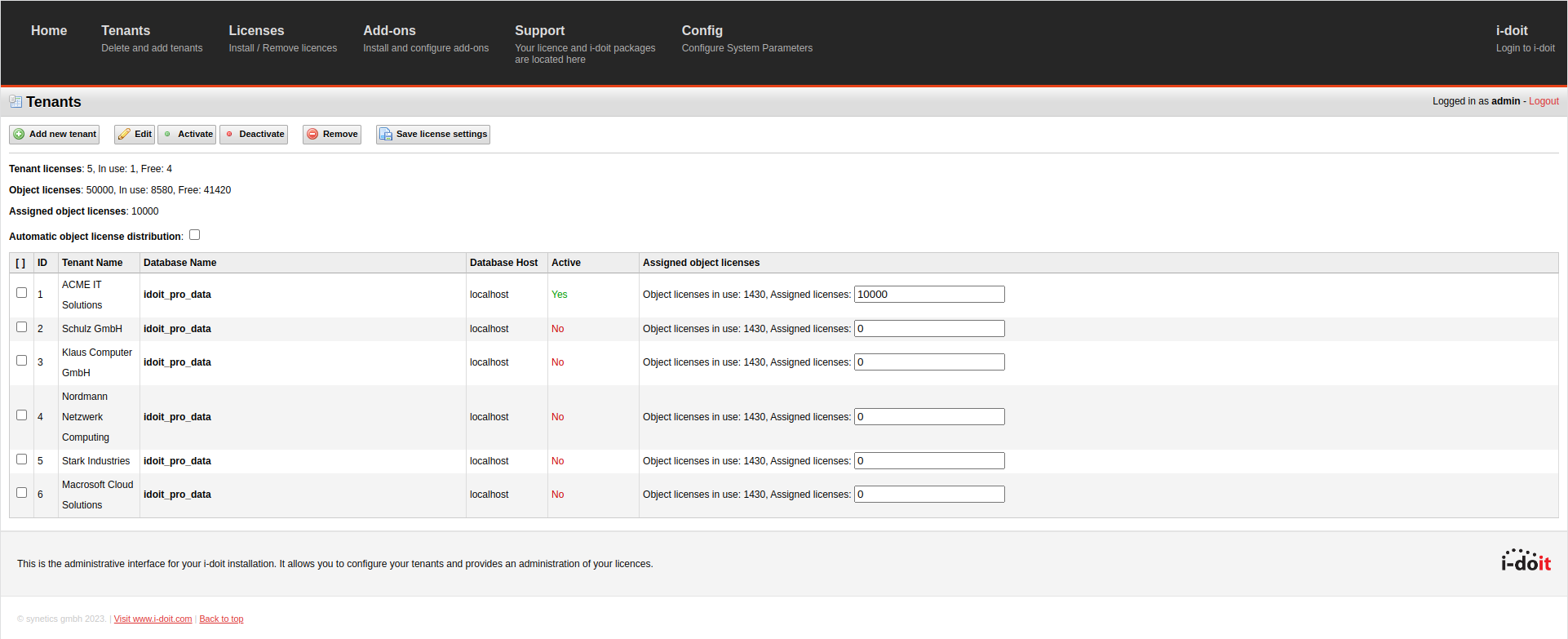
Above the list, the following actions are available:
- Add new tenant: Create a new tenant. i-doit automatically creates a new database.
- Edit: Configure an existing tenant (name, database, cache directory).
- Activate / Deactivate: Enable or disable tenants without deleting them. Deactivated tenants no longer appear at login.
- Remove: Irrevocably delete a tenant — including its database. Can only be restored from a backup.
- Save license settings: Save the distribution of license objects across tenants.
To configure a tenant, select it via the checkbox. To (de)activate or delete, you can also select multiple tenants at once.
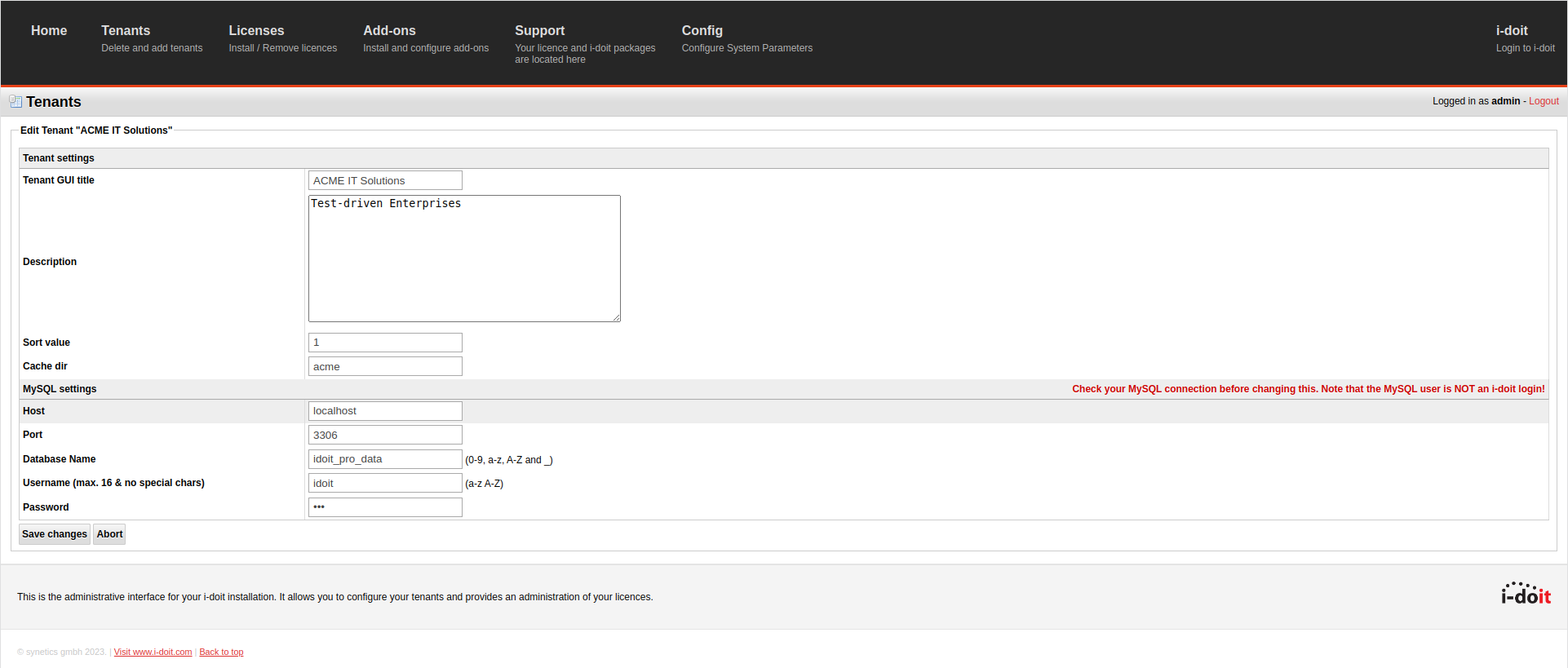
For each tenant, you specify the following properties:
- Tenant GUI title: Name of the tenant — displayed at login and in the main navigation, among other places.
- Description: Free-text description (purely informational, has no functional effect).
- Sort value: Sort order as an integer. The lower the value, the higher the tenant appears.
- Cache dir: Dedicated cache directory below
temp/in the installation directory. i-doit creates it automatically. - MySQL settings: Database name, host, user, and password. It is recommended to name the database with the prefix
idoit_. After installation, the first tenant is namedidoit_databy default.
Object limit per tenant#
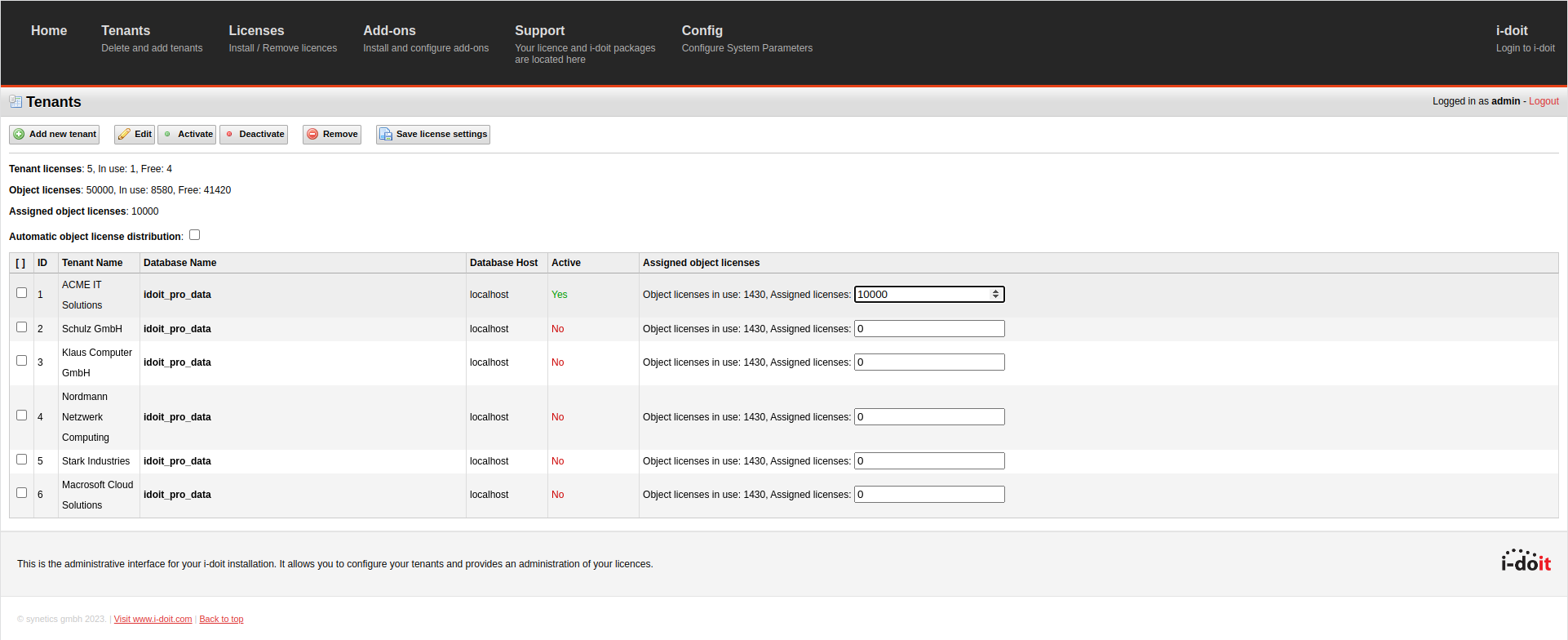
You can specify the maximum number of licensable objects a tenant may contain. You configure this in the Admin Center under Tenants via the Assigned object licenses parameter (integer). This allows you to deliberately distribute your license volume across individual tenants.
What is shared, what is separate?#
| Aspect | Shared (installation-wide) | Separate (per tenant) |
|---|---|---|
| PHP code and web server | Yes | — |
| System database | Yes | — |
| Add-on files | Yes (one installation) | Activation controllable per tenant |
| Admin Center access | Yes (one password) | — |
| Tenant database | — | Yes — own DB per tenant |
| Objects, categories, relationships | — | Yes |
| Object type configuration | — | Yes |
| Reports and dashboards | — | Yes |
| Users and permissions | — | Yes — own person objects |
| LDAP/SSO configuration | — | Configurable per tenant |
| Tenant-specific settings | — | Yes — see Settings |
Add-ons per tenant#
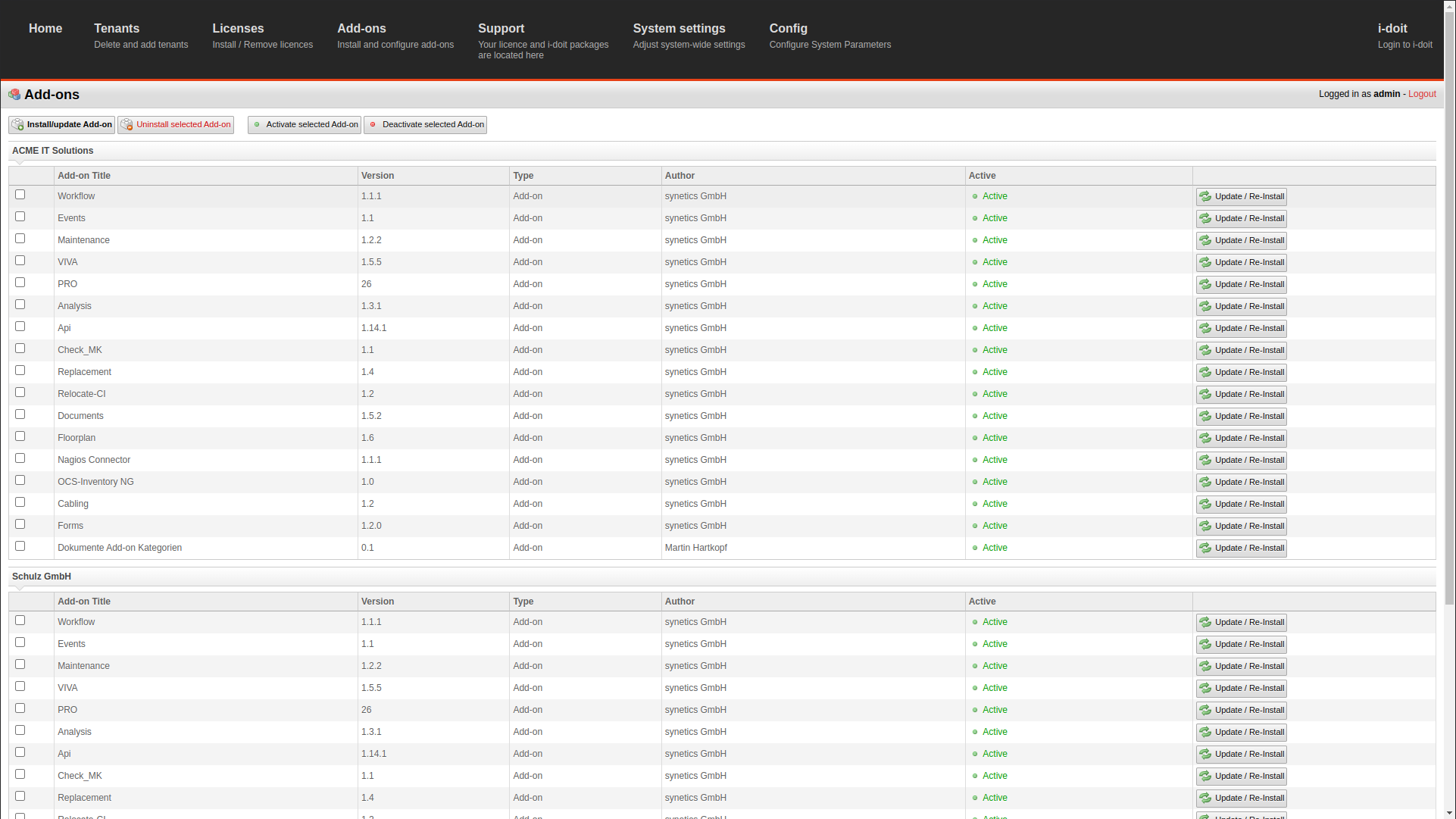
You install add-on files once via the Admin Center. During installation and updates, you choose whether the action should apply to a single tenant or all tenants.
In the Admin Center under Modules, you can see all installed add-ons per tenant and selectively (de)activate them. Deleting add-on files always applies installation-wide across all tenants.
Updating i-doit
During the i-doit update, you are asked which tenant databases should be updated. By default, all are selected. It is strongly recommended to always include all tenant databases in the update. Exceptions apply only in well-justified special cases — for example, on instruction from support.
User management#
You configure user management per tenant. Person objects with login data can differ by tenant — a user can be an administrator in tenant A and not exist at all in tenant B.
If multiple tenants are activated, i-doit asks at login which tenant you want to log into. However, this only happens if your credentials are identical across multiple tenants. Otherwise, i-doit automatically selects the tenant for which the credentials are valid.
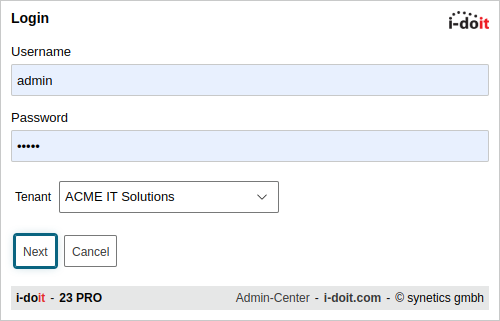
If you connect an LDAP directory or Active Directory, i-doit queries the configured servers sequentially during login and then determines for which tenants the credentials are valid.
With active Single Sign On (SSO), you can set a default tenant in the Admin Center. i-doit then automatically connects the user to this tenant without requiring a selection.
Switching tenants#
You can switch between tenants without logging out first.
In the upper main navigation bar, you can see which user is logged into which tenant. Hover over the tenant name — a drop-down menu appears with the other available tenants. One click switches you directly there.
This only works if your credentials are identical across the respective tenants.

Related topics#
- Admin Center — cross-tenant management, licenses, add-ons
- Settings — tenant-specific configuration
- Backup and Restore — backup strategies for multiple tenants