Task Scheduling & Cron Jobs#
Task Scheduling on Windows#
Via Windows Task Scheduling, you automate recurring i-doit tasks such as logbook archiving, search index updates, or notification delivery.
Prerequisites#
This example assumes an i-doit instance that was set up with the i-doit Windows Installer.
If you installed i-doit via XAMPP, adjust the paths for console.php and php.exe in the batch file.
Creating a Batch File#
- Open a text editor and create a new file.
- Save it as "i-doit-jobs.bat".
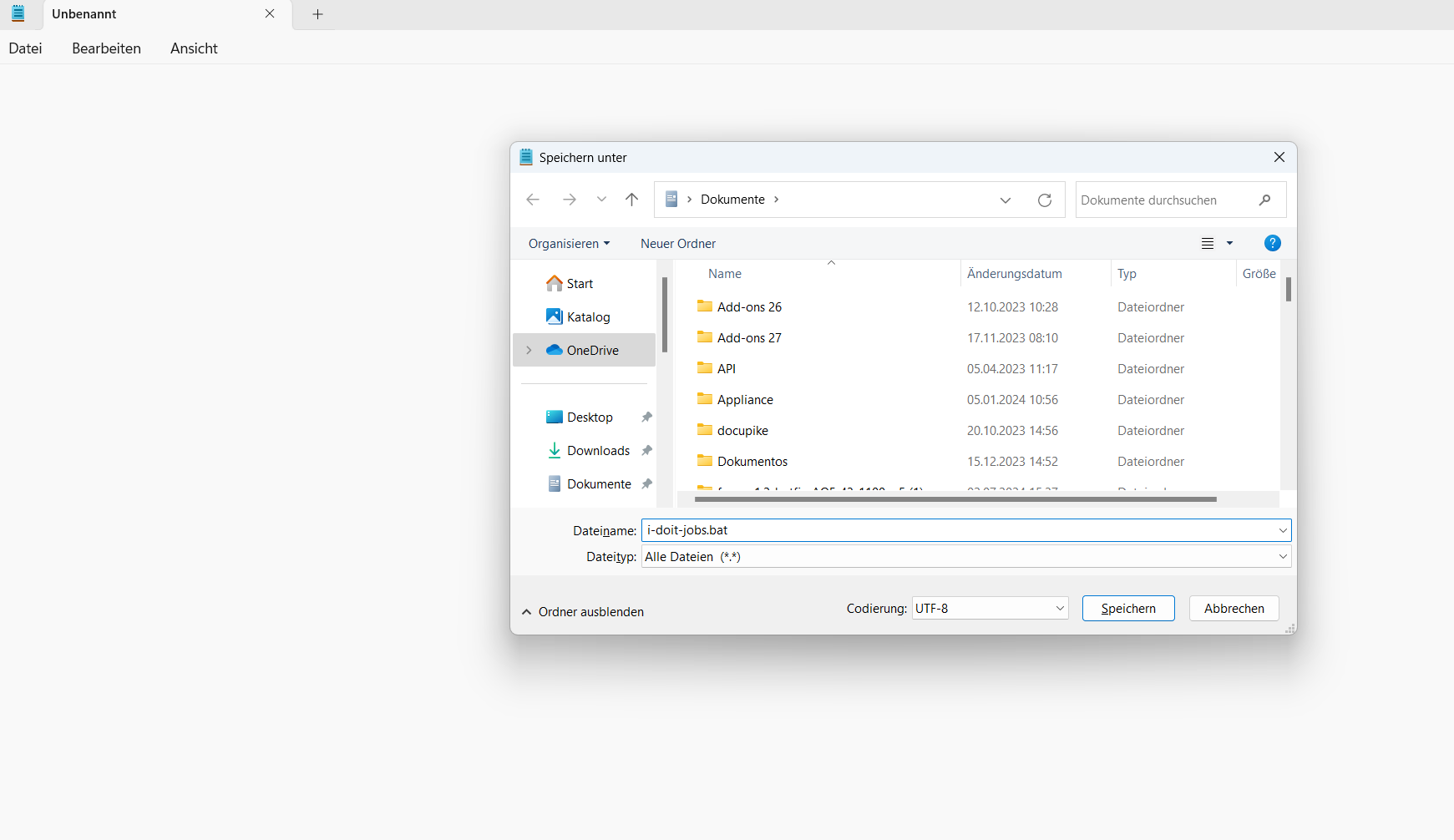
Fill the file with commands from the i-doit console utility. Example content:
1 2 3 4 5 6 7 8 9 10 11 12 13 14 15 | |
The username, password, and TenantID may need to be adjusted
Automating JDisc Import and LDAP Sync#
If you also want to automate the JDisc import or LDAP sync, add the corresponding commands in the same format to the batch file.
Setting Up Task Scheduling#
For the batch file to run automatically, create a scheduled task:
- Open Task Scheduler via the Windows search.
- Create a "Basic Task" under the Actions tab:
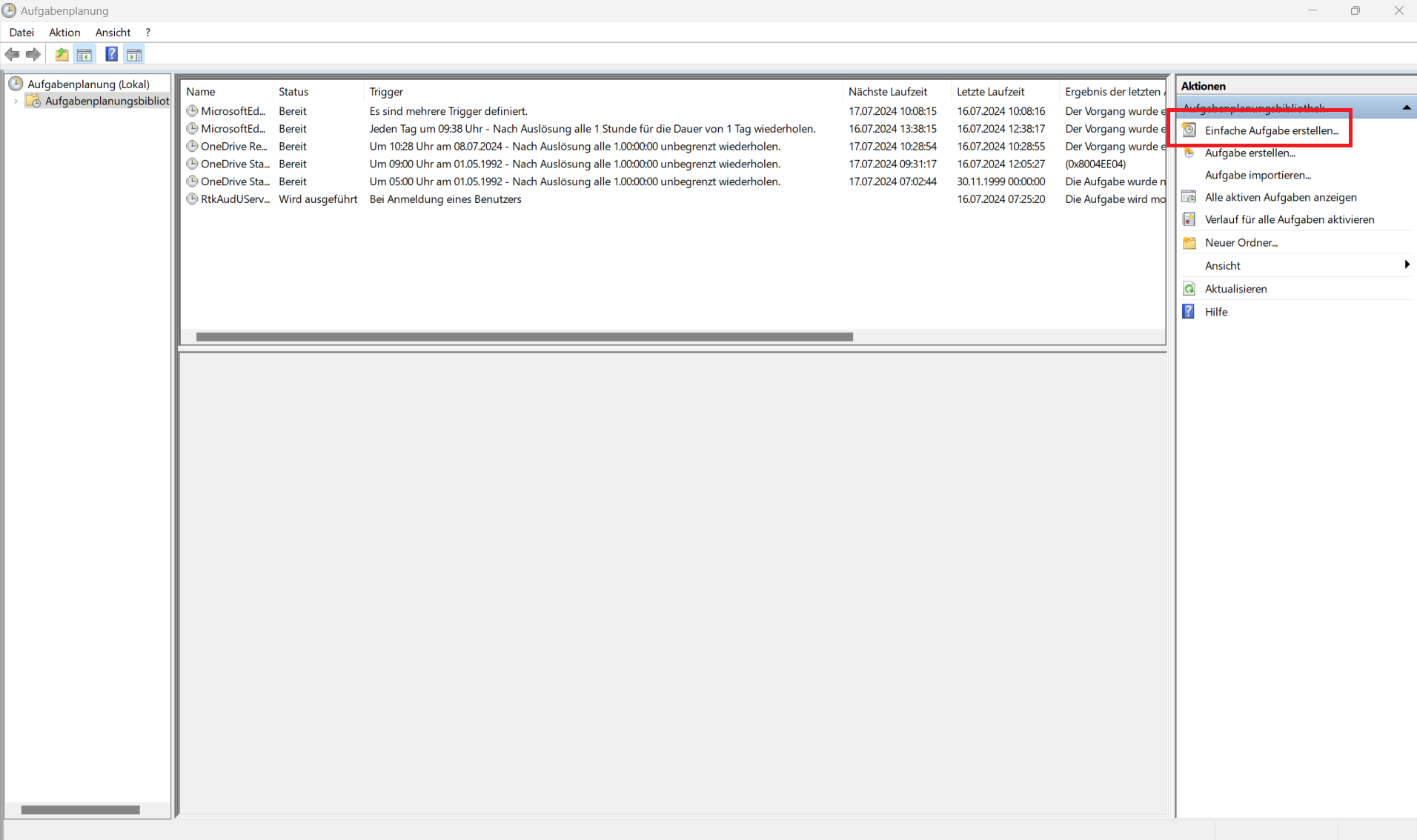
- Assign a name and optionally a description.
- Set the trigger -- it determines when the task runs. In this example: Daily at 4:00 AM.
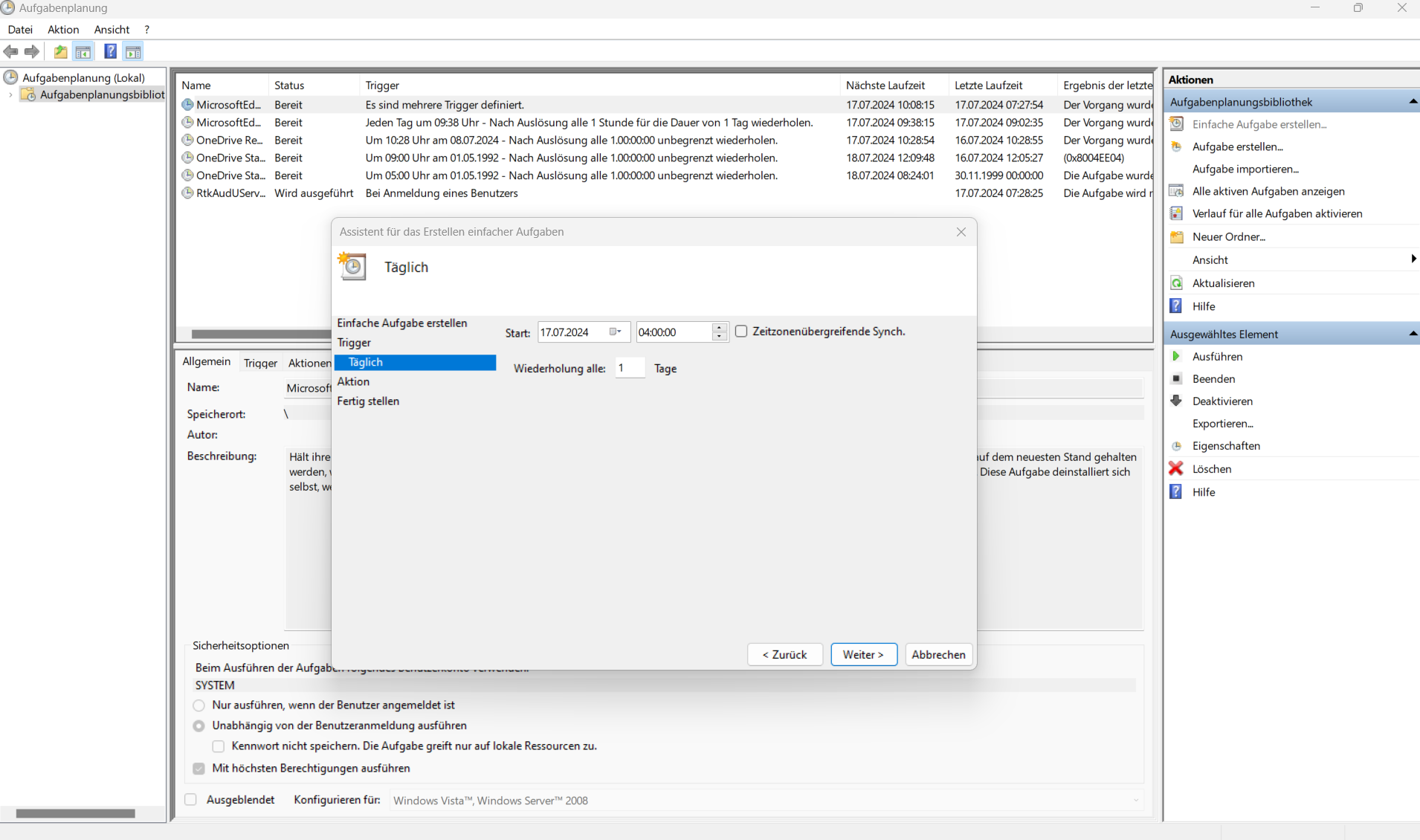
- Select "Start a program" as the action and specify the batch file.
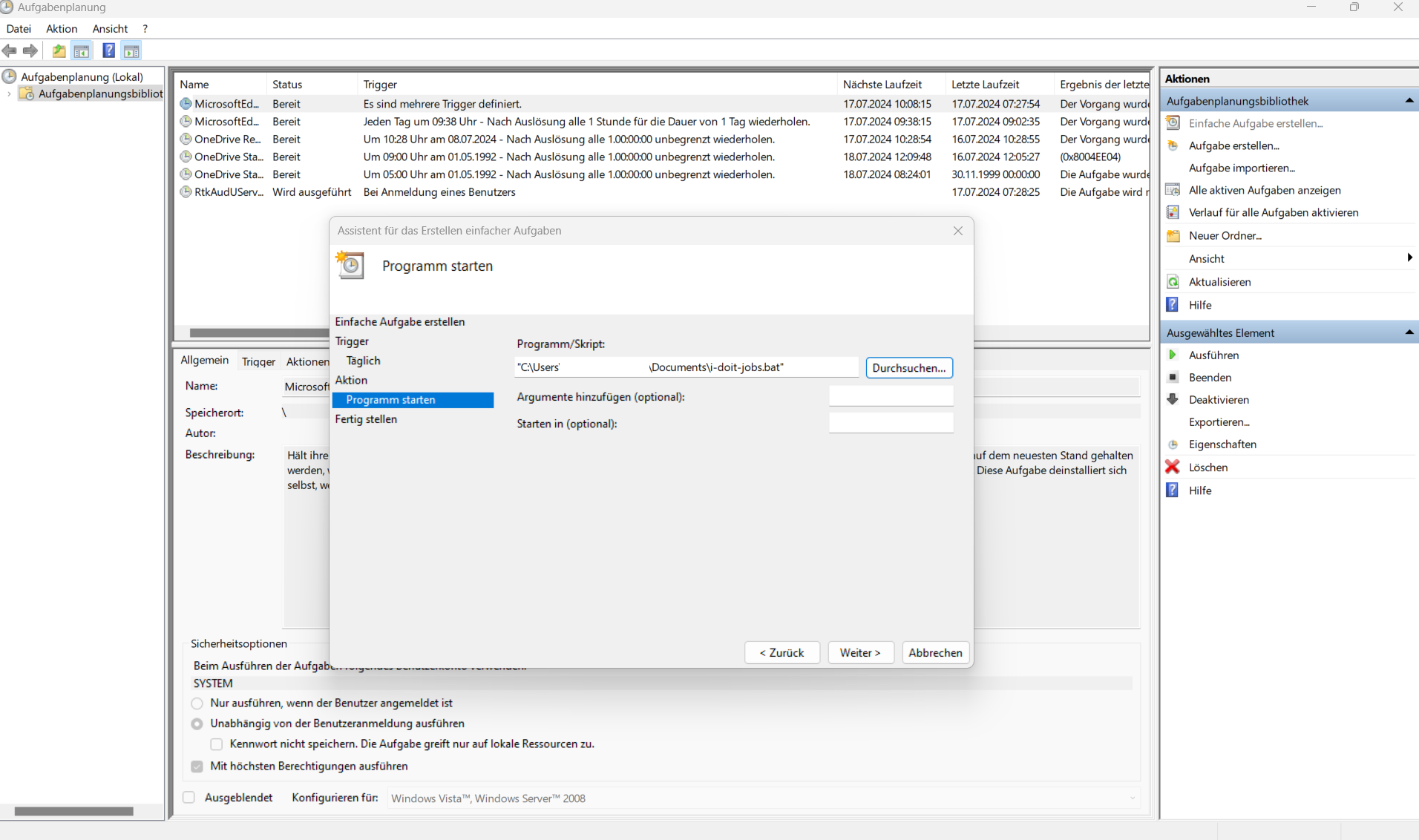
- Review your settings and complete the configuration.
- Open the properties of the created task and select the option "Run whether user is logged on or not" on the General page.
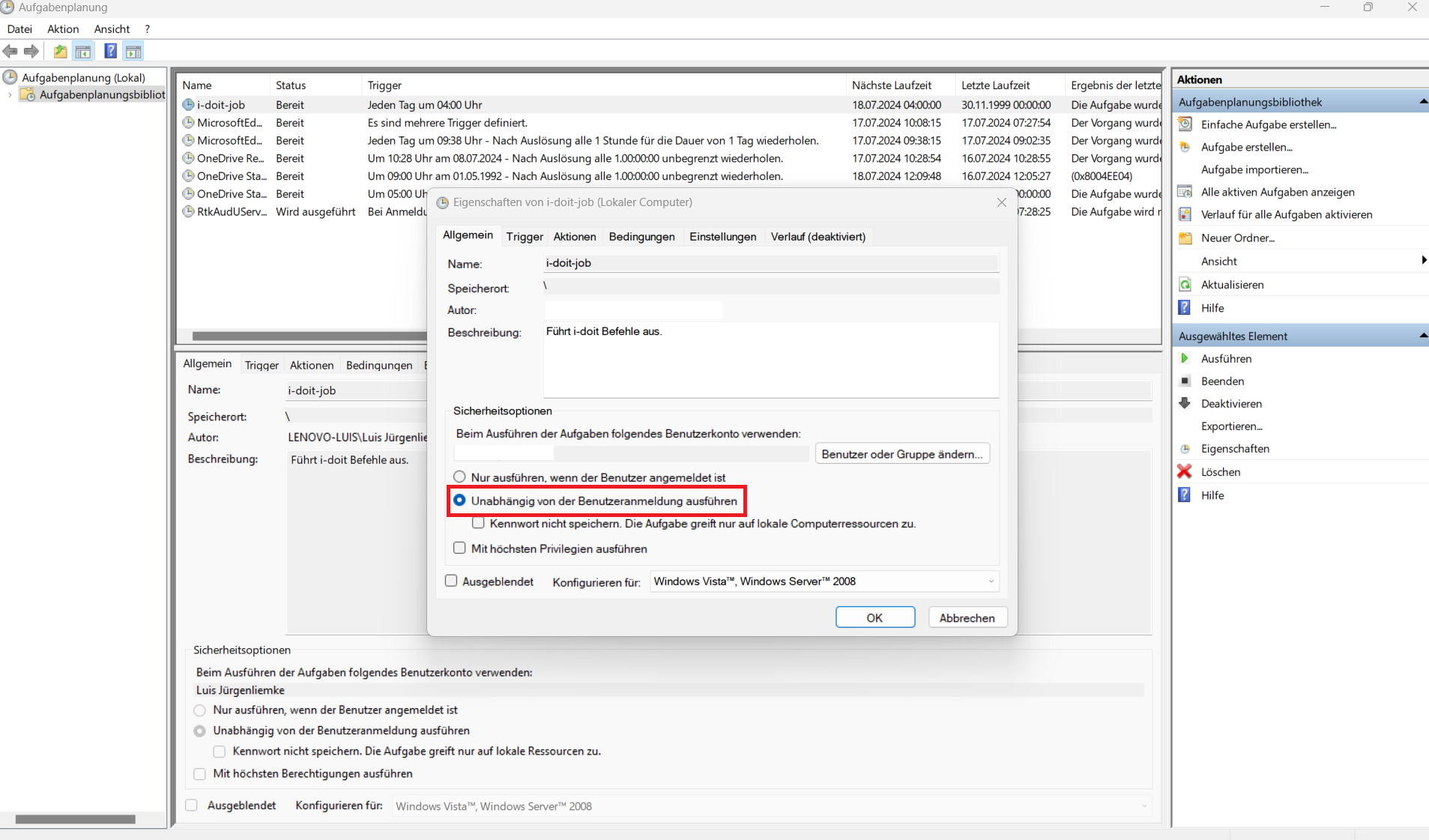
Task scheduling is now complete. The task will execute the batch file with all specified commands daily at 4:00 AM.