Assigning categories to object types#
Via the "Edit data structure" function, you control which object type groups, object types and categories are active and assigned to each other in your i-doit installation.
Access#
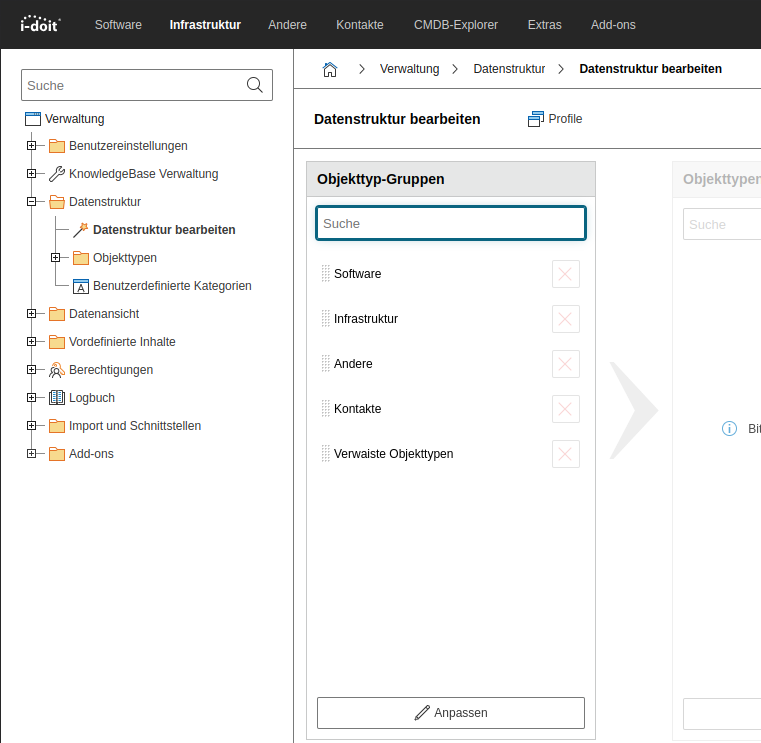
You can find the function under Administration → Data structure → Edit data structure. All changes are applied immediately by i-doit -- you do not need to save separately. No data is deleted in the process: the data structure only controls the display, not the content.
Structure of the view#
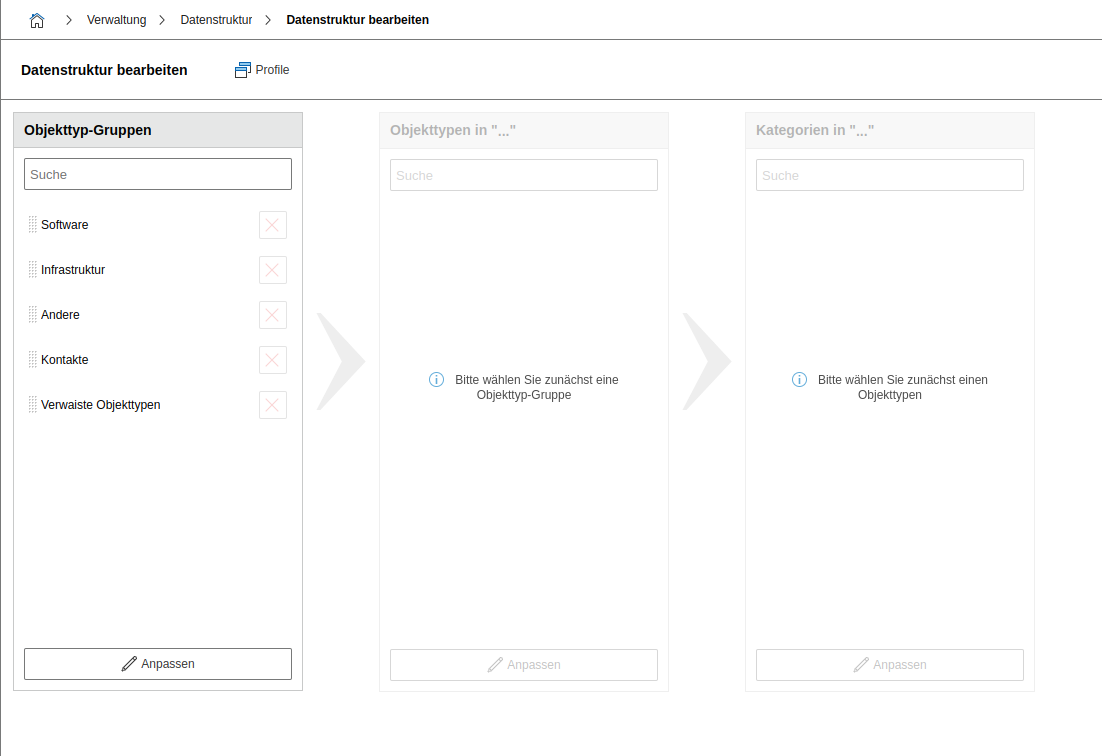
The configuration is divided into three columns: Object type groups, Object types and Categories. In each column, you can change the order via drag-and-drop using the dotted area at the beginning of each row.
Customizing object type groups, object types and categories#
Via the Customize button, you can switch to edit mode in all three main fields.
Here you can edit the assignments of the respective object group, but also create and define new groups, object types or categories.
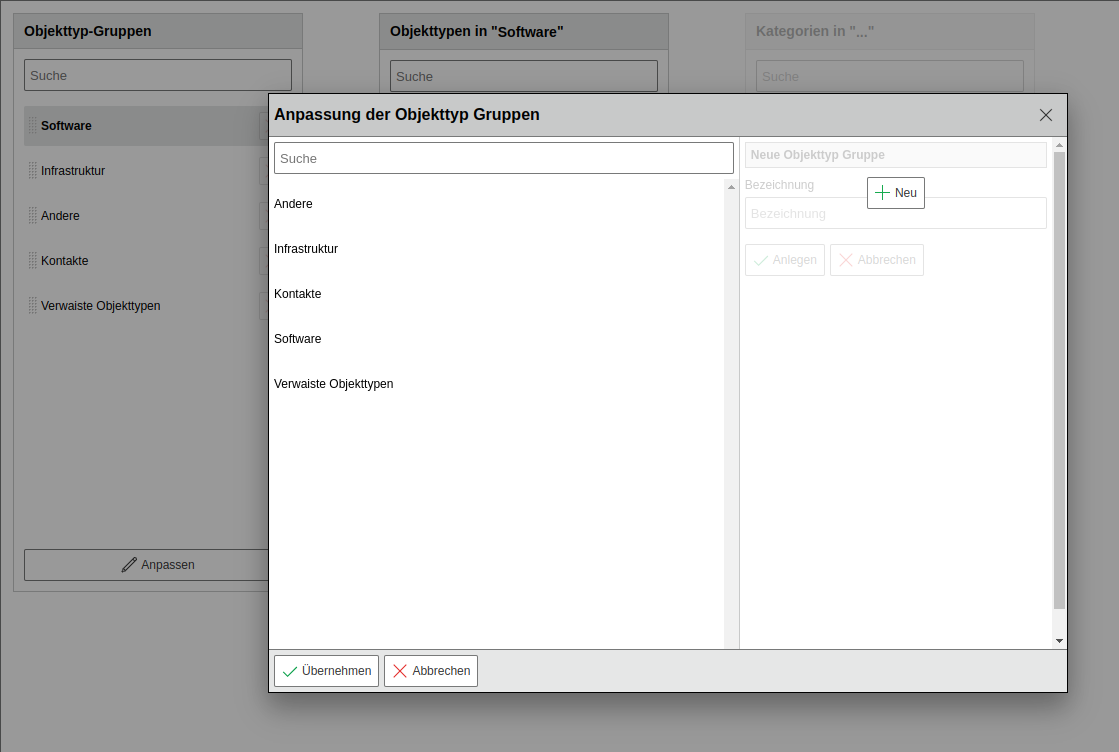
Editing assignments#
Editing is done from left to right:
-
Left column (Object type groups): Click on the group whose object type assignments you want to adjust. The middle column becomes active. Use the checkboxes to hide groups you do not need.
-
Middle column (Object types): Use the checkboxes to determine which object types are assigned to the selected group. Grayed-out object types already belong to another group but can be reassigned. Click an object type to activate the right column.
-
Right column (Categories): Here you see the categories assigned to the selected object type. Use the checkboxes to change or remove assignments.
In the columns for object type groups and object types, you can also add custom entries in the lower area. Self-created entries receive a pencil icon for editing or deleting. For extensive configuration of an object type, we recommend the object type configuration.
Via the Create custom category button, you can go directly to creating custom categories.
Data structure profiles#
You can save your current configuration as a profile. Enter a name for the profile under Save current profile, so it then appears in the available profiles in the right column. Here you can activate, delete or download the profile as a file. Activate the checkbox of the desired profile and click Load to restore the assignment from the selected profile. Via the floppy disk icon, you can save the profile as a file in XML format and re-upload it via the Browse button if needed. The red X icon deletes the corresponding profile.
This function is suitable for exchanging configuration data between multiple i-doit installations. A profile contains the following settings:
- Object type groups with names, order and additional attributes
- Object types with names, assignment to object type groups and additional attributes from the object type configuration
- Global, specific and custom categories assigned to each object type
- Configuration of each custom category that is assigned to at least one object type
A profile therefore contains the configuration of the IT documentation, but no content. Neither objects, category entries nor filled Dialog fields are saved.
Clearing the configuration#
If you want to reset all assignments and start from a clean slate, click the Clear button.