Category: Drive#
The Drive category documents the storage drives of an object -- from physical hard drives and SSDs to logical volumes. It is a multi-value category -- any number of entries can be created per object, e.g. for servers with multiple hard drives, SSDs, or logical volumes. Via the link fields to RAID groups and logical devices, this category bridges the gap between the physical and logical storage layers.
Interaction with the RAID category
Physical drives are linked to the RAID category via the Software RAID group and On device (RAID array) fields. Only when this assignment is maintained can it be traced which physical disks belong to which RAID array -- crucial for failure analysis and targeted replacement of defective drives.
Usage#
Typical use cases:
- Inventorying storage hardware: Record the type, capacity, serial number, and firmware of each hard drive, SSD, or NVMe. Together with the CPU and Memory categories, a complete hardware profile emerges. JDisc Discovery automatically populates this category with detected drive data.
- Documenting mount points and drive letters: The mount point shows which drive serves which function:
C:is the Windows system drive,/varunder Linux contains log files and databases,/homethe user data. This information is crucial during an outage -- when/varfills up, exactly this drive needs to be extended, not some other one. - Capacity monitoring: The Free space and Used space fields enable targeted reports -- e.g. "all drives with less than 10% free space" or "all servers whose system drive is more than 80% occupied". These reports are the foundation for proactive capacity planning before a drive actually fills up.
- RAID and LVM assignment: Via the link fields, drives can be assigned to a software RAID array, a physical controller, or a logical volume. This creates a traceable chain from the physical disk through the RAID array to the logical volume on which the filesystem resides.
- Lifecycle and replacement: When swapping a hard drive, archive the old entry and create a new one. Serial number and firmware thus remain seamlessly traceable -- important for warranty claims and for documenting RAID rebuilds.
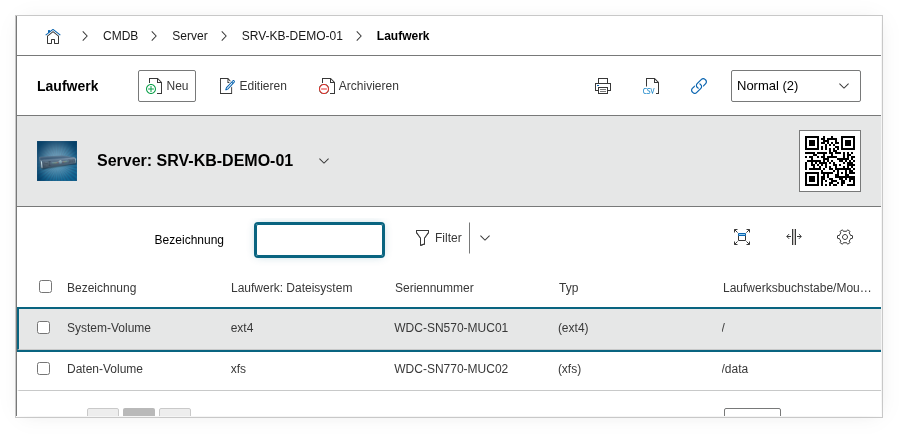
Fields#
Drive letter/Mount point#
The mount point or drive letter under which the drive is accessible in the operating system, e.g. C:, D:, or /var. On Linux systems, the mount point is entered here; on Windows, the drive letter. This field determines the functional assignment of the drive: C: or / is the operating system, /var contains log files and database data, /home the user files. During an outage -- for example when a filesystem fills up -- this field immediately shows which physical or logical drive is affected and needs to be extended.
Title#
The name or model designation of the drive, e.g. Samsung 990 PRO 2TB or WD Ultrastar DC HC560. This value appears in the list view of the category and in reports. During JDisc imports, the drive designation reported by the operating system is entered here.
System drive#
Indicates whether this is the system drive (Yes or No). This flag marks the boot drive -- i.e. the drive on which the operating system is installed and from which the server boots. This is especially important for servers with multiple drives: if the system drive fails, the entire server goes down, while a data drive can potentially be replaced by a spare. Reports can specifically filter for system drives to monitor e.g. their occupancy or age.
Filesystem#
The filesystem used on the drive, e.g. NTFS, ext4, XFS, or ZFS. Dialog+ field -- custom values can be added as needed. The filesystem determines performance characteristics and maximum file sizes -- XFS is e.g. often the better choice than ext4 for large files and databases.
Capacity and unit#
The total capacity of the drive. The unit is specified separately as MB, GB, or TB. Together with Free space and Used space, a complete picture of utilization emerges. For capacity planning, a report listing all drives with occupancy above 80% is recommended.
Serial number#
The serial number of the drive as per the manufacturer. Automatically read during JDisc import. Important for warranty claims and unique identification during replacement -- especially in RAID arrays with multiple identical drives, the serial number is the only distinguishing feature.
Type#
The drive type, e.g. HDD, SSD, or NVMe. Enables distinguishing between different storage technologies in reports and filters. A report "all servers still using HDDs as system drive" helps with planning an SSD rollout.
Free space#
The currently free storage space on the drive. Typically populated by automatic inventory (JDisc) and updated with each scan. This field is the foundation for proactive capacity monitoring: a report "all drives with less than 10 GB free space" warns in time before a filesystem fills up and impacts the service.
Used space#
The currently used storage space on the drive. Together with free space and total capacity, a complete picture of utilization emerges. Via the change history, it is also traceable how quickly the used space is growing -- helpful for forecasting when an extension becomes necessary.
Firmware#
The firmware version of the drive. Relevant for compatibility checks and updates -- especially for SSDs, where firmware updates can fix critical bugs that lead to data loss. Reports can specifically identify devices with outdated drive firmware.
Software RAID group#
Links the drive with a software RAID group. Shows which RAID array the drive belongs to. This link is the foundation for immediately seeing during a disk failure which RAID array is affected and whether redundancy is still maintained.
On device#
Link to the physical device (controller or storage system) to which the drive is connected. This makes it traceable which RAID controller or SAN manages the disk.
On device (RAID array)#
Link to the RAID array to which the drive is assigned. Together with the Software RAID group field, a complete documentation of the storage architecture emerges: physical disk -> RAID array -> logical volume -> filesystem.
On device (Logical device)#
Link to a logical volume or LVM structure to which the drive is assigned. Particularly relevant in Linux environments where LVM volumes are flexibly distributed across multiple physical disks.
Description#
Free text for additional details: installation slot (e.g. "Slot 3, Backplane A"), warranty information, performance class (e.g. "SAS 12 Gbit/s, 15k RPM"), configuration specifics, or notes on the intended use (e.g. "dedicated for database log").
Technical reference#
| Property | Value |
|---|---|
| Category constant | C__CATG__DRIVE |
| Type | Global category |
| Multi-value | Yes |
| Assigned to | Server, Client, Blade Server, Virtual Server, etc. |
Fields (API reference)#
| Field | API key | Type |
|---|---|---|
| Drive letter/Mount point | mount_point | Text |
| Title | title | Text |
| System drive | system_drive | Dialog (selection) |
| Filesystem | filesystem | Dialog+ (extensible selection) |
| Capacity | capacity | Decimal |
| Unit | unit | Dialog (selection) |
| Serial number | serial | Text |
| Type | drive_type | Integer |
| Free space | free_space | Decimal |
| Used space | used_space | Decimal |
| Firmware | firmware | Text |
| Software RAID group | assigned_raid | Dialog (selection) |
| On device | device | Dialog (selection) |
| On device (RAID array) | raid | Dialog (selection) |
| On device (Logical device) | ldev | Dialog (selection) |
| Description | description | Text field (multi-line) |
API examples#
Create entry#
1 2 3 4 5 6 7 8 9 10 11 12 13 14 15 16 17 18 19 20 21 | |
Read entries#
1 2 3 4 5 6 7 8 9 10 | |
Update entry#
1 2 3 4 5 6 7 8 9 10 11 12 13 14 15 16 17 | |