Category: Virtual Host#
The Virtual host marks an object as a hypervisor and documents the associated management infrastructure. It is a single-value category — exactly one entry exists per object, since a server is either configured as a hypervisor or not.
The central field Virtual host is a Yes/No switch: When set to Yes, the object is marked as a hypervisor and becomes available as a host in the category Virtual machine of other objects. Additionally, a license server and an administration service (e.g. vCenter, SCVMM) can be linked.
Virtual host vs. guest systems
The Virtual host activates the hypervisor role of an object and links it with the management layer. The category Guest systems then lists the specific VMs running on this host. Both categories are maintained on the same server object: Virtual host defines that it is a hypervisor, Guest systems shows which VMs run on it.
Usage#
Typical use cases:
- Hypervisor designation: Mark physical servers as virtualization hosts so that they are available as hosts in the object browser of the category Virtual machine. Without this designation, a server cannot be selected as a hypervisor for VMs — setting the Virtual host field to
Yesis therefore the necessary first step when documenting a virtualization environment. - Assign administration service: The field Administration service links the hypervisor with its central management system — e.g. a vCenter Server for VMware, a System Center Virtual Machine Manager (SCVMM) for Hyper-V, or a Proxmox VE instance. This allows you to evaluate via reports which hosts are managed by which management system — important for migrations and license assessments.
- License server assignment: For VMware environments, the vSphere license server is referenced here. This allows you to trace which hosts use which license — crucial for license audits and when switching from per-socket to per-core licensing.
- Virtualization inventory: Using the Report Manager, you can evaluate which servers are configured as virtual hosts. A report "all objects with Virtual host = Yes" provides the entire hypervisor inventory — the basis for capacity planning, lifecycle management, and licensing.
- Cluster assignment: In combination with the category Cluster membership, you can document which hypervisors belong to which cluster. The administration service then links the cluster with its management layer.
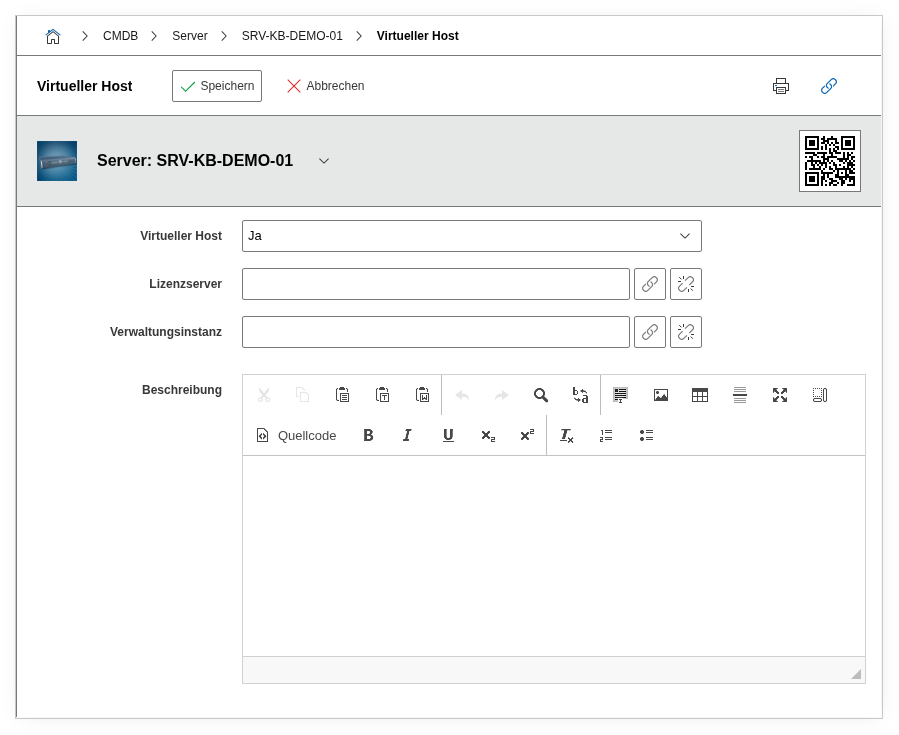
Fields#
Virtual host#
Indicates whether the object functions as a hypervisor (Yes or No). This field is the central switch: Only when it is set to Yes is the object shown as a possible host in the category Virtual machine of other objects. Set this field to Yes for every physical server on which a hypervisor (ESXi, KVM, Hyper-V, Proxmox VE) runs.
License server#
Link to the license server object that manages the virtualization licenses for this host. In VMware environments, this is typically the vSphere license server or the vCenter that assigns the licenses. In KVM or Hyper-V environments without a dedicated license server, this field can be left empty.
Administration service#
Link to the management system that manages this hypervisor — e.g. a vCenter Server, a SCVMM, a Proxmox VE instance, or an oVirt Engine object. This field establishes the relationship to the central management layer and enables reports such as "all hosts managed by vCenter X".
Description#
Free text for additional details: hypervisor version (e.g. "ESXi 8.0 Update 2"), configuration special features (e.g. "GPU passthrough enabled"), notes on licensing or the planned lifecycle.
Technical Reference#
| Property | Value |
|---|---|
| Category Constant | C__CATG__VIRTUAL_HOST |
| Type | Global category |
| Multi-Value | No |
| Assigned to | Server, Blade Server, Cluster |
Fields (API Reference)#
| Field | API Key | Type |
|---|---|---|
| Virtual host | virtual_host | Dialog (selection) |
| License server | license_server | Object browser (link) |
| Administration service | administration_service | Object browser (link) |
| Description | description | Text field (multi-line) |
API Examples#
Create Entry#
1 2 3 4 5 6 7 8 9 10 11 12 13 14 15 16 | |
Read Entries#
1 2 3 4 5 6 7 8 9 10 | |
Update Entry#
1 2 3 4 5 6 7 8 9 10 11 12 13 14 15 | |