Category: Virtual Machine#
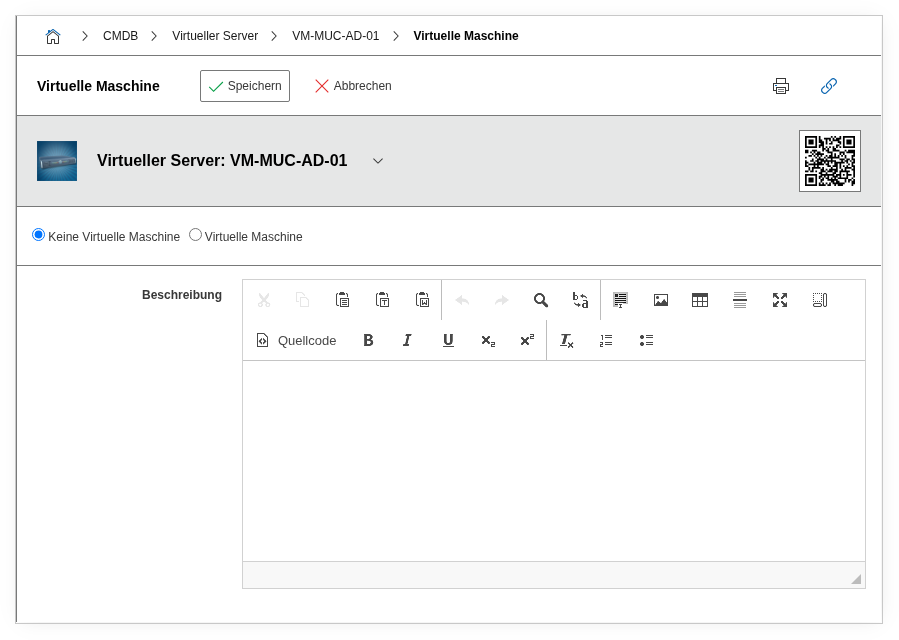
The Virtual Machine category documents the virtualization properties of a guest object -- on which host or cluster the VM runs, which virtualization system is used, and what state the VM is in. It is a single-value category -- exactly one entry exists per object, since a VM runs on exactly one host at any given time.
This category represents the guest side of the virtualization relationship: It is maintained on the VM object and shows its assignment to the host. The counterpart is the Guest Systems category, which shows the list of all guests on the host object. Both categories mirror the same relationship -- once from the guest perspective, once from the host perspective.
Virtualization categories working together
Complete documentation of a VM requires multiple categories: Virtual Machine (this category) assigns the VM to a host. Virtual Devices documents the individual virtualized components (vNICs, vDisks). CPU, Memory, and Drive describe the resources from the guest operating system's perspective. Together, they form a complete picture -- from host assignment through virtual hardware to the operating system view.
Usage#
Typical use cases:
- Host assignment: The most important field, Runs on host/cluster, links the VM to its hypervisor. This makes it immediately apparent on which physical hardware the VM runs. During a host outage, you can determine via the counterpart category Guest Systems on the host which VMs are affected -- or conversely: navigate directly from the VM to the host.
- Documenting the virtualization system: The Virtualization system field records the technology in use: VMware, KVM/QEMU, Hyper-V, Xen, Proxmox VE, or others. Using reports, you can evaluate which virtualization technologies are in use -- helpful for consolidation projects or when support contracts expire (e.g. VMware-to-Proxmox migration).
- VM status: The Status field shows whether the VM is powered on, powered off, or paused. In combination with automated inventory (JDisc), this status is regularly updated. A report such as "All VMs with status powered off for more than 90 days" identifies forgotten or no longer needed machines -- an important contribution to resource optimization.
- Cluster assignment: For VMs in an HA cluster, the Host in cluster field shows on which physical node the VM currently runs. This is particularly relevant in vSphere clusters where VMs are moved between hosts via DRS. The category then documents the primary host.
- Configuration file: The path to the VM configuration file (e.g.
.vmxfor VMware or.xmlfor KVM) is captured in the Configuration file field. This information is indispensable during manual troubleshooting or when recovering a VM from a backup.
Fields#
Virtual machine#
Indicates whether the object is a virtual machine (Yes or No). This field is the central switch: Only when it is set to Yes is the object treated as a VM and the remaining fields of this category become relevant. During JDisc imports, this field is automatically set when a VM is detected.
Status#
The current operating state of the VM, e.g. Powered on, Powered off, or Paused. Updated regularly during automated inventory. In reports, you can specifically filter for powered-off VMs to identify unused resources.
Runs on host/cluster#
Link to the host object or cluster on which the VM is executed. A server or cluster object that has been previously designated as a hypervisor in the Virtual Host category is selected via the object browser. This field is the core of the virtualization documentation -- it establishes the relationship between guest and host.
Virtualization system#
The virtualization technology in use, e.g. VMware, KVM, Hyper-V, Xen, or Proxmox VE. Dialog+ field -- custom values can be added as needed. Enables reports on the distribution of virtualization technologies in the organization.
Configuration file#
The path to the VM configuration file, e.g. /vmfs/volumes/datastore1/vm-web01/vm-web01.vmx for VMware or /etc/libvirt/qemu/vm-web01.xml for KVM. This information is indispensable during manual recovery of a VM or when troubleshooting startup problems.
Host in cluster#
For cluster configurations, specifies on which physical node within the cluster the VM primarily runs. Relevant for VMware DRS, Hyper-V Live Migration, or Proxmox HA -- environments where VMs can be automatically moved between cluster nodes.
Description#
Free text for additional details: purpose of the VM, assigned applications, special configuration features (e.g. "GPU passthrough," "NUMA pinning"), or lifecycle notes.
Technical Reference#
| Property | Value |
|---|---|
| Category Constant | C__CATG__VIRTUAL_MACHINE |
| Type | Global category |
| Multi-Value | No |
| Assigned to | Server, Client, Blade Server, Virtual Server |
Fields (API Reference)#
| Field | API Key | Type |
|---|---|---|
| Virtual machine | virtual_machine | Dialog (selection) |
| Status | state | Dialog (selection) |
| Runs on host/cluster | hosts | Object browser (link) |
| Virtualization system | system | Dialog+ (extensible selection) |
| Configuration file | config_file | Text |
| Host in cluster | primary | Dialog (selection) |
| Description | description | Text field (multi-line) |
API Examples#
Create Entry#
1 2 3 4 5 6 7 8 9 10 11 12 13 14 15 16 17 18 | |
Read Entries#
1 2 3 4 5 6 7 8 9 10 | |
Update Entry#
1 2 3 4 5 6 7 8 9 10 11 12 13 14 15 | |