Custom counters#
Custom counters allow you to define your own sequential numbering and use it in various areas of i-doit.
Accessing the configuration#
You can find custom counters under Administration → Predefined content → Custom counters. There you see all configured counters in a list. Use the button at the top to add new counters.
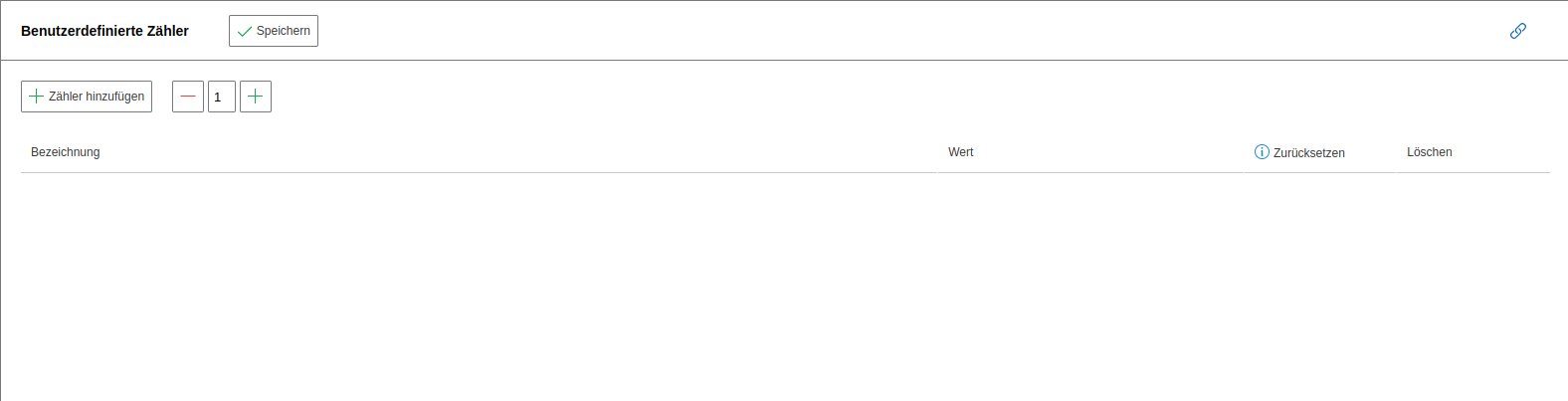
Structure of a counter#
Each counter occupies its own row in the list. The name follows the schema %COUNTER_CUSTOMTEXT% -- you only enter the middle part (the actual name) in the text field.
The following elements are available per counter:
- Name field: Here you enter the name of the counter. Only the characters A-Z, a-z, 0-9, - and _ are allowed. Lowercase letters are automatically converted to uppercase when saving.
- Current value: Shows you which number the counter has last reached.
- Reset: Irreversibly resets the counter to 1. You will receive a confirmation prompt before resetting.
- Delete: Permanently removes the counter from the configuration. Here too, you will be asked for confirmation beforehand.
Important
After saving, you can no longer change the name of a counter. The text field is deactivated to prevent inconsistencies.

When you hover over the info icon, a note appears: Resetting sets the counter back to 1. All future uses will then use the new count. Returning to the previous value is not possible.
Using counters#
You use a custom counter by manually entering its placeholder in the desired field. Each time it is used, i-doit automatically increments the value by 1.
For example, enter Server-%COUNTER_SERVERS% as the Title in the General category of a new object. i-doit saves the object as Server-1, and the next object created the same way receives Server-2.
Leading zeros#
For leading zeros, append #N to the placeholder, where N specifies the total number of digits:
- %COUNTER_CUSTOMTEXT#3% produces e.g.
001,002,003etc.
Setting a counter to a specific value#
Via the expert settings, you can set a counter to a specific value if needed. You can find the counters there via search with cmdb.counter.counter_.
Areas of use#
Custom counters are available in the following areas:
- List editing
- Mass change
- Templates
- Automatically generated inventory numbers from the object type configuration
- Text fields in custom categories
The available counters are listed for you by clicking the  question mark icon next to the respective field.