Action bar#
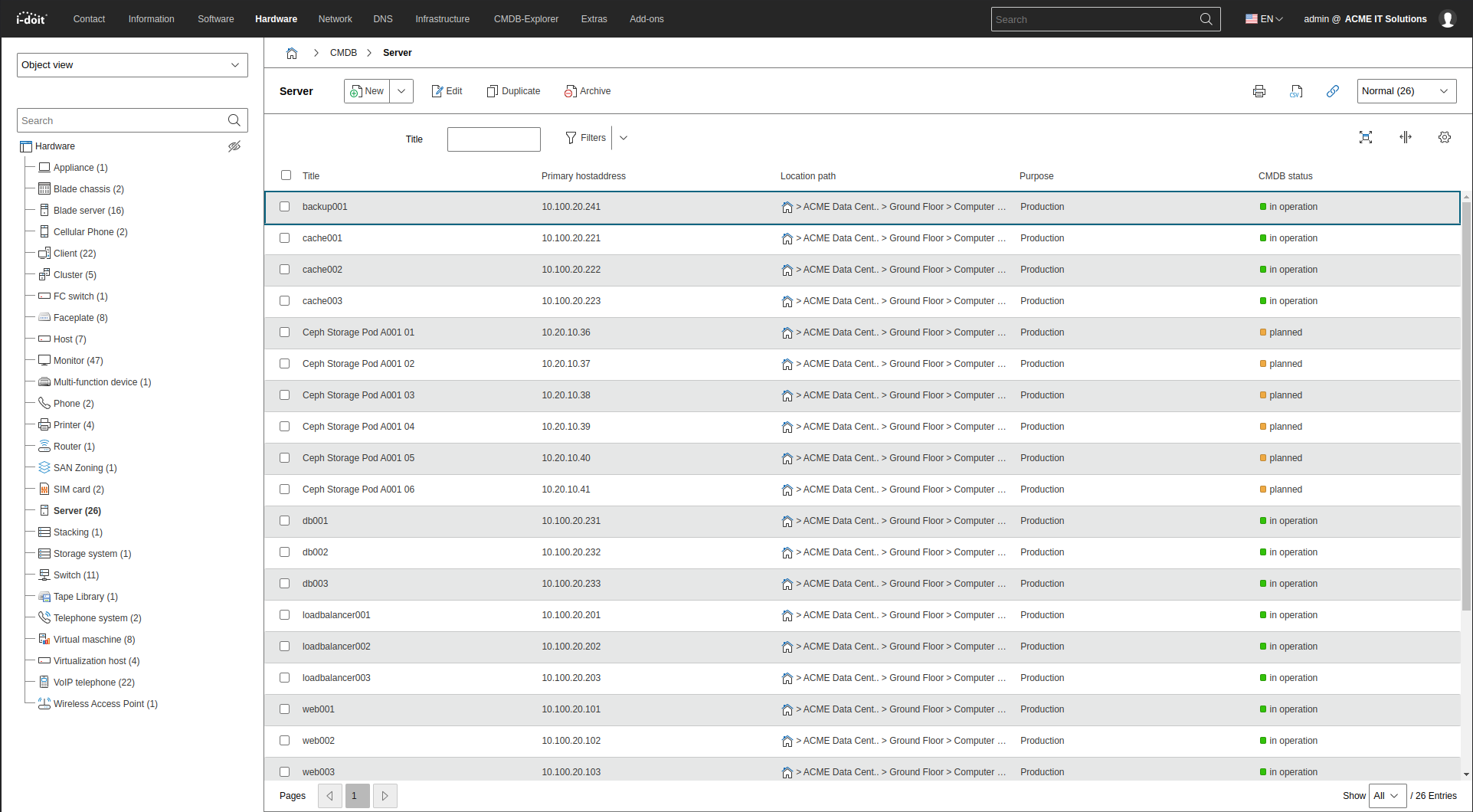
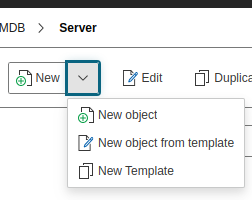
Above an object list is the action bar, through which various actions can be performed.
Creating an object#
When creating a new object, various options are available:
- New or New object creates a new object that can be edited via forms
- New object from template switches to the dialog where one or more objects can be created from a template
- Create new template is similar to the first option, but the condition Template is preselected, so that after saving the object becomes a template.
Editing an object#
To edit an object, select it via the checkbox and click the Edit button. If you select multiple objects, the list editing starts.
Duplicating an object#
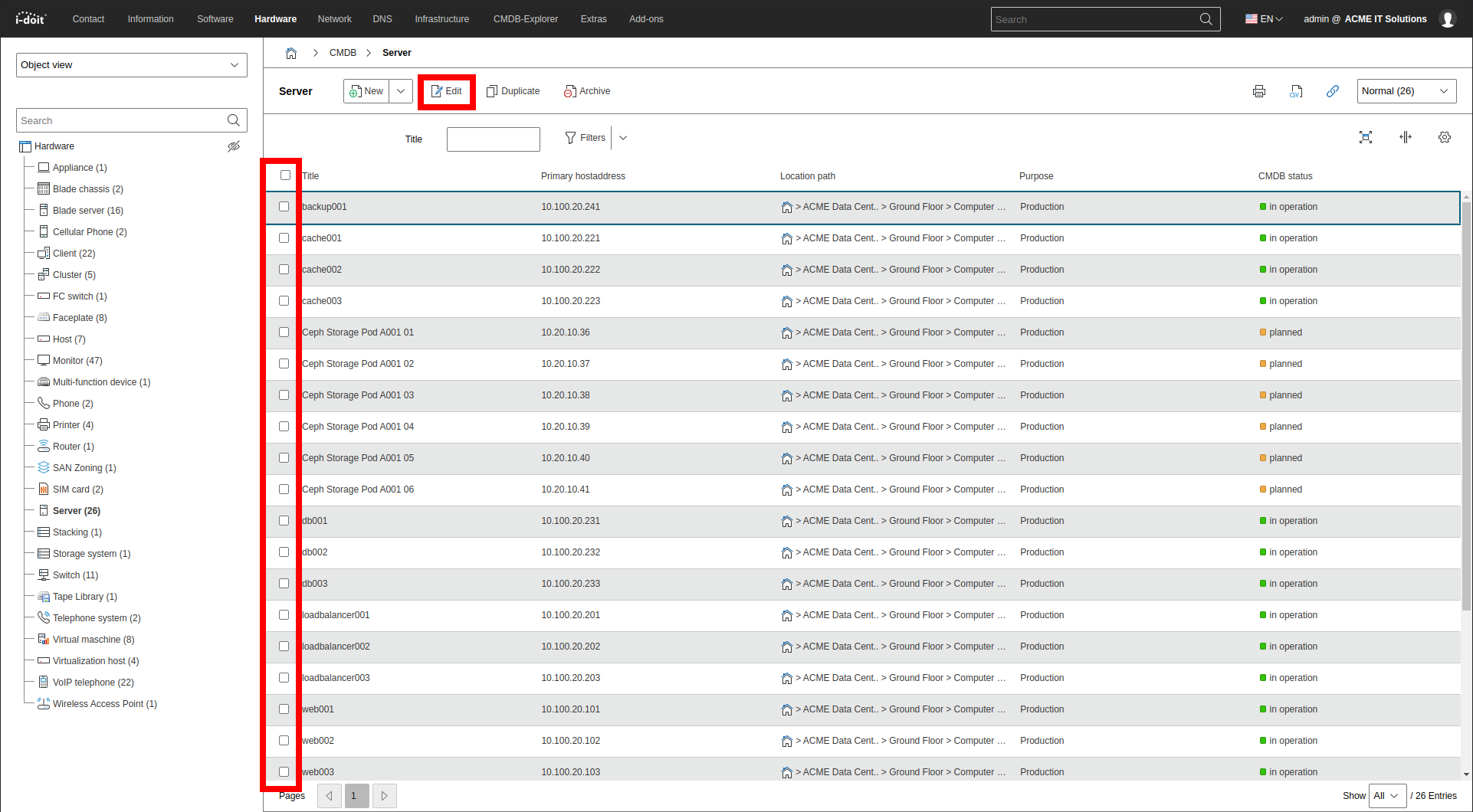
To copy an object with its attributes, use the Duplicate button.
Archiving, marking as deleted, restoring or irrevocably deleting an object#
To change the condition of one or more objects or to irrevocably delete them, use the buttons Archive, Delete, Restore, Purge or Quickpurge.
Print view#
Via the Print view button, a popup opens with a print-optimized view of the list. The list is supplemented with attributes displayed on the overview page of the respective object.
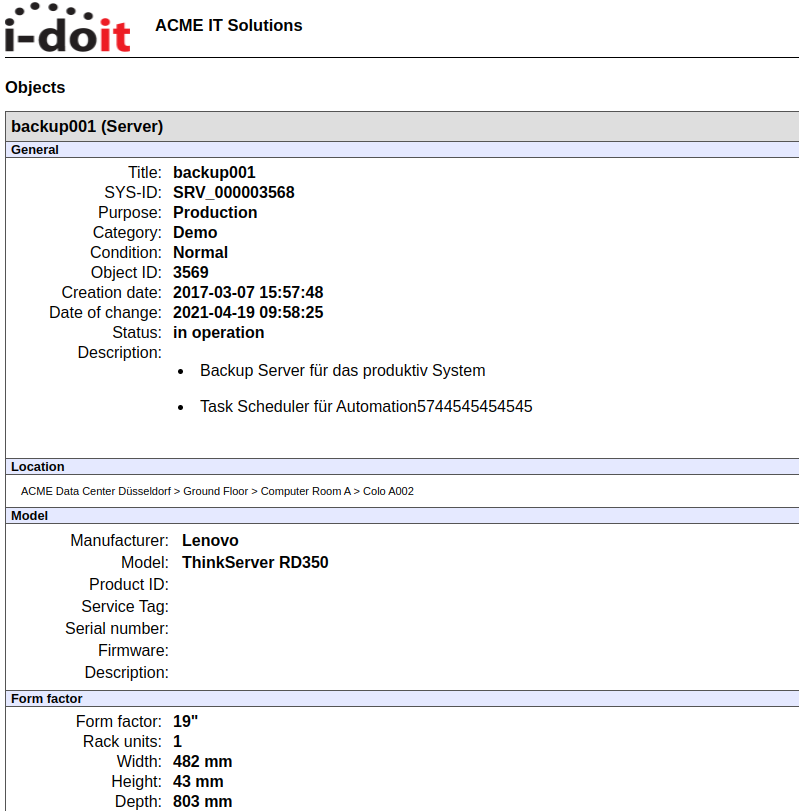
Web browser print preview
The web browser in use can also generate a print view. Unnecessary elements of the Web GUI are not displayed:
- Firefox: File → Print Preview
- Chrome: Menu → Print... or Ctrl+P
Exporting the object list as a CSV file#
You can download the displayed object list via the Export as CSV button as a CSV file and process it further with third-party applications. If you want to prevent the object ID from appearing next to the title in the CSV file, enable the option Remove object IDs from CSV export of lists under Administration → [Tenant name] Administration → Settings for [Tenant name] → CMDB.
Link to this page#
Via the Link to this page button, you reload the object list. The button is also useful for obtaining the unique URL -- this should match the URL displayed in the browser's address bar.
Switching condition#
To display only objects of a specific condition, select the desired condition via the drop-down menu on the right side of the action bar. In parentheses, you see how many objects of this type are in each condition. By default, i-doit shows the condition Normal. When you switch the condition, i-doit saves this selection -- it then applies to all object lists.
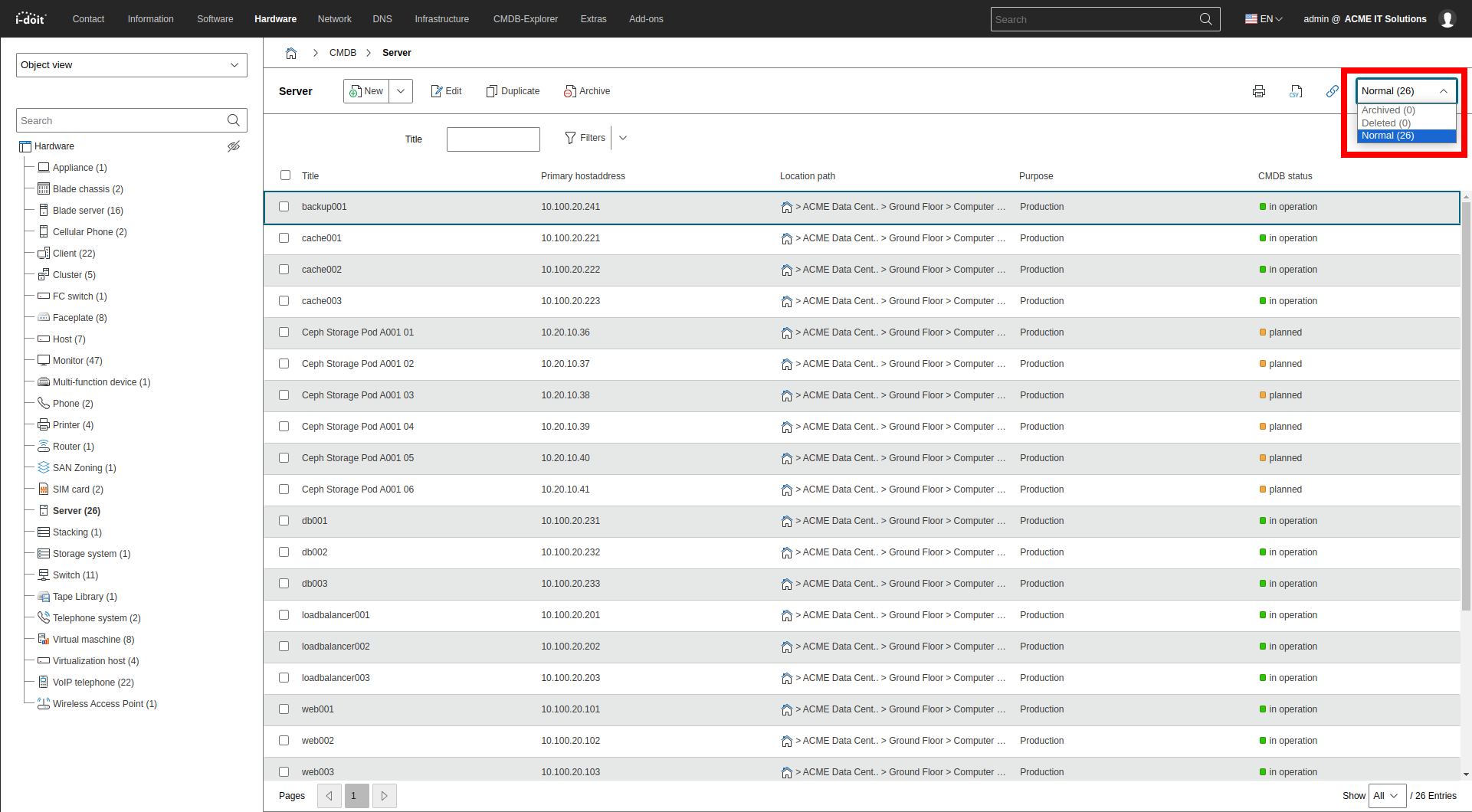
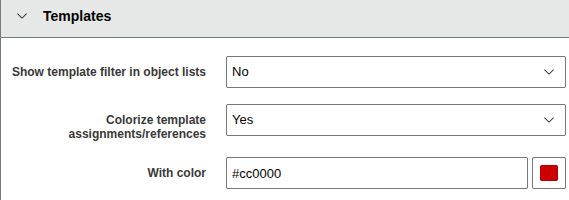
You can activate the template filter in object lists in the Administration area.