Configuring list view#
The view of object lists can be individually configured per list and per user.
Accessing the configuration#
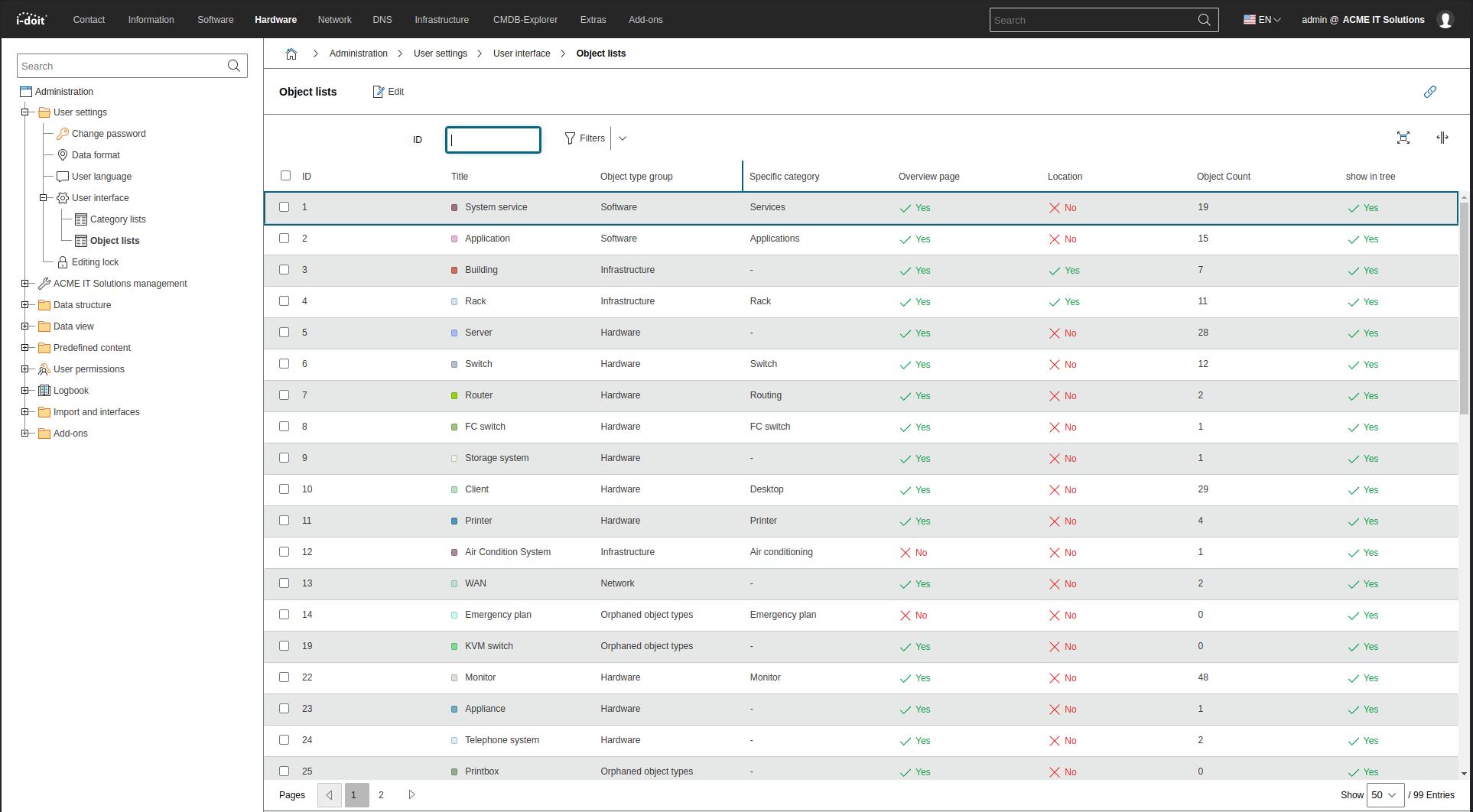
The configuration of the respective object list is accessed via the  button in the navigation and filter bar. Alternatively, navigate via Administration → User settings → Object lists → [Object type].
Selecting attributes#
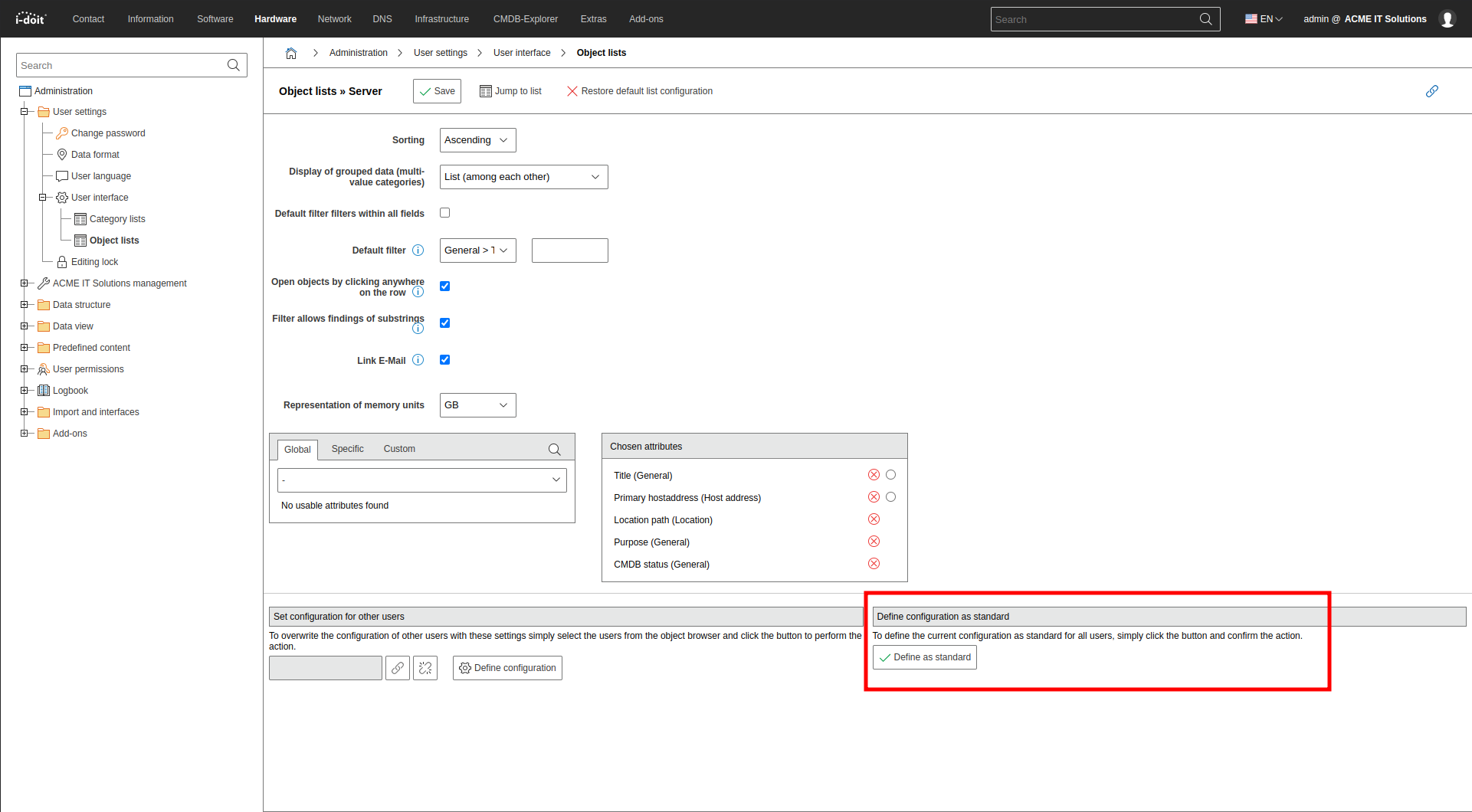
Similar to the Report Manager, columns are defined by selecting a category and the attribute contained therein.
First, a global, specific or custom category is selected in the drop-down menu. A text field allows filtering the list of categories.
When a category is selected, the attributes that can be defined as columns appear. Clicking the  button adds the attribute to the selected attributes.
The list of selected attributes can be manipulated. The order can be influenced via drag-and-drop. The higher the attribute in the selection, the further left it is displayed in the object list. Via the  button, an attribute is removed.
Limitation
Not all attributes of all categories are available.
Attributes that come from list categories (multi-value) can be displayed differently. Via the drop-down menu Display grouped data as, the attributes can be displayed either comma-separated side by side or as a list underneath each other. An example is the attribute Host addresses of the Host address category.
Tip
In the standard installation of i-doit, the ID is displayed in every object list. Since this is not relevant for normal use, the corresponding column can be removed from the lists. This also improves clarity.
Performance
Object lists with a large number of attributes can lead to reduced performance. If performance issues are noticed, the number of selected attributes should be reduced or the system resources expanded.
Pre-sorting columns#
Which sorting should already be applied when loading the object list can also be configured. Next to some attributes, there is a selection button that can be clicked. In the Sort drop-down menu, an ascending or descending sorting of the selected attribute can be set.
Without a defined sorting, objects are sorted by their ID.
Limitations
The following limitations apply to attribute sorting:
- Not all attributes can be sorted.
- Subsequent sorting via column headers is not possible for an object list with more than 10,000 objects. This limitation can be adjusted.
Influencing filtering#
You can pre-filter an object list when loading. Select the desired attribute in the Default filter drop-down menu and enter the filter value in the text field to the right. If you do not want to select an attribute each time, set the filter to all fields.
Ways to open an object#
Often, looking at the object list is not sufficient to retrieve all required attributes. You can open an object from the list in two ways:
- Via row click: Activate the checkbox This list should open the object via a click on the row. Then you open an object with a click on its row.
- Via Edit button: Check the checkbox of an object and click Edit. The object is opened and is immediately in edit mode.
The row click option can be activated for all users and all object lists at once. In the Administration, you will find the Activate row click in object lists button.
Resetting the configuration#
Each object list has a default configuration. If you want to reset the object list to the default settings, click the Reset list to [Tenant name] default list or Reset list to i-doit default list button.
Setting the configuration as default#
If you want to set an object list as the default list, click the Define as [Tenant name] default list button in the Define configuration as default field. This also affects object lists that have already been changed by other users.
Assigning the configuration to other users#
If you want to predefine a specific object list for other users, select them in the Assign configuration to other users field via an object browser. Then confirm the selection with the Overwrite configuration button.

Saving the configuration#
Via the Save button, all changes to the configuration are applied.
Browser cache
If the list view does not match the configuration the next time you open the object list, clearing the web browser cache may help.
Permissions for editing the list view#
The permission management allows assigning permissions for which person or person group may configure the list view and prescribe it to other users.