Navigating and filtering#
The navigation and filter functions help you quickly find the desired objects in object lists.
Navigating#
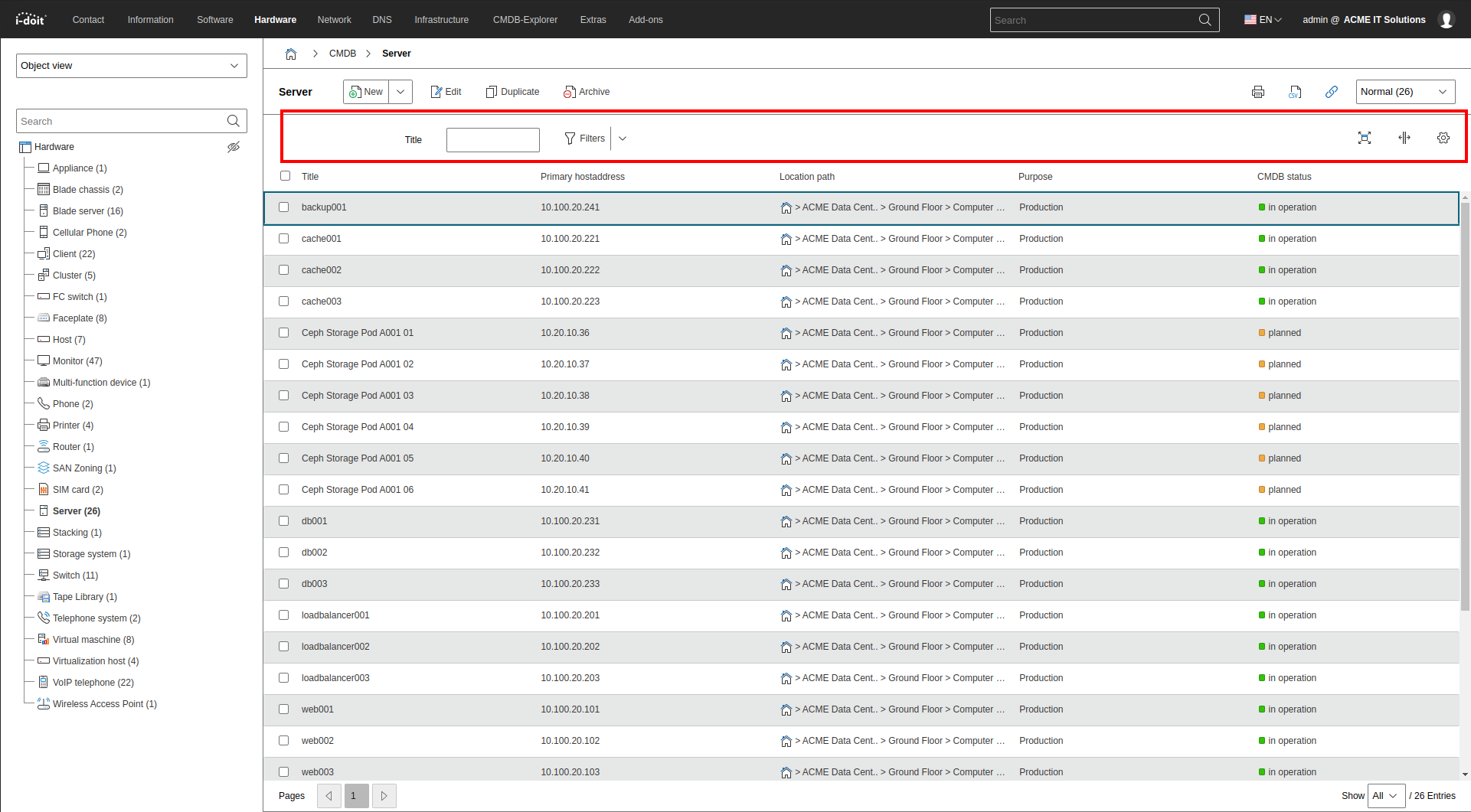
Longer object lists are distributed across multiple pages that can be specifically navigated to. Via the ... button, a specific page can be entered.
Per user, it can be set how many objects are displayed per page. Additionally, this setting can be overridden via a drop-down menu to display 50, 100, ... or even all objects on one page.
Keyboard shortcuts
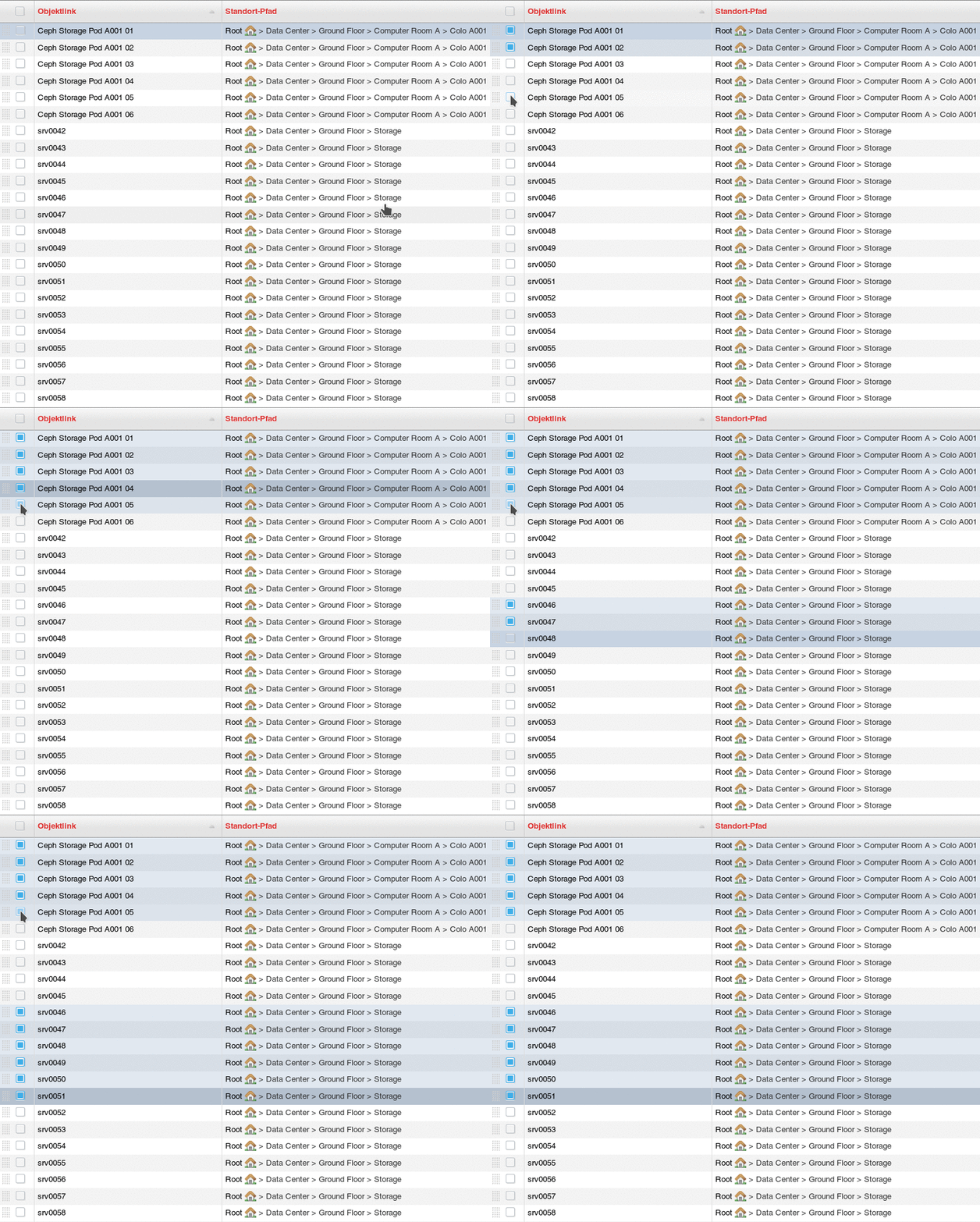
The object list can be operated via keyboard. The following commands are available:
| Key | Function |
|---|---|
| Down | Jump to the next row |
| Up | Jump to the previous row |
| Space | Select an object, i.e. check the respective checkbox |
| Shift+Space | Select a range of objects |
To select a range of objects, the Shift key can also be used in combination with the left mouse button.
Filtering#
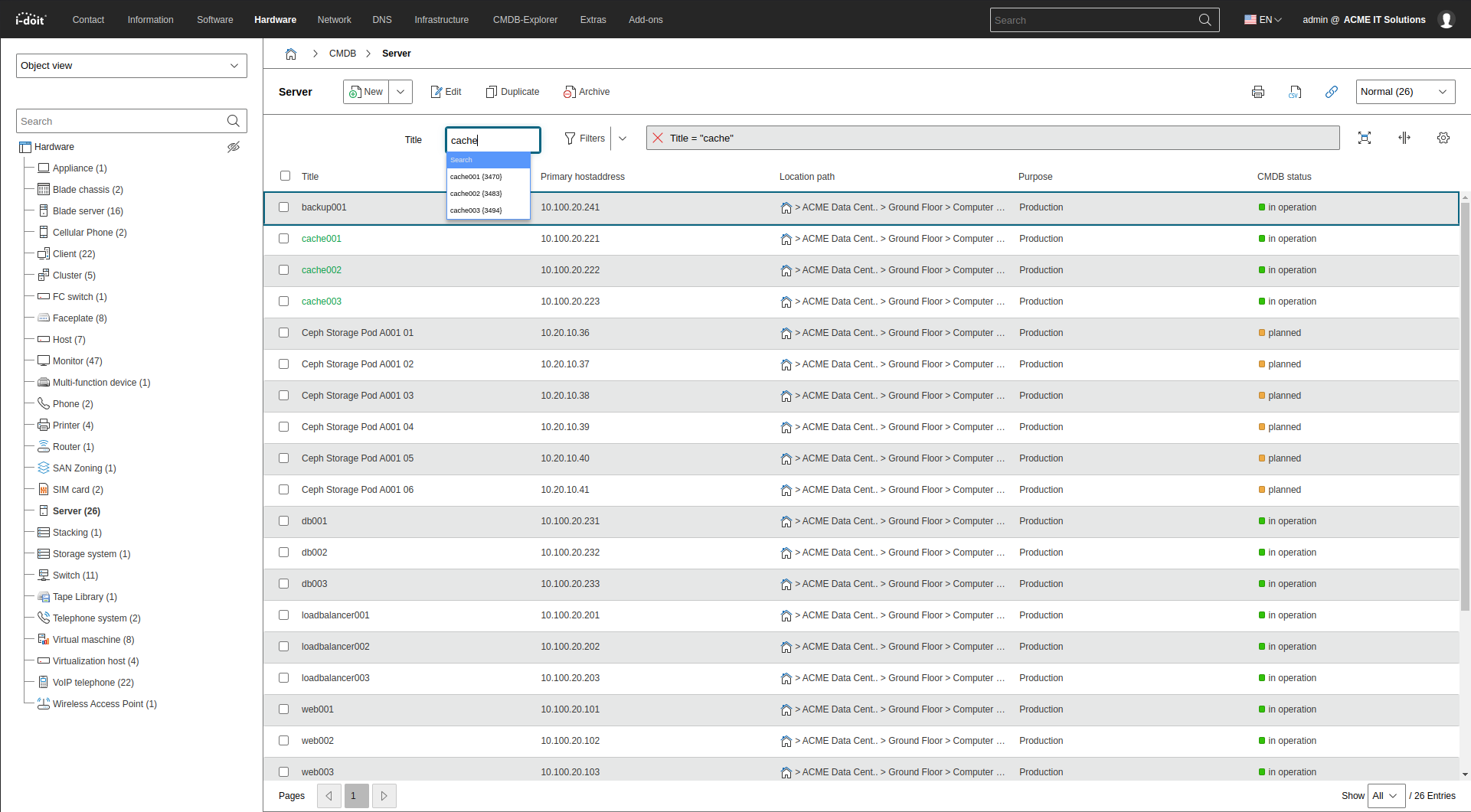
You can filter the rows of an object list by attributes. One of the displayed attributes serves as the default filter. Type directly into the filter field -- from 3 characters, suggestions appear. If you select a suggestion, i-doit opens the corresponding object directly (instead of filtering the list).
Via the drop-down menu, you can filter by multiple attributes simultaneously (AND conjunction). Confirm the filter with the Filter button. The active filter is displayed in a text bar and can be reset via the corresponding button.
From version 1.17, you can also filter for empty values. Check the checkbox behind the respective value.
The object list can already be filtered when loading.
Additional functions#
Further functions are accessible via the navigation and filter bar:
| Button | Function |
|---|---|
 | The object list is reloaded |
 | Column widths are automatically set. Otherwise, columns can be varied in width per user. |
 | Configure list view |