CSV Data Export#
You can export data directly from the IT documentation in CSV format and process it further in a spreadsheet application. Three methods are available.
Exporting Object Lists#
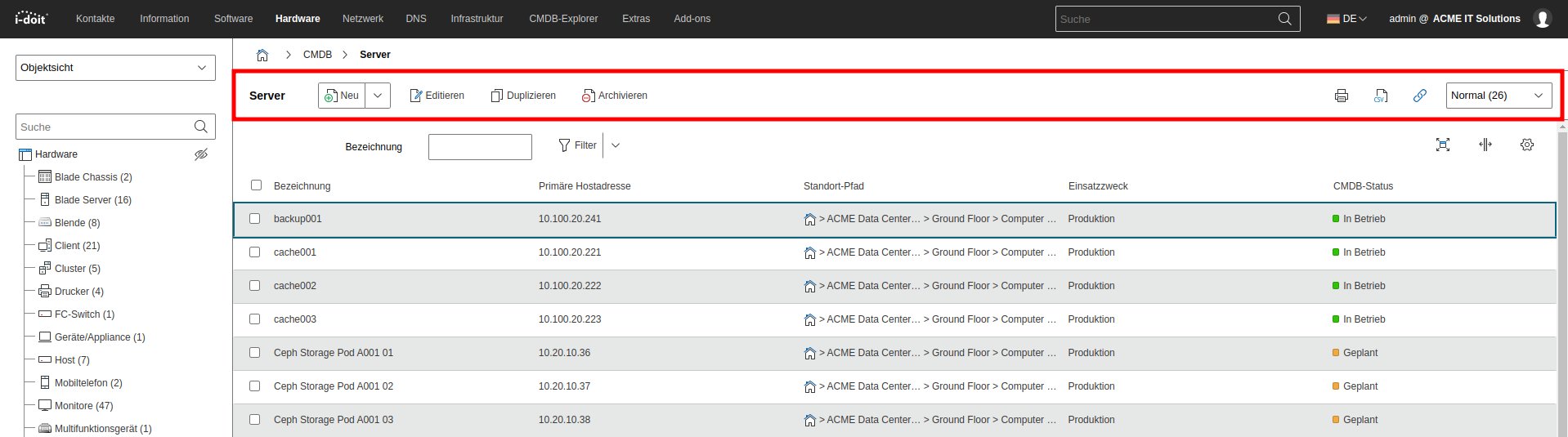
Open the object list and click the CSV button in the action bar. The exported columns correspond to the configured attributes of the list view.
If you have set a filter, you only export the filtered results.
Exporting Category Lists#
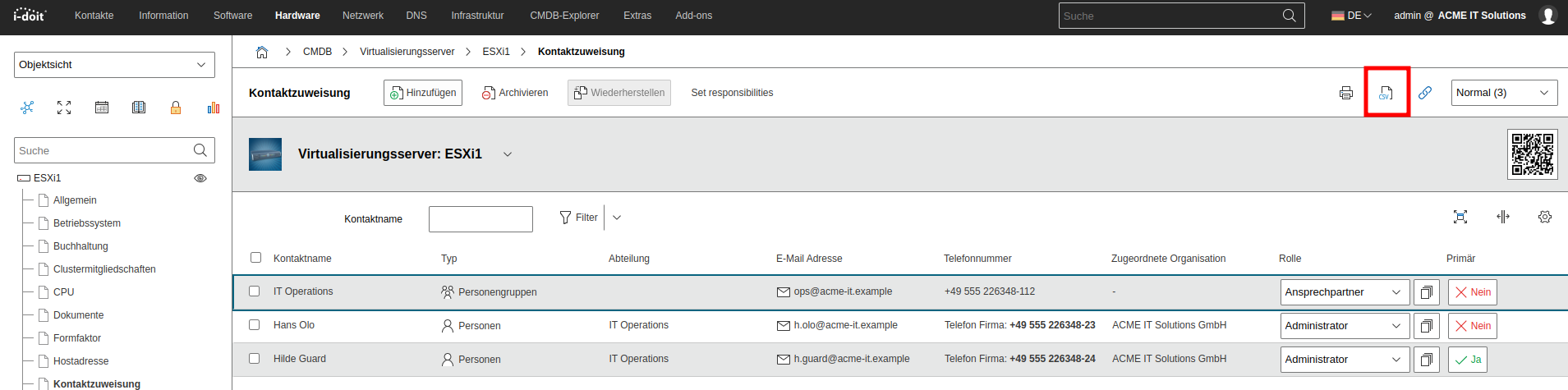
The CSV export supports many category lists (multi-value). Click the CSV button within a category list to download all entries and attributes.
The attribute names serve as column headers. i-doit exports multi-value data comma-separated.
Exporting Reports#
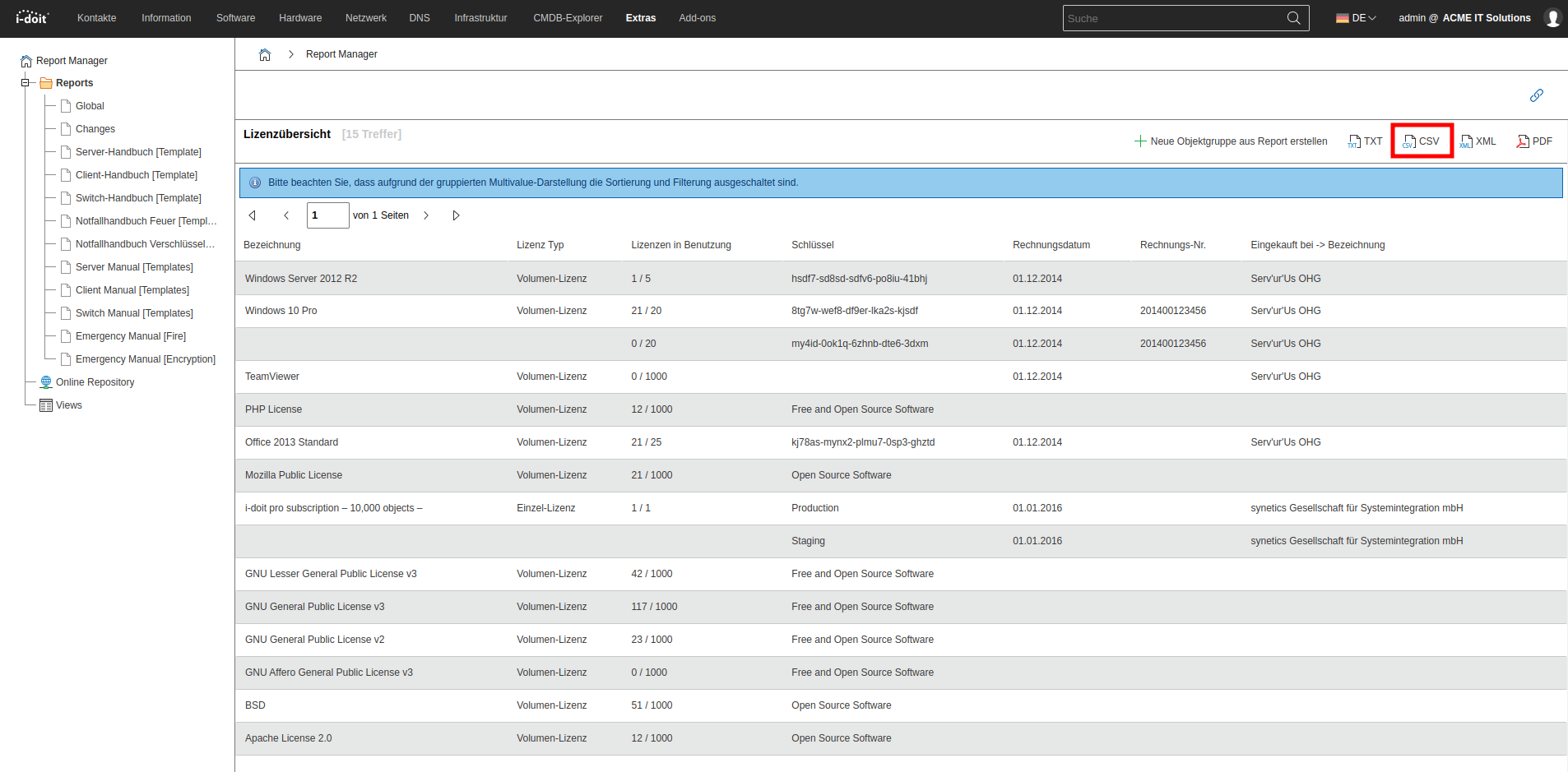
The Report Manager also offers CSV export. Open a report and click CSV.
CSV Format#
The exported file is a simple text file. Per line, the values are separated by a semicolon. The encoding is Unicode (UTF-8).
Microsoft Excel
Excel sometimes does not display CSV files correctly -- especially umlauts and special characters are lost. Therefore, do not open the file directly but import it:
- Export and save the CSV file
- Open Excel
- Click From Text in the Data tab
- Open the CSV file
- In the Text Import Wizard dialog, set the File origin to 65001 : Unicode (UTF-8)
- Click Next
- Select the Semicolon checkbox as the Delimiter
- Click Finish