Permission Management#
Who is allowed to see and edit what in i-doit? This frequently asked question stems from the need to establish a permission concept for your own IT documentation. Not every person who is authorized to log in should see or even edit sensitive data. i-doit has a comprehensive permission management system that protects your IT documentation from unauthorized access and maintains integrity.
Persons and Person Groups#
Permissions can be assigned to persons and person groups. If a permission is assigned to a group, all persons belonging to that group inherit this permission. Users with login authorization are stored as objects of type Person in i-doit. The corresponding groups are of type Person Group.
Form groups
In IT, it has proven effective not to create the role concept for individual users, but for groups (also often called roles). This makes management more elegant, as users can be assigned to one or more groups. Permissions only need to be configured in a few places.
In the standard installation of i-doit, there are several Person objects that are assigned to Person Groups and thus have predefined permissions:
| User | Password | Group | Permissions (overview) |
|---|---|---|---|
| admin | admin | Admin | All permissions, including for the Administration |
| archivar | archivar | Archivar | Read and edit |
| author | author | Author | Create, edit, archive, and execute |
| editor | editor | Editor | Read and edit |
| reader | reader | Reader | Read |
The listed users inherit their permissions through the groups of the same name.
Link permissions to LDAP/AD
As described in the article on initial login, it makes sense to automate persons and group memberships by connecting to an LDAP directory server/Active Directory (AD).
Positive Permissions#
The permission management in i-doit follows the concept of positive permissions. This means that persons or groups can be granted permissions, but permissions cannot be taken away.
Example: Person X is assigned to the Admin and Reader groups. Although the Reader group only receives read permissions in i-doit, Person X is allowed to do everything in i-doit because they also inherit the permissions of the Admin group, which has all permissions.
Additive Permissions#
Furthermore, permissions are additive. If a person is assigned to multiple groups, they inherit the permissions of all groups. Permissions are also added when both the person and their associated groups are granted permissions.
Example: Person X is in the Reader group and can therefore read everything in i-doit, but not edit. Additionally, they receive the permission to create their own reports. This permission complements the permissions of the Reader group.
General Configuration Structure#
The configuration is always structured the same way per module; only the permissions themselves differ. In the first step, either an object of type Person or Person Group is selected in the Person / Person Group field. Matching objects are suggested as you type the object title. Clicking the Load permissions button loads the configuration saved for this module.
When loading permissions for a specific person object, if this person inherits permissions from associated groups, these inherited permissions are also displayed. However, inherited permissions cannot be changed and are therefore grayed out.
The configuration in the web GUI is structured as a table.
 |  |  |  |  | |  | Condition | parameter | Action |
|---|---|---|---|---|---|---|---|---|---|
| Create | View | Edit | Archive | Delete | Execute | Administrator | Which area is it about? | Optionally parameters |  Remove permission Remove permission |
The condition is selected from a drop-down menu. The first columns assign specific permissions for this condition. Some are grayed out and cannot be activated because it does not make sense to assign these permissions for this particular condition. The optionally parameters also depend on the condition. In the last column, actions can be performed (currently: remove the permission).
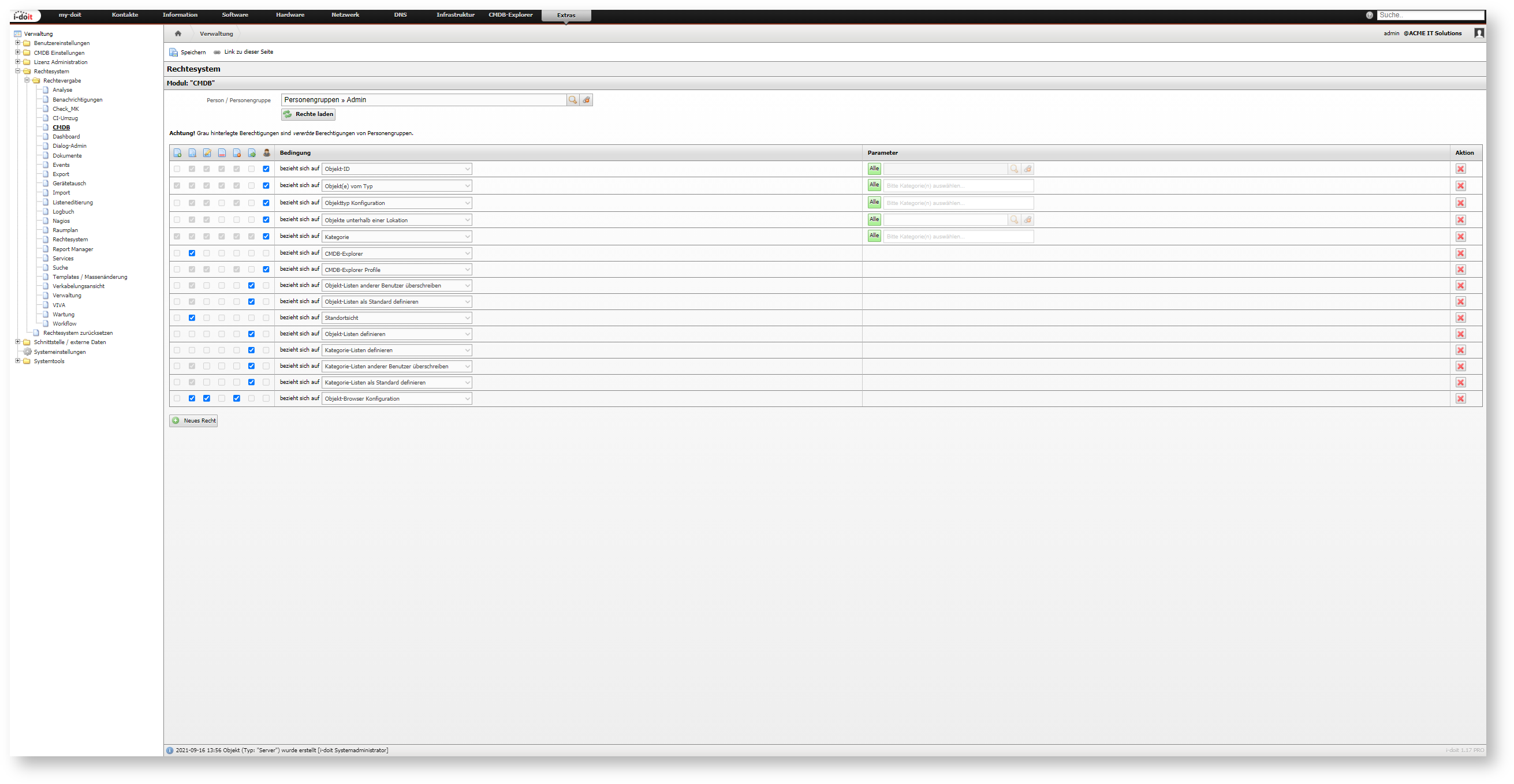
Clicking the New permission button adds a new row at the end of the table.
Test permissions
To directly test the effects of configuration changes, it is useful to be logged in with a user affected by the configuration changes in a second browser (or a "private" tab). If none is available, a test user can be created and assigned to the groups being tested.
Once all permissions are configured as desired, they should be activated via the Save button.
Renew cache
In some cases, permissions may not take effect immediately, for example because affected users are still logged in. To enforce the new permissions, the permission cache must be renewed. This is done under Administration → System Tools → Cache / Database → Cache → Clear Permission System Cache. Additionally, it is recommended to renew the cache automatically on a regular basis via cron job.
Modules#
To keep the permission management manageable, all permissions are divided into modules. The modules can be found under Administration → Permission System → Permission Assignment.
- Analysis
- Notifications
- CI Relocation
- CMDB
- Dashboard
- Dialog Admin
- Documents
- Events
- Export
- Device Swap
- Import
- Logbook
- Nagios
- Floorplan
- Permission System
- Report Manager
- Services
- Search
- Templates/Mass Change
- Cabling
- Administration
- VIVA
- Maintenance
Restoring Permissions#
Via Administration → Permission System → Reset Permission System, you can assign all permissions to the user you are currently logged in with. This means all available permissions are assigned to the person object of the user. To activate this, the credentials for the Admin Center must be entered.
Disabling Permission Management#
To give all users all permissions, the permission management can be disabled. This is done under Administration → [Tenant Name] Administration → Settings for [Tenant Name] → Security → Permission System.
Permission Assignment Category#
The object types Persons and Person Groups have the Permission Assignment category. It offers a greatly simplified configuration for permission management of the modules mentioned above. For each module, the permissions View, Edit, Archive, Delete, Execute, and Administrator are available. The functionality is thus similar to the simple permission management of older versions of i-doit. To see and view this category, the Administrator permission on this category in the CMDB module is required.
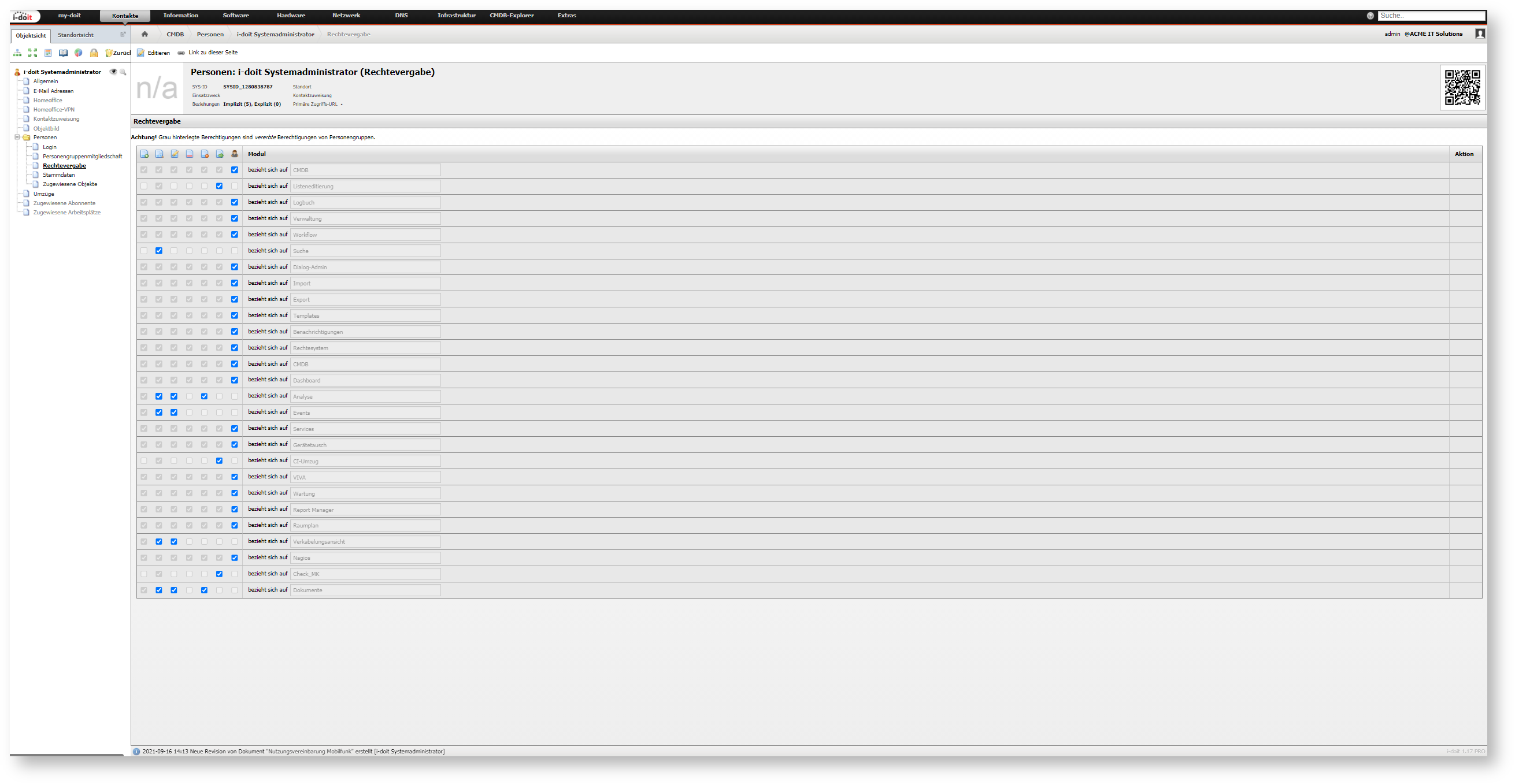
Purpose
The Permission Assignment category offered users of the previous permission management a "gentle" transition when the then-new permission management was introduced. At this point, however, this category has significantly decreased in importance. It should therefore no longer be used. Under no circumstances should permissions in the individual modules be mixed with configurations in this category.