Protection Needs Assessment#
Via Add-ons > IT-Grundschutz > Protection Needs Assessment, you reach the graphical display of the protection needs assessment and inheritance of an information domain.
To load the protection needs assessment, first select an information domain in the object browser at the top. For large information domains, this may take several seconds.
Once the information domain is loaded, the left panel displays all target objects/target object groups that are assigned to the selected information domain via the "Information Domains" category (or via the corresponding reverse category "Infrastructure Analysis" in the information domain).
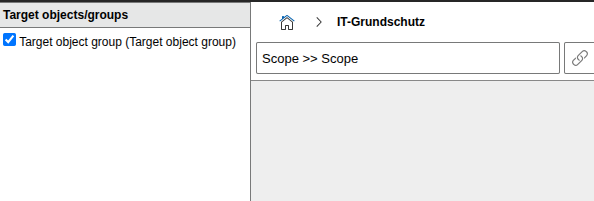
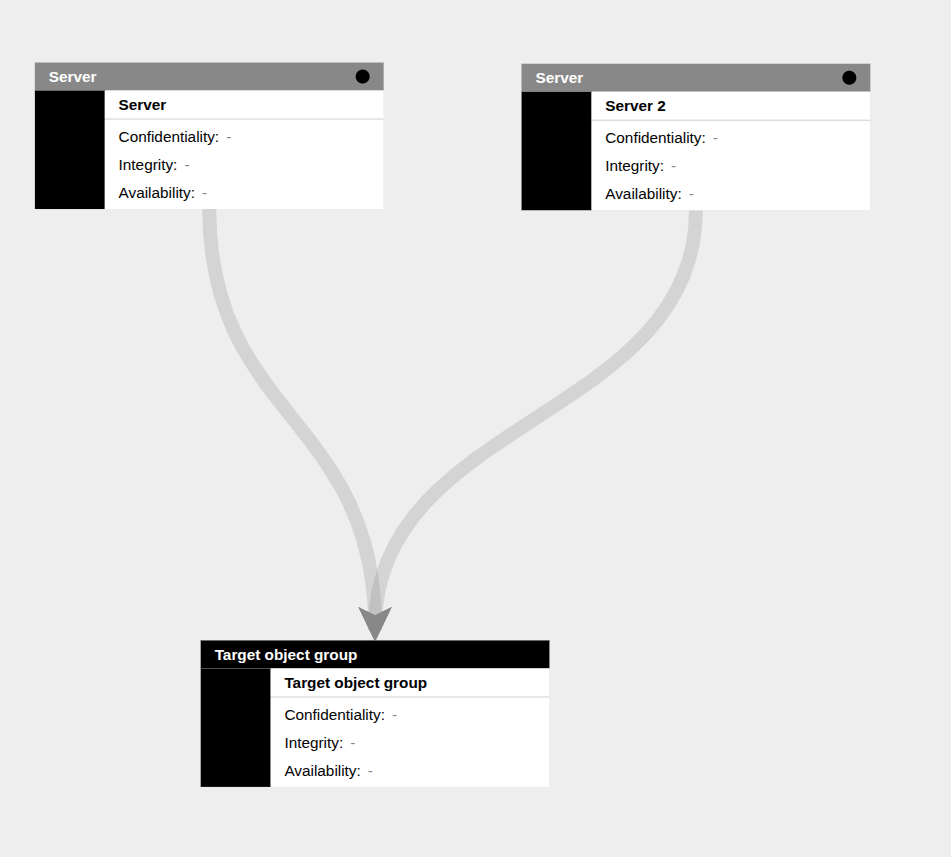
The main area displays the complete information domain graphically.
Protection Needs Inheritance#
The protection needs are inherited from top to bottom, starting at the top with the target objects/target object groups assigned to the information domain. Downward, all objects are then loaded (and their protection needs inherited) that are connected to each other via one of the following relationships:
- Group membership
- Service component
- Software assignment
- Ports
- Cluster memberships
- Virtual machine
- Contract assignment
- Communication link
- Location
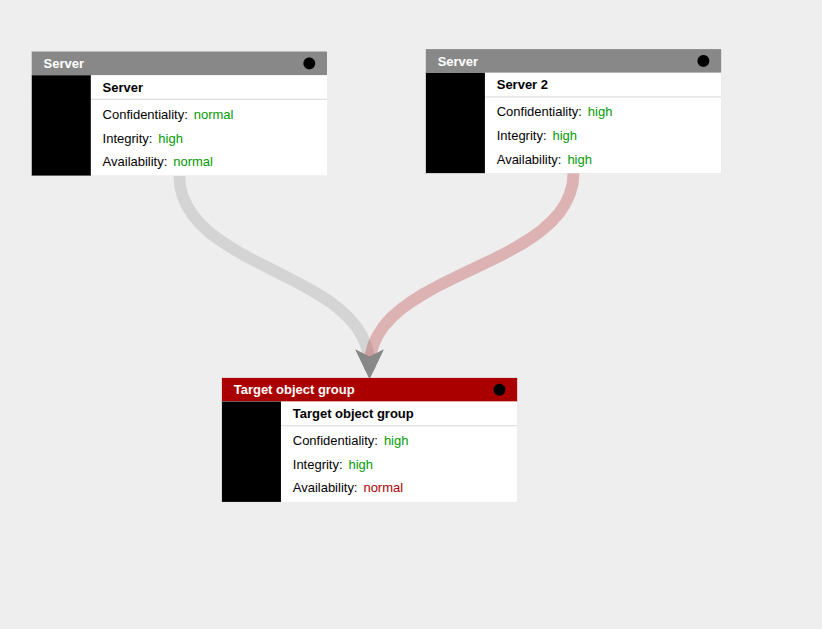
The protection needs for the various basic values are inherited downward according to the maximum principle.
If the protection needs are entered directly on the object, the value is displayed in green text. If the value is inherited, it is displayed in gray. If the value entered on the object is lower than what the inheritance would dictate, the value is displayed in red text (e.g., in the case of a distribution effect).
Filtering the View#
Since the graphical display can quickly become cluttered for large information domains, you can restrict the view to specific subtrees. By default, all target objects/target object groups are enabled in the left panel, and the complete information domain is loaded. To restrict the view, select only the desired target objects/target object groups in the left panel. Clicking "Apply filter" re-renders the view and shows only the inheritance trees of the selected target objects/target object groups.
Entering/Modifying Protection Needs#
You edit an object's protection needs directly in the graphical display. Click on an object in the tree view -- it will be loaded into the left panel.
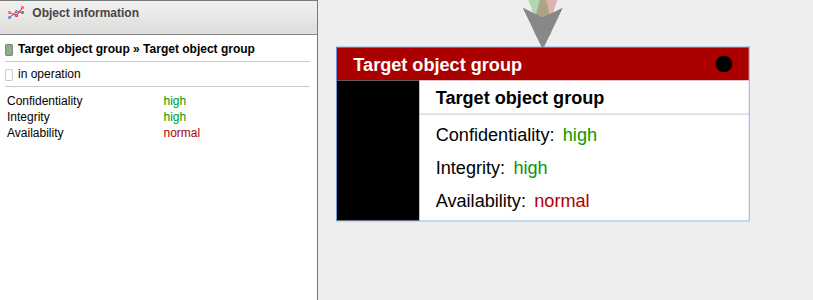
To enter or change the protection needs, click "Edit protection needs". In the editing form, enter the protection needs for the basic values and provide a justification for the classification.

After clicking Save, the object is saved with the corresponding values. Then reload the information domain completely so that the protection needs inheritance is recalculated.
Exporting Protection Needs#
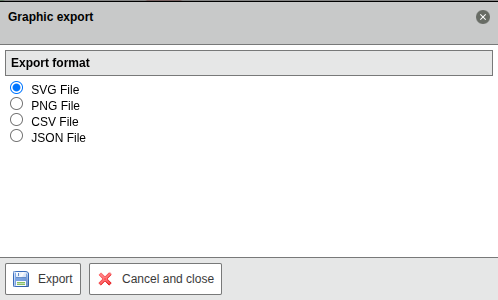
Using the "Export" button in the upper right corner, you can export the protection needs assessment and inheritance:
- SVG: The complete rendered area is saved in SVG format.
- PNG: Only the currently visible area is saved as a PNG file.
- CSV: The protection needs assessment of the entire information domain is offered as a CSV file for export. Any applied filter is ignored.
- JSON: The protection needs assessment of the entire information domain is offered in JSON format for export. Any applied filter is ignored.