Migration from Linux to Windows#
This article describes how to migrate your i-doit installation from Linux to a Windows Server. Prerequisite: The Windows Server was set up with the i-doit Windows Installer .
Preparations and Assumptions#
Both systems must be on the same i-doit version!
Before you start:
- Inform users -- Notify all colleagues in advance about the migration and the planned downtime.
- Identify interfaces -- Which third-party systems (Nagios, ((OTRS)) Community Edition, additional) access i-doit? Deactivate data access during the migration, running Tasks, Backups, and monitoring.
- Windows side -- Apache, PHP, and MariaDB are already configured by the Windows Installer. In the following, we use "MySQL" also for MariaDB. Transfer Linux configuration adjustments to the new system if applicable.
- Check services -- DNS, SMTP, and LDAP/AD must be reachable on the new system.
- Credentials -- Have the passwords for the MySQL system user (
root) and the i-doit user (idoit) ready.
Export Directory from Linux#
Pack the i-doit directory into an archive:
1 | |
Adjust the path to your installation. Transfer the ZIP file to the Windows Server, e.g., via scp (execute the command on the Windows Server):
1 | |
Export Database from Linux#
The following MariaDB versions cause an import error on Windows when performing an SQL dump:
- 10.5.25
- 10.6.18
- 10.11.8
- 11.0.6
- 11.1.5
- 11.2.4
- 11.4.2
The listed versions insert a "Sandbox command" into the first line of the dump during an SQL dump. This means the dump can only be imported with the listed MariaDB versions. Since the MariaDB version included with the Windows installer is not one of the listed versions, you will encounter the error ERROR at line 1: Unknown command '\-' during import. We therefore recommend using a different MariaDB version for the dump that is not listed above!
Export the databases and transfer them to the Windows Server:
1 2 | |
Transfer the SQL files:
1 2 | |
The SQL files are now located at C:\.
Set MariaDB Path in Windows#
To be able to execute MySQL commands directly in the command prompt, add the MariaDB path to the environment variables:
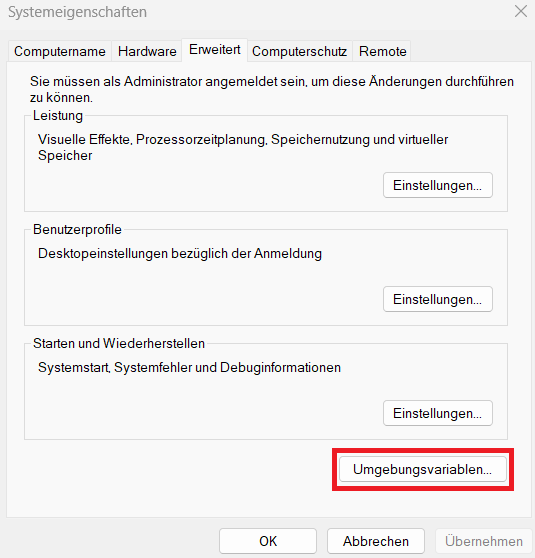
- Search for "Advanced system settings" via Windows search and click on "Environment Variables...".
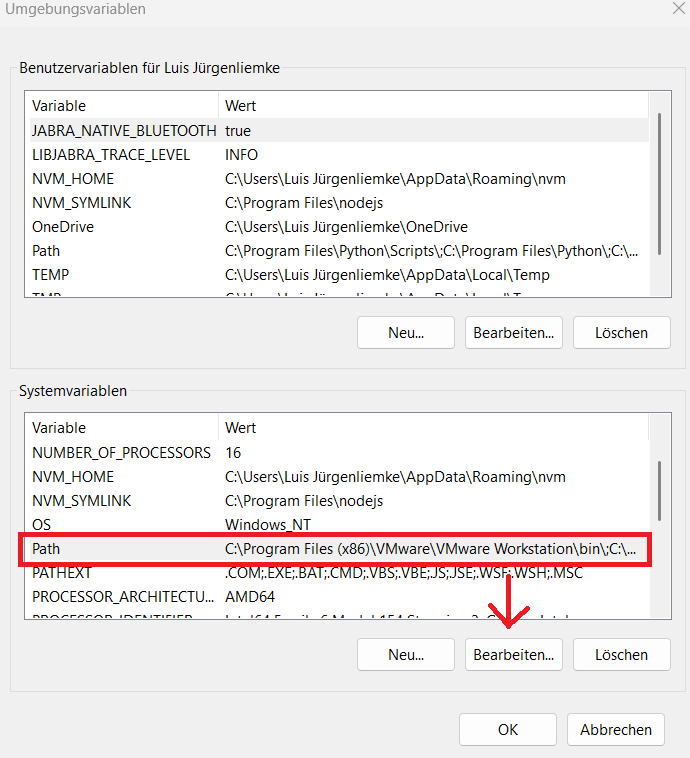
- In the new window, select the "Path" variable under system variables and click "Edit":
- Create a new entry with the path to the MariaDB bin folder: C:\ProgramData\MariaDB\bin.
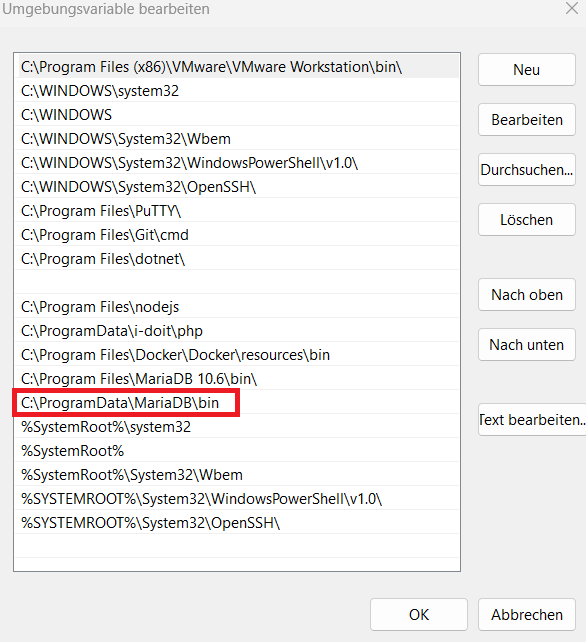
After setting the path, you can use SQL commands in the command prompt. Restart the window if necessary.
Migrate Data to Windows#
Extract the ZIP file to the following directory and overwrite all files:
1 | |
Then import the database. First, delete the existing databases on the Windows Server:
The SQL commands can be executed via the MySQL Client (found via Windows search)
1 2 | |
Recreate the databases:
1 2 | |
Import the databases from the old instance:
For this, we switch to the normal Windows command prompt
1 2 | |
If the error ERROR at line 1: Unknown command '\-' occurs:
If the above error occurs, you performed the SQL dump with a MariaDB version that writes a "Sandbox Command" to the first line of the dump. This line can only be interpreted by certain MariaDB versions, which does not apply to the MariaDB version included with the Windows installer (see list). The error-causing line is /*!999999\- enable the sandbox mode */, This must either be manually removed from the dump or you switch to a different MariaDB version and perform the dump again.
Grant the idoit user permissions for the new databases:
1 2 | |
The instance has now been successfully migrated from Linux to Windows.
Post-Processing#
- Perform tests and reactivate the interfaces to third-party tools.
- Make sure that the backups are running.
- Inform all colleagues that the IT documentation is available again.
The actual migration (without preparation and post-processing) usually takes no longer than two hours.