i-doit Update Guide
Important information before you begin#
Here you will find a short guide for updating your i-doit to i-doit 31.
You may need to update your operating system.
These instructions apply to Debian; the commands used may differ on other operating systems. Before you begin, download all the updates you need to perform and copy them to the i-doit root folder.
Important notes in advance
This guide is provided without warranty and may not work in your specific use case.
This depends on the configuration and installation type of your instance. Required add-on updates are also not mentioned.
Backup
Create a backup or snapshot before each update step!
Release notes
Read the release notes before updating to a new version.
Hotfix note
Use hotfixes exclusively with the specified version. Hotfixes will be included in newer versions, so reinstallation is not required. If you are using an older i-doit version, it is indispensable to first perform an update to the newest version. If a hotfix is required to update an older version, you will find it in the hotfix subchapters here in the Knowledge Base. Since these are hotfixes, we recommend installing them only if the adjustments are required for smooth operation of your installation or if you are requested to do so by the support team. Make sure you have created a backup of i-doit before using a hotfix. Please inform us about the use of hotfixes if you subsequently contact our support team.
Update from 1.7.4 to 1.8#
First, we prepare the update via the CLI by opening the i-doit folder at /var/www/html/ and extracting the i-doit update package with the following command:
1 | |
If prompted, overwrite everything by entering A.
Now open the web interface updater, select the update to v1.8 and perform the update.
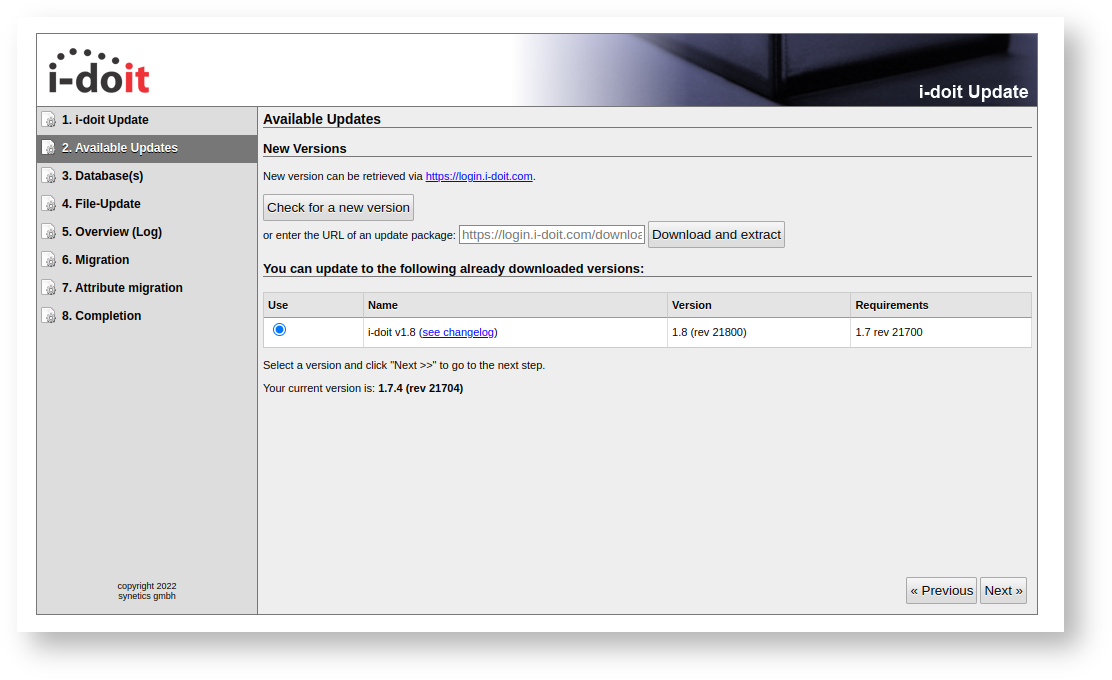
Possible error
PHP Fatal error: Call to an undefined method idoit\Component\ContainerFacade::has() in /var/www/html/src/idoit/Model/Summary/SystemSummary.php on line 185 The solution is to reload the page and continue.
Check the update logs
Please take the time to review the logs and check whether an error has occurred. Log in and verify your installation.
Update from 1.8 to 1.9#
First, we prepare the update via the CLI by opening the i-doit folder at /var/www/html/ and extracting the i-doit update package with the following command:
1 | |
If prompted, overwrite everything by entering A. Now open the web interface updater, select the update to v1.9 and perform the update.
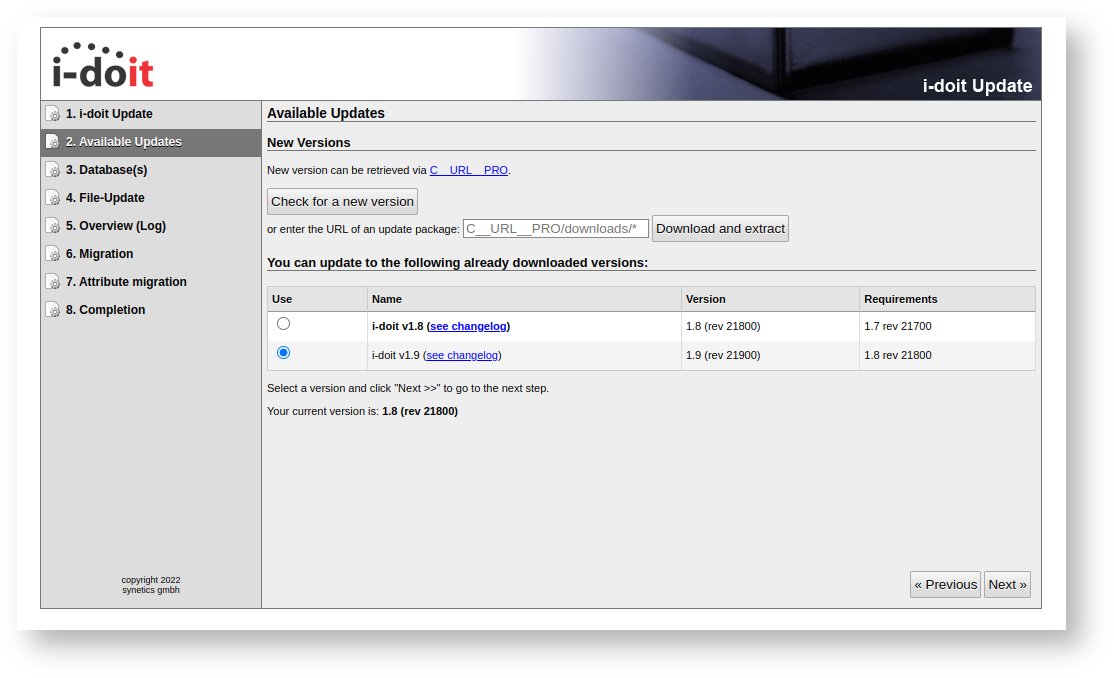
Check the update logs
Please take the time to review the logs and check whether an error has occurred. Log in and verify your installation.
Update from 1.9 to 1.10#
First, we prepare the update via the CLI by opening the i-doit folder at /var/www/html/ and extracting the i-doit update package with the following command:
1 | |
If prompted, overwrite everything by entering A. Now open the web interface updater, select the update to v1.10 and perform the update.
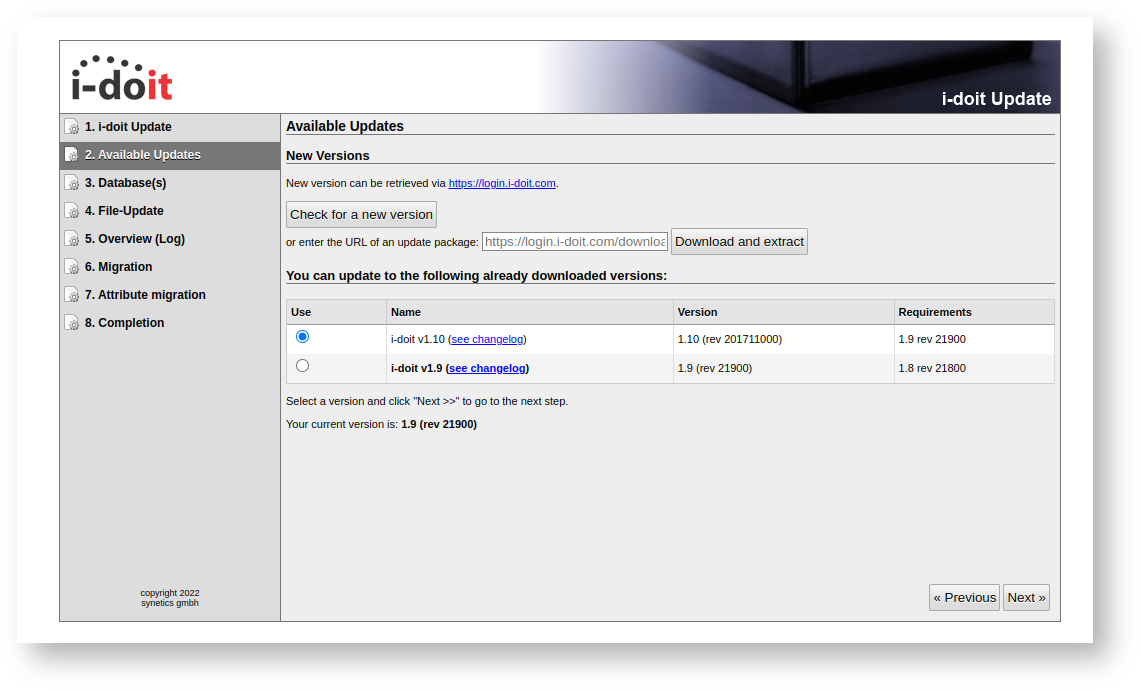
Check the update logs
Please take the time to review the logs and check whether an error has occurred. Log in and verify your installation.
Update from 1.10 to 1.11#
First, we prepare the update via the CLI by opening the i-doit folder at /var/www/html/ and extracting the i-doit update package with the following command:
1 | |
If prompted, overwrite everything by entering A. Now open the web interface updater, select the update to v1.11, and perform the update.
Possible error
Call to an unknown method '_realpath'.
Solutions:
- Reload the page and continue.
- or use the following hotfix if reloading does not work
Consent declaration
By downloading a hotfix, you declare that you have completely read and understood the above note. Click here for the hotfix
Continue with the update
Check the update logs
Please take the time to review the logs and check whether an error has occurred. Log in and verify your installation.
Update from 1.11 to 1.12#
First, we prepare the update via the CLI by opening the i-doit folder at /var/www/html/ and extracting the i-doit update package with the following command:
1 | |
If prompted, overwrite everything by entering A. Now open the web interface updater and the update to v1.12 is displayed and selected; perform the update.
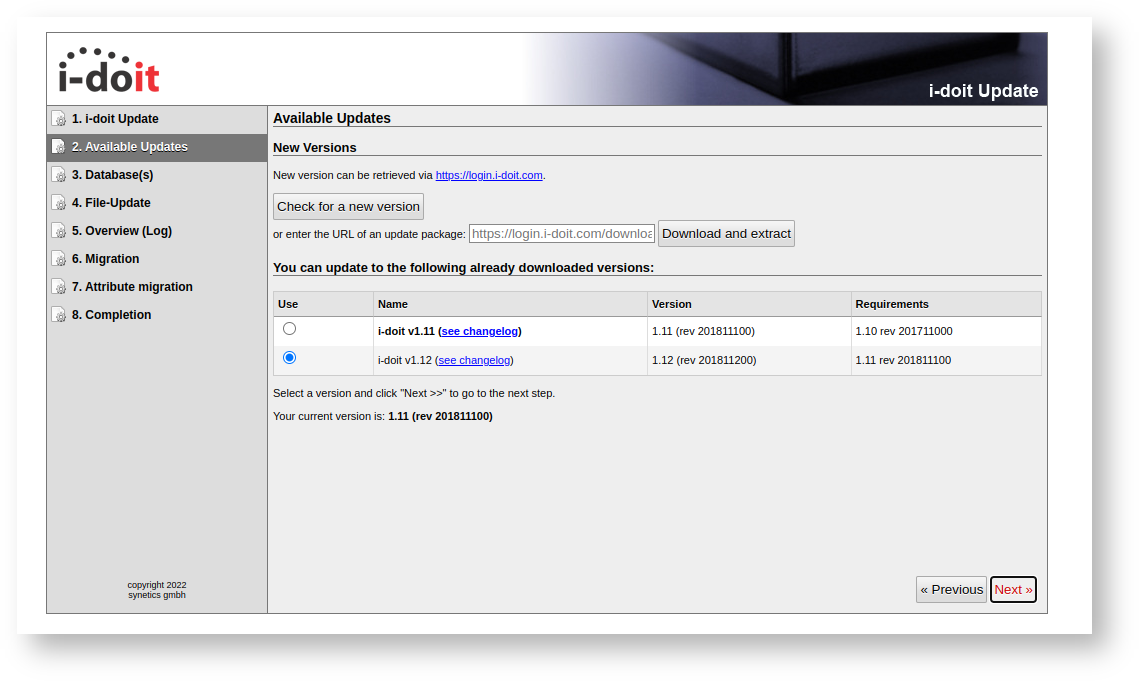
Check the update logs
Please take the time to review the logs and check whether an error has occurred. Log in and verify your installation.
Upgrade Debian 8 to 9#
Warning
Before you begin, please make sure you have a complete backup that you have tested on a clean server, in case something goes wrong -- there is no going back! Read the update instructions from Debian 8 to 9 here
I have a working complete backup
Free up some space with
1 2 | |
Edit the sources.list with your preferred editor
1 | |
Change all entries to 'stretch' or delete all entries and add the following:
1 2 | |
Now update the packages again
1 | |
If you receive a message like this, you can ignore it or read more here.
1 2 | |
Now stop mysql and cron
1 | |
Perform the update to Debian 9
1 2 | |
If asked 'Restart services during package upgrades without asking?', select 'Yes' and press Enter
Start the services we stopped:
1 | |
Errors? Read here
Check the system and i-doit
Check your system and i-doit!
Free up some space again
1 2 | |
Check your sources.list; for additional information see here
You are now on Debian 9 with PHP 5.6 and MariaDB 10.
Upgrade Debian 9 to 10#
Warning
Before you begin, please make sure you have a complete backup that you have tested on a clean server, in case something goes wrong -- there is no going back! Read the update instructions from Debian 9 to 10 here
I have a working complete backup
Free up some space with
1 2 | |
Edit the sources.list with your preferred editor
1 | |
Change all entries to 'buster' or delete all entries and add the following
1 2 | |
Now stop mysql and cron
1 | |
Perform the update to Debian 10
1 2 3 | |
Start the services we stopped
1 | |
Errors? Check the Debian website
Check the system and i-doit
Check your system and i-doit!
Free up some space again
1 2 | |
Check your sources.list; for additional information see here
You are now on Debian 10 with PHP 5.6 and MariaDB 10.3.
Update from PHP 5.6 to PHP 7.3#
Backup
Create a backup or snapshot!
Update and install all required packages
1 2 | |
Create the PHP configuration file
1 | |
Insert the following:
1 2 3 4 5 6 7 8 9 10 11 12 13 14 15 16 17 18 19 20 21 22 23 | |
Enable the changes
1 2 3 4 5 | |
i-doit should now display the new PHP version 7.3.31-1~deb10u1 under Administration > [Tenant Name] Administration > System Config Check.
Create the MariaDB Configuration File if Not Present#
Create or update a MariaDB configuration file
1 | |
Insert or update your MariaDB configuration
1 2 3 4 5 6 7 8 9 10 11 12 13 14 15 16 17 18 19 20 21 22 23 24 25 26 27 28 29 30 31 32 33 34 35 36 37 38 39 40 41 42 43 44 45 46 47 | |
Then restart MariaDB
1 | |
Update from 1.12 to 1.13#
First, we prepare the update via the CLI by opening the i-doit folder at /var/www/html/ and extracting the i-doit update package with
1 | |
If prompted, overwrite everything by entering A.
Now open the web interface updater. The update to v1.13 is displayed and selected; perform the update.
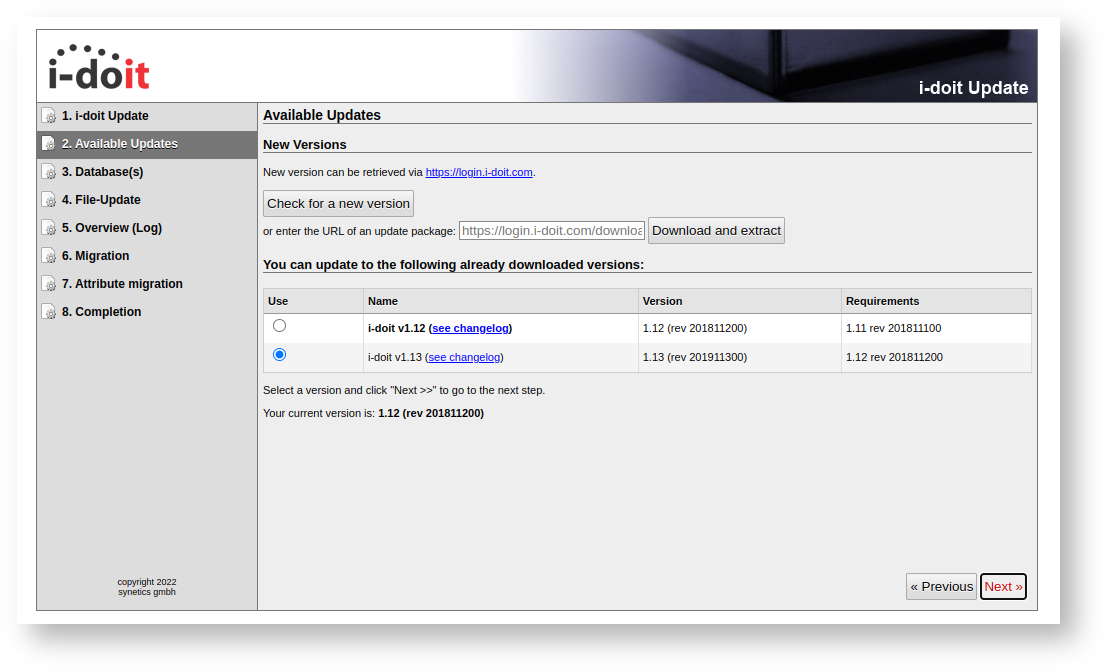
You may receive this error:
Possible error
Schwerwiegender Fehler: Uncaught Error: Class 'idoit\Module\License\LicenseServiceFactory' nicht gefunden in /var/www/html/updates/versions/v1.13/migration/license_migration.php:50 Stacktrace: #0 /var/www/html/updates/classes/isys_update_migration.class.php(98): include() #1 /var/www/html/updates/update.inc.php(911): isys_update_migration->migrate('/var/www/html/u...') #2 /var/www/html/src/hypergate.inc.php(152): include_once('/var/www/html/u...') #3 /var/www/html/index.php(231): include_once('/var/www/html/s...') #4 {main} thrown in /var/www/html/updates/versions/v1.13/migration/license_migration.php on line 50
Then you need to start the update again.
If you now receive an HTTP 500 error, perform the update again.
Check the system and i-doit
Check your system and i-doit!
Update from 1.13 to 1.14#
First, we prepare the update via the CLI by opening the i-doit folder at /var/www/html/ and extracting the i-doit update package with
1 | |
If prompted, overwrite everything by entering A.
Now open the web interface updater. The update to v1.14 is displayed and selected; perform the update.
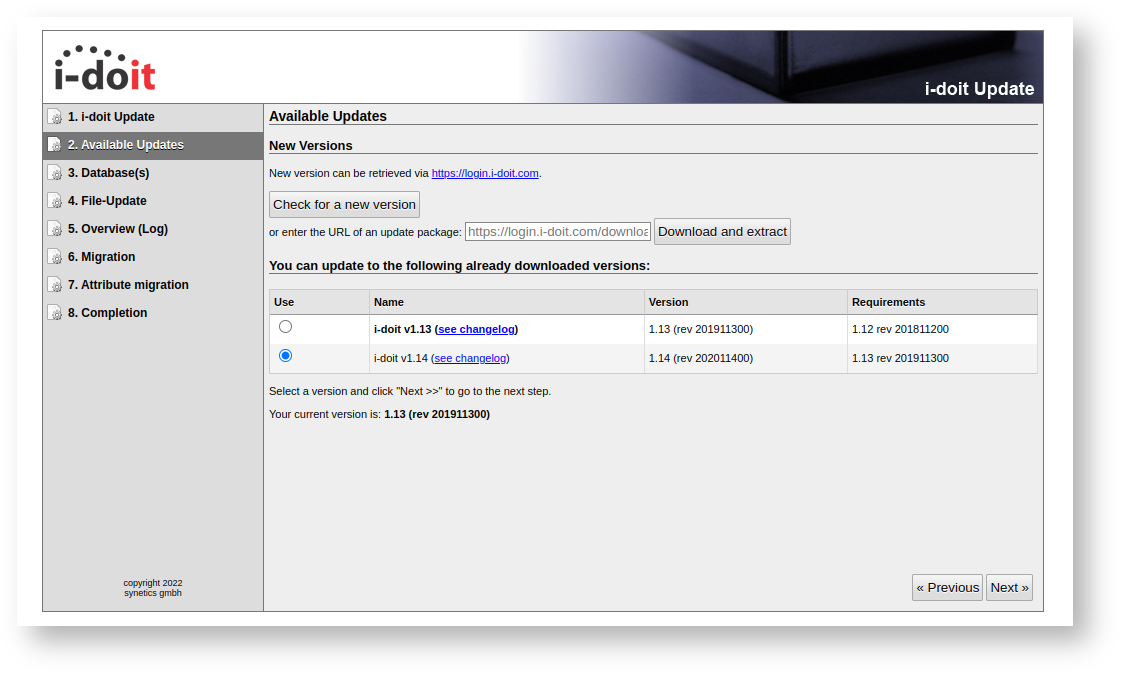
Check the update logs
Please take the time to review the logs and check whether an error has occurred.
If you see this error:
Possible error
Database error: Query error: 'ALTER TABLE isys_cats_person_list ADD isys_cats_person_list__disabled_login TINYINT(1) UNSIGNED DEFAULT 0': Row size too large. The maximum row size for the used table type, not counting BLOBs, is 8126. This includes storage overhead, check the manual. You have to change some columns to TEXT or BLOBs.
The solution is documented here
Check the system and i-doit
Check your system and i-doit!
Update from 1.14 to 1.15#
First, we prepare the update via the CLI by opening the i-doit folder at /var/www/html/ and extracting the i-doit update package with
1 | |
If prompted, overwrite everything by entering A.
Now open the web interface updater. The update to v1.15 is displayed and selected; perform the update.
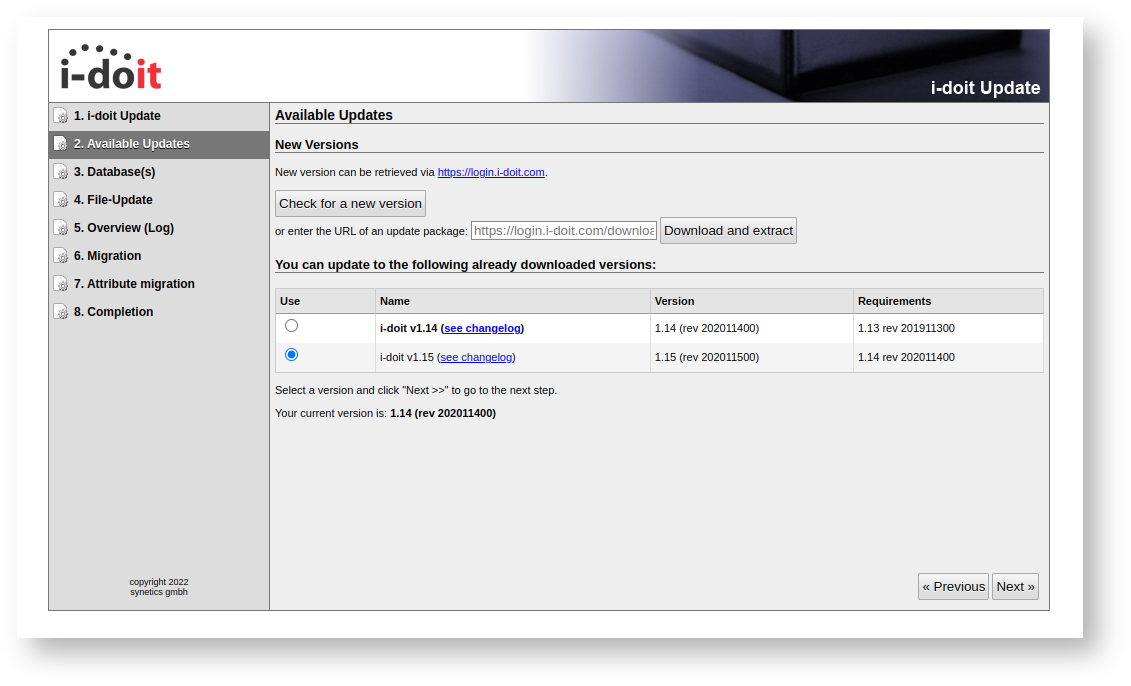
Check the system and i-doit
Check your system and i-doit!
Update from 1.15 to 1.16#
First, we prepare the update via the CLI by opening the i-doit folder at /var/www/html/ and extracting the i-doit update package with
1 | |
If prompted, overwrite everything by entering A.
Now open the web interface updater. The update to v1.16 is displayed and selected; perform the update.

Check the system and i-doit
Check your system and i-doit!
Update from 1.16 to 1.17#
First, we prepare the update via the CLI by opening the i-doit folder at /var/www/html/ and extracting the i-doit update package with
1 | |
If prompted, overwrite everything by entering A.
Now open the web interface updater. The update to v1.17 is displayed and selected; perform the update.
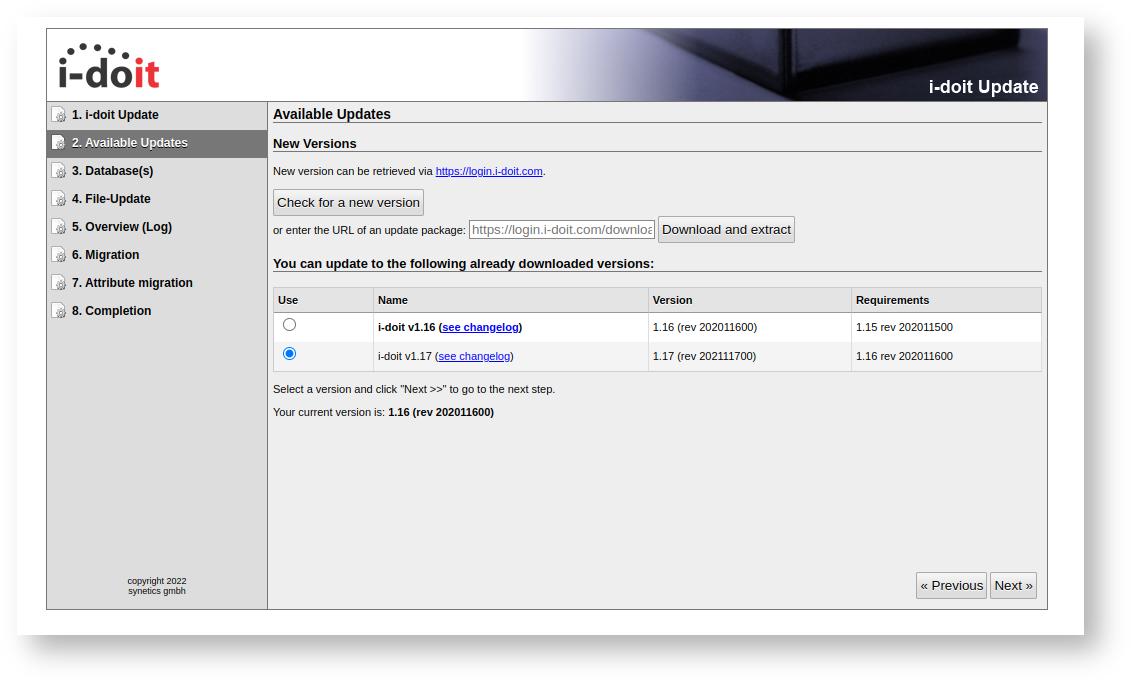
Check the system and i-doit
Check your system and i-doit!
Update from 1.17 to 1.18#
First, we prepare the update via the CLI by opening the i-doit folder at /var/www/html/ and extracting the i-doit update package with the following command:
1 | |
If prompted, overwrite everything by entering A.
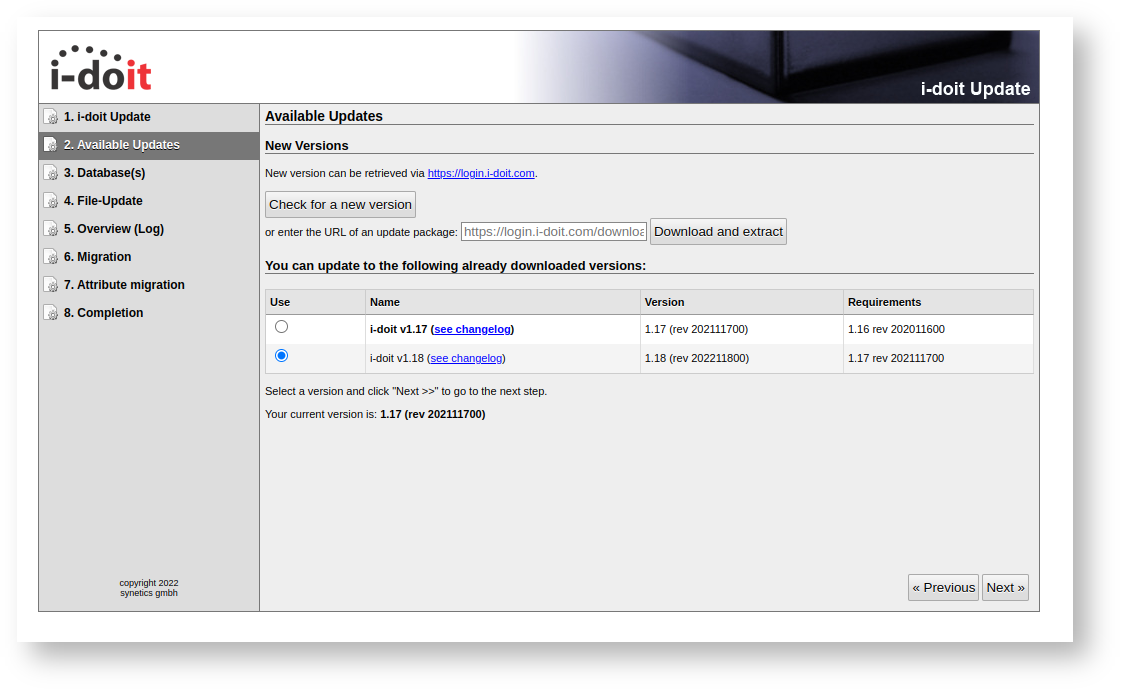
Now open the web interface updater. The update to v1.18 is displayed and selected; perform the update.
Check the system and i-doit
Check your system and i-doit!
Upgrade Debian 10 to 11#
Warning
Before you begin, please make sure you have a complete backup that you have tested on a clean server, in case something goes wrong -- there is no going back!
Read the update instructions for Debian 10 to 11 here
I have a working complete backup
Free up some space with
1 2 | |
Edit the sources.list with your preferred editor
1 | |
Change all entries to 'buster' or delete all entries and add the following
1 2 | |
Now stop mysql and cron
1 | |
Perform the update to Debian 11
1 2 3 | |
Start the services we stopped
1 | |
Errors? Check the Debian website
Check the system and i-doit
Check your system and i-doit!
Free up some space again
1 2 | |
Check your sources.list; for additional information see here
You are now on Debian 11 with PHP 7.4.30 and MariaDB 10.5.
Configure PHP 7.4#
Create the PHP configuration file
1 | |
Insert the following:
1 2 3 4 5 6 7 8 9 10 11 12 13 14 15 16 17 18 19 20 21 22 23 | |
Enable the changes
1 2 3 4 5 | |
Possible error
(38)Function not implemented: AH00141: Could not initialize random number generator
If apache2 does not restart and you receive the above error, restart the server.
i-doit should now display the new PHP version 7.4.30 under Administration > [Tenant Name] Administration > System Config Check.
Update from 1.18 to 1.19#
First, we prepare the update via the CLI by opening the i-doit folder at /var/www/html/ and extracting the i-doit update package with
1 | |
If prompted, overwrite everything by entering A.
If you attempt the update without PHP 7.4, you will see this message:
Possible error
You have PHP 7.3.31. To update i-doit to the next version, you need at least PHP 7.4!
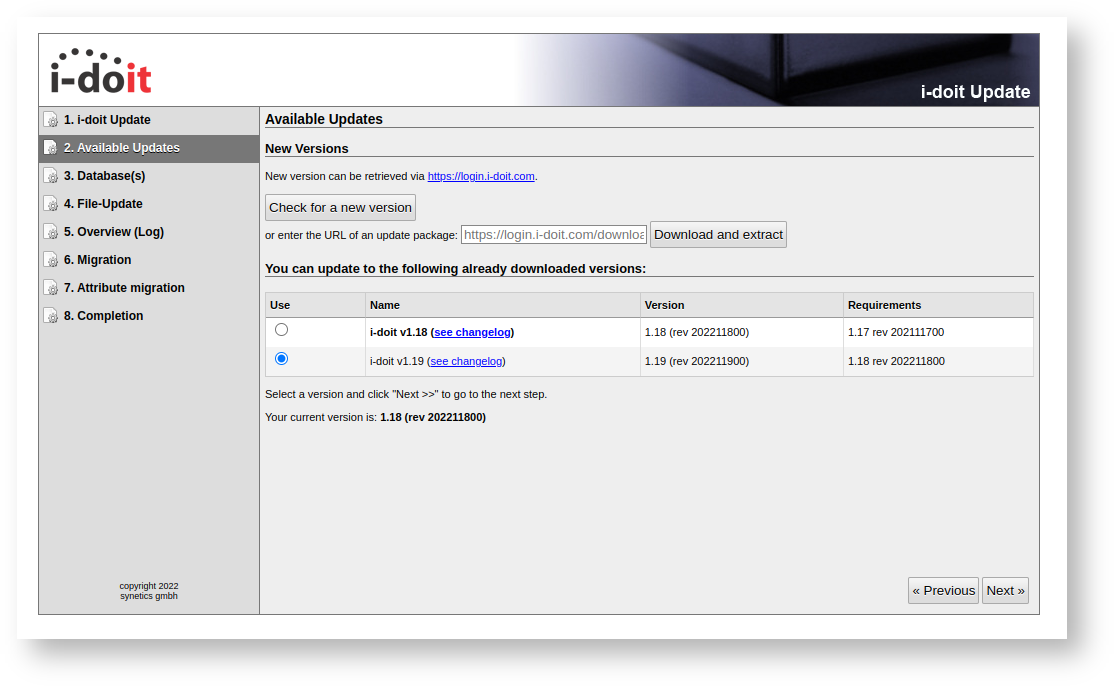
Now open the web interface updater. The update to v1.19 is displayed and selected; perform the update.
Check the system and i-doit
Update from 1.19 to 20#
First, open the web interface updater.
By clicking Check for a new version, you can verify whether a newer package is available. This requires an internet connection.
If a new version is available, the update package can be downloaded and extracted with a single click on Download.
If you are not connected to the internet, you can prepare the update via the command line by opening the i-doit folder at /var/www/html/ and extracting the i-doit update package with the following command:
1 | |
If prompted, overwrite everything by entering A.
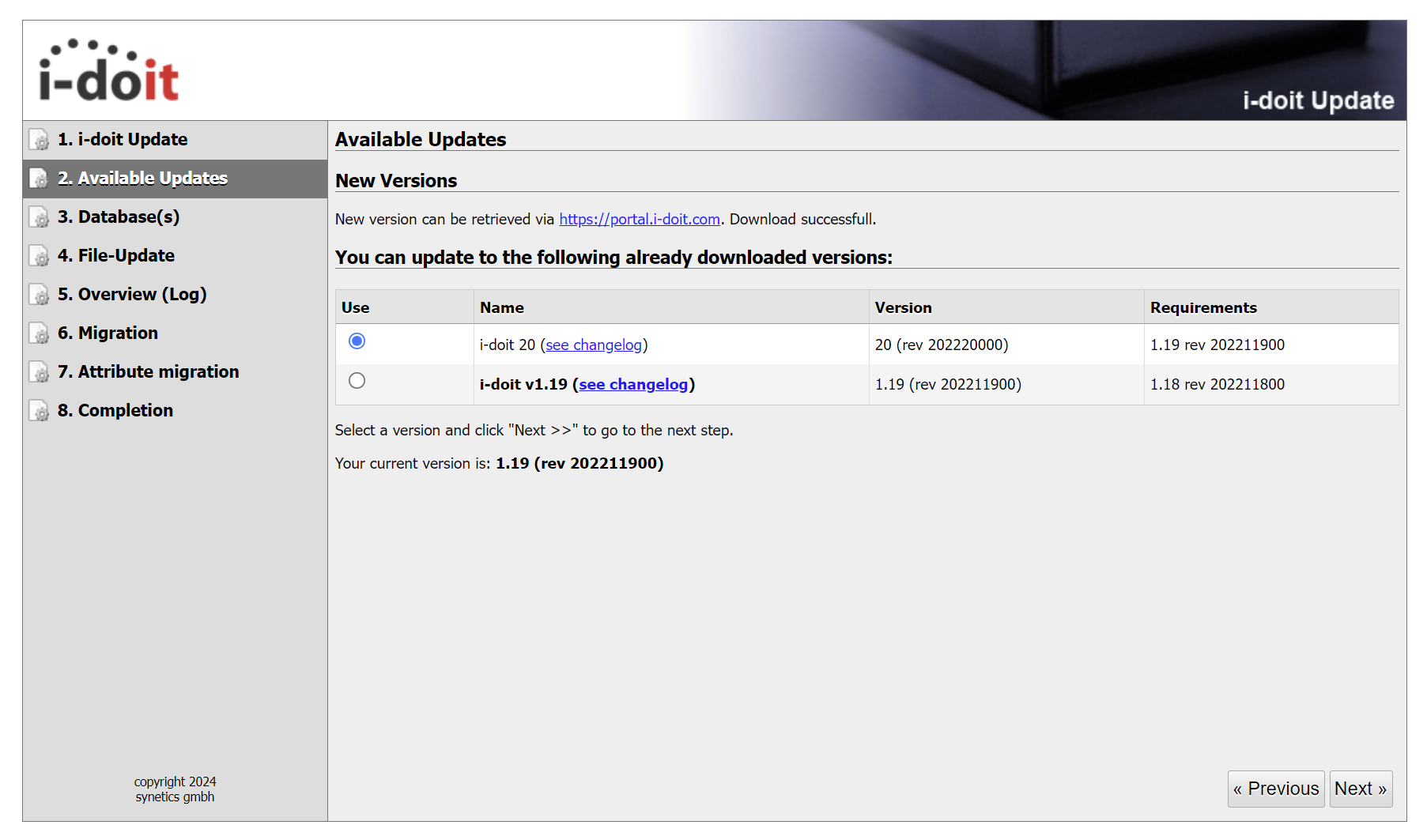
In the web interface, verify that the update to version 20 is displayed and selected, then perform the update.
Check the update logs
Please take the time to review the logs and check whether an error has occurred.
Check the system and i-doit
Update from 20 to 29#
First, you need to prepare the update via the command line by opening the i-doit folder at /var/www/html/ and extracting the i-doit update package with the following command:
1 | |
If prompted, overwrite everything by entering A.
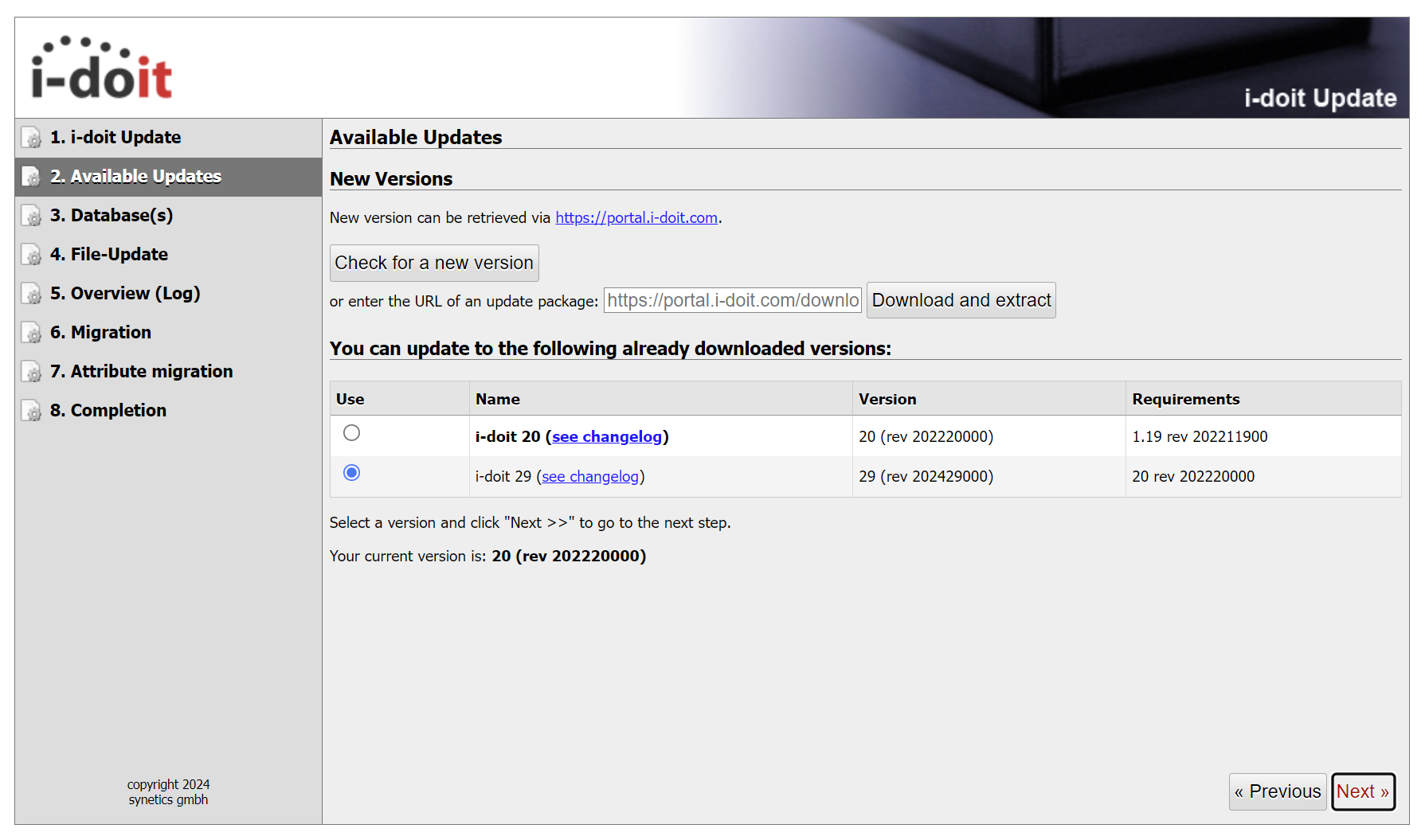
In the web interface of the updater, verify that the update to version 29 is displayed and selected, then perform the update.
Check the update logs
Please take the time to review the logs and check whether an error has occurred.
Check the system and i-doit
Upgrade Debian 11 to 12#
Warning
Before you begin, please make sure you have a complete backup that you have tested on a clean server, in case something goes wrong -- there is no going back! Read the update instructions for Debian 11 to 12 here
I have a working complete backup
Free up some space with
1 2 | |
Edit the sources.list with your preferred editor.
1 | |
Change all entries to 'bookworm' or delete all entries and add the following
1 2 | |
Now stop mysql and cron
1 | |
Perform the update to Debian 12
1 2 3 | |
Start the services we stopped
1 | |
Errors? Read here
Check the system and i-doit
Check your system and i-doit!
Free up some space again
1 2 | |
Check your sources.list; for additional information see here
You are now on Debian 12 with PHP 8.2.18 and MariaDB 10.11.
Configure PHP 8.2#
Create the PHP configuration file
1 | |
Add the following:
1 2 3 4 5 6 7 8 9 10 11 12 13 14 15 16 17 18 19 20 21 22 23 | |
Enable the changes
1 2 3 4 5 | |
If apache2 does not restart, restart the server.
i-doit should now display the new PHP version 8.2.18 under Administration > [Tenant Name] Administration > System Config Check.
MariaDB 10.11 Upgrade#
Now we need to check the tables and update to the latest version with
1 | |
Enter your password and check whether everything went well
Then restart MariaDB
1 | |
Update from 29 to 34#
First, prepare the update via the CLI by opening the i-doit folder at /var/www/html/ and extracting the i-doit update package with
1 | |
If prompted, overwrite everything by entering A.
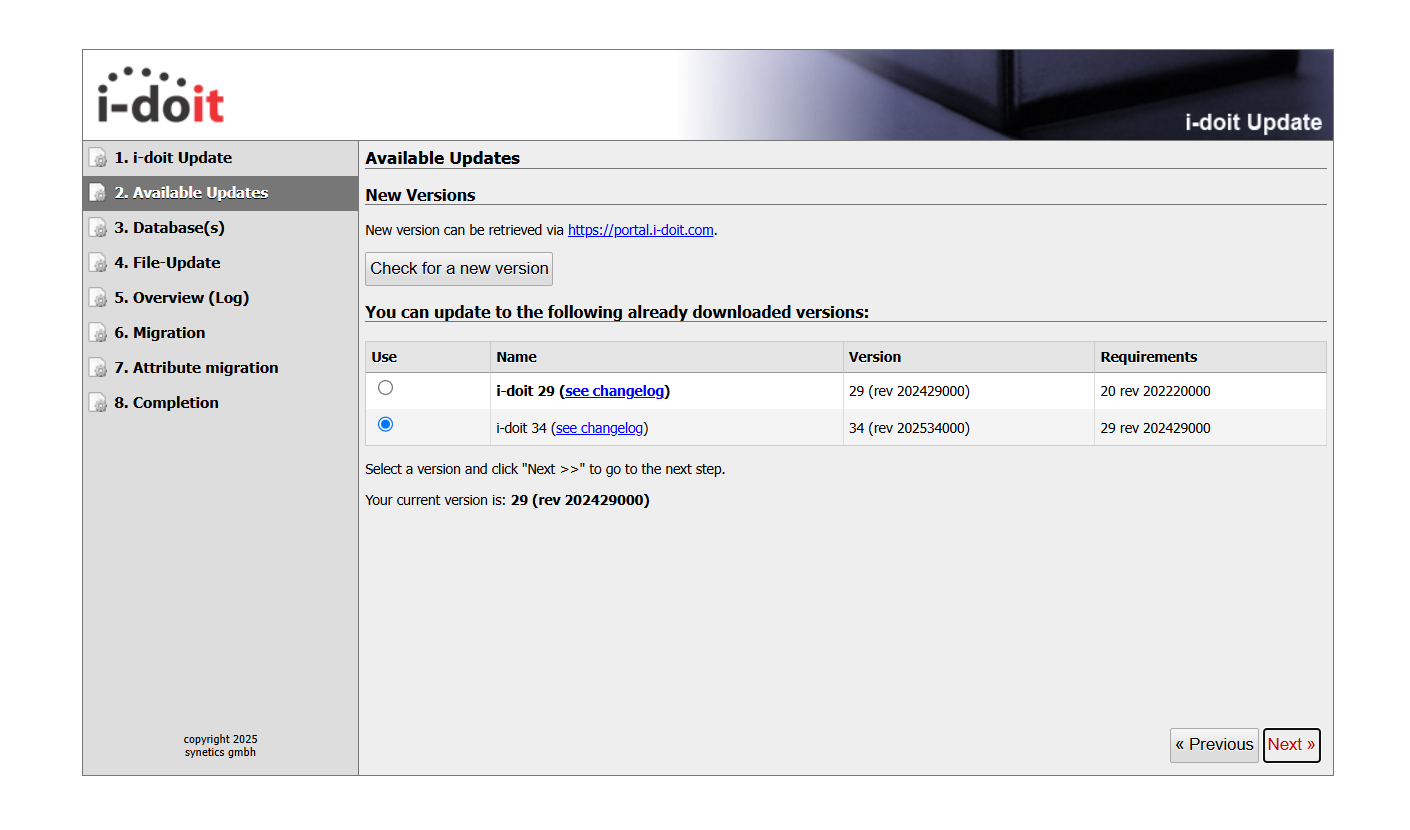
In the web interface updater, verify that the update to version 34 is displayed and selected, then perform the update.
Check the update logs
Please take the time to review the logs and check whether an error has occurred.
Check the system and i-doit
Sources#
- MariaDB upgrade information https://mariadb.com/kb/en/upgrading/
- Debian 9-Upgrade https://www.debian.org/releases/stretch/
- Debian 10-Upgrade https://www.debian.org/releases/buster/
- Debian 11-Upgrade https://www.debian.org/releases/bullseye/
- Debian 12-Upgrade https://www.debian.org/releases/bookworm/