Update PHP and MariaDB for Windows
In this article, we show you how to update PHP and MariaDB for your i-doit Windows installation.
Update Packages#
To successfully update PHP and MariaDB, we need the correct update packages.
Download PHP Update Package#
To successfully update to one of the PHP 8.X versions, the update is needed as a ZIP file. The appropriate package can be downloaded here: x64 Thread Safe
It must be a ZIP file and the 'x64 Thread Safe' version
Check beforehand whether the PHP version is compatible with your i-doit version! Here you can find our compatibility matrix.
Download MariaDB 10.11 Installer#
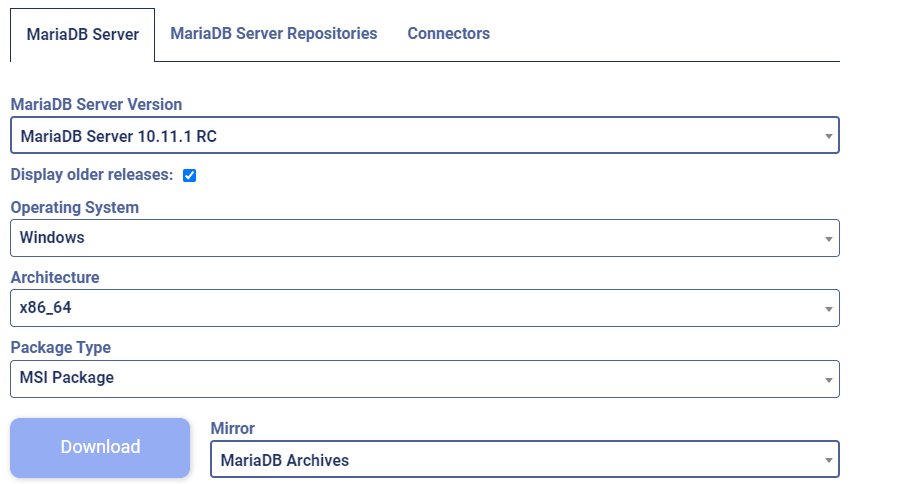
To successfully update to MariaDB 10.11, we need the MariaDB Server 10.11.1 RC Version
The already selected options must be present!
Update MariaDB and PHP#
Make sure to create a backup or a snapshot before the following steps!
Stop Apache Service#
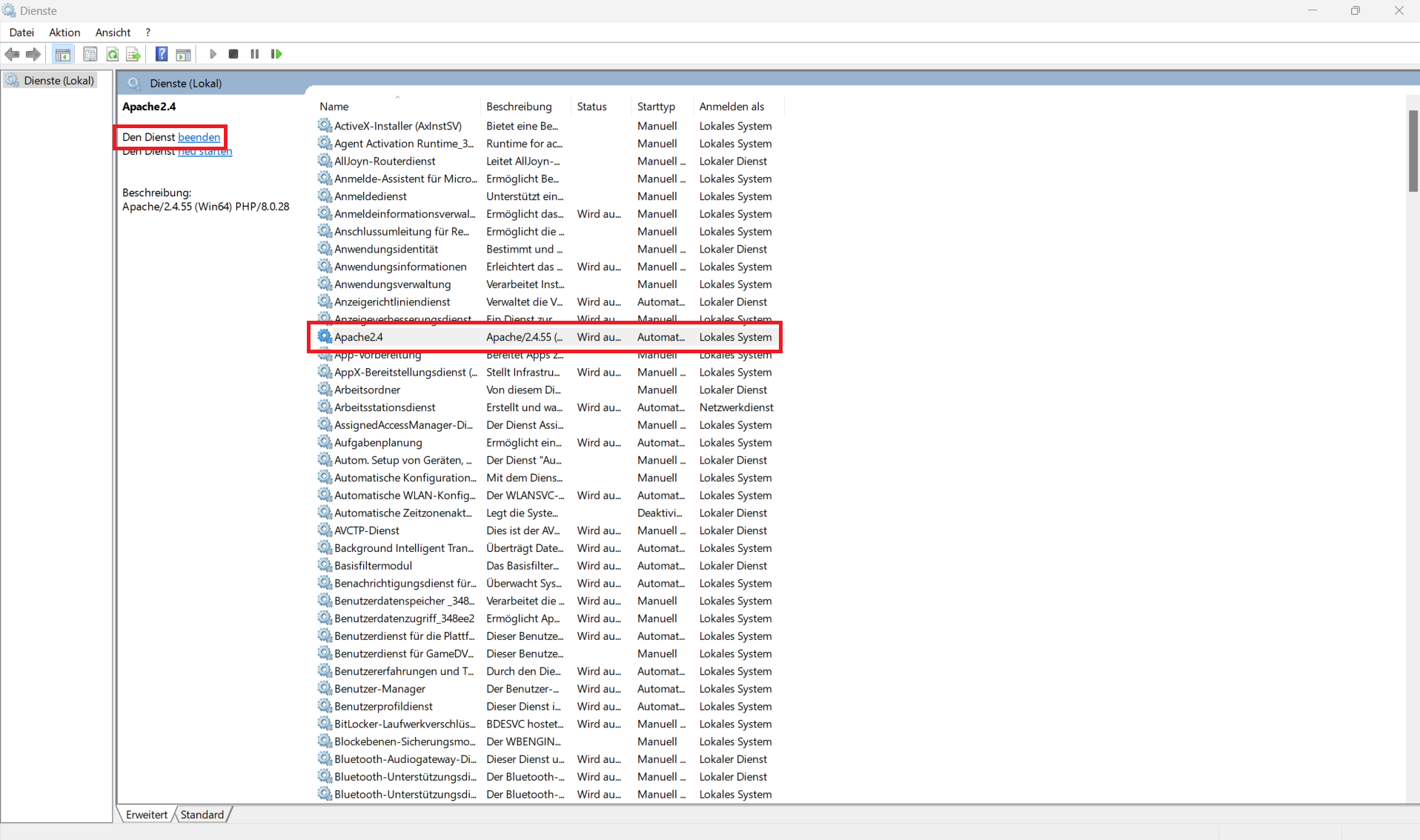
First, the Apache2 service must be stopped. This can be done either via the "Services" window or via a console command.
"Services" window:
Find the Apache2.4 service among the displayed services and click "Stop the service"
Console:
Press Windows key + R, type cmd, and press Enter to open the Windows console. Then enter the following command:
1 | |
Update MariaDB#
After the Apache2.4 service has been successfully stopped, the MariaDB MSI file can now be executed to start the update.
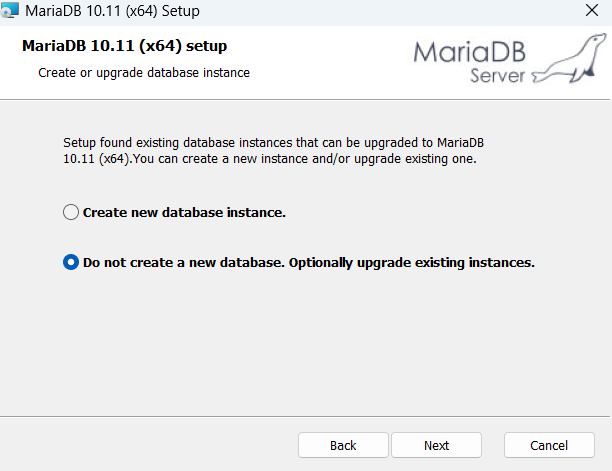
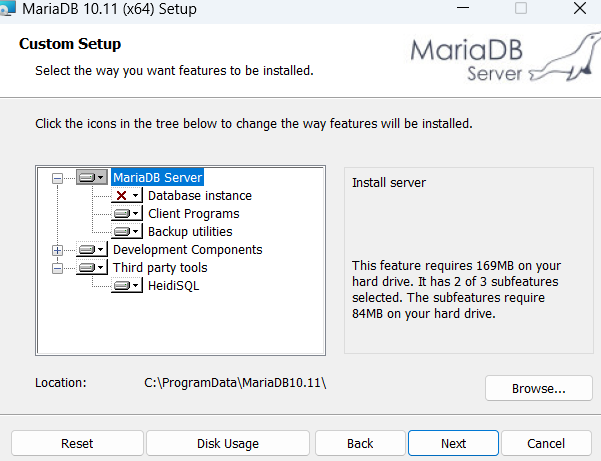
After agreeing to the license, select the option "Do not create a new database. Optionally upgrade existing instances".
Then change the path to "C:\ProgramData\" and click "Install"
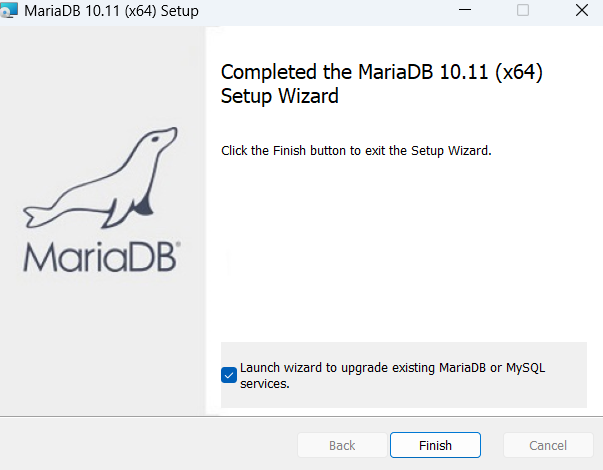
Finally, the option "Launch Wizard to Upgrade existing MariaDB or MySQL services" must be set.
In the new window that opens, select the MySQL service and click "Upgrade".
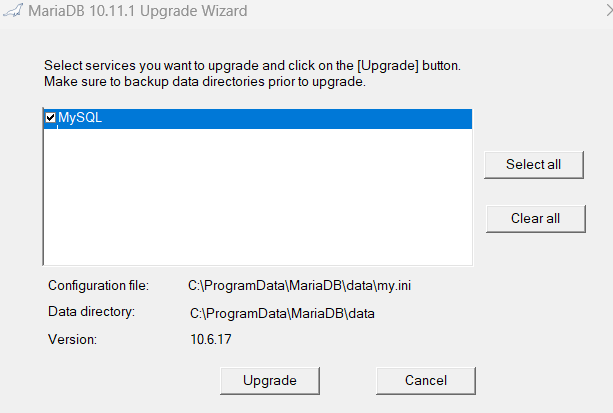
If the upgrade window does not appear, you can manually find and run the MariaDB 10.11 Upgrade Wizard EXE at C:\ProgramData\MariaDB10.11\bin.
MariaDB has now been successfully updated to MariaDB 10.11.
Update PHP#
Updating PHP is significantly easier.
First, a backup of the PHP.ini must be made. It is sufficient to copy the file from the C:\ProgramData\i-doit\php\ folder and paste it into another folder.
The Apache2.4 service must be stopped for the following step!
Then extract the contents of the previously downloaded ZIP file into the C:\ProgramData\i-doit\php\ folder, replacing the old PHP files.
After the contents have been successfully inserted, the backup of the PHP.ini file can also be inserted into the folder and replaced so that the old PHP settings are restored.
Finally, the Apache2.4 service must be restarted, and PHP is now successfully updated.
Verify#
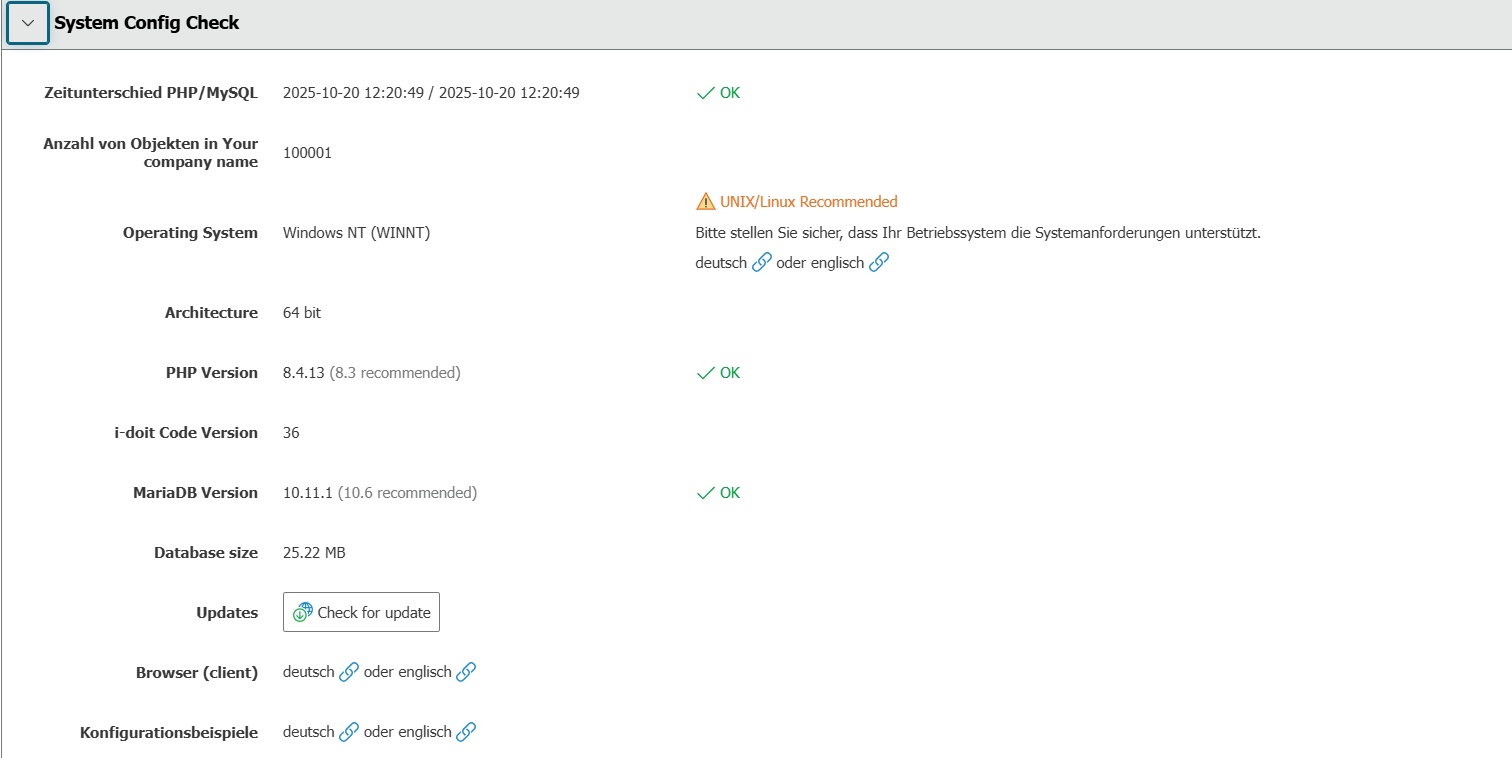
Finally, verify that the update was successful by checking the versions in the Administration under "System Config Check"