Populating Excel Spreadsheets with Data from i-doit#
With just a few lines of Visual Basic, you can read any content from i-doit and display it in Microsoft Excel. In this article, we explain the procedure using reports.
Last tested with i-doit 36 and API 2.5
This article was revised and subsequently tested with i-doit 36 and API 2.5.
installation#
-
Download https://github.com/VBA-tools/VBA-JSON/releases and extract
-
Open a new document in Excel
-
Press Alt + F11 to open the VBA editor
-
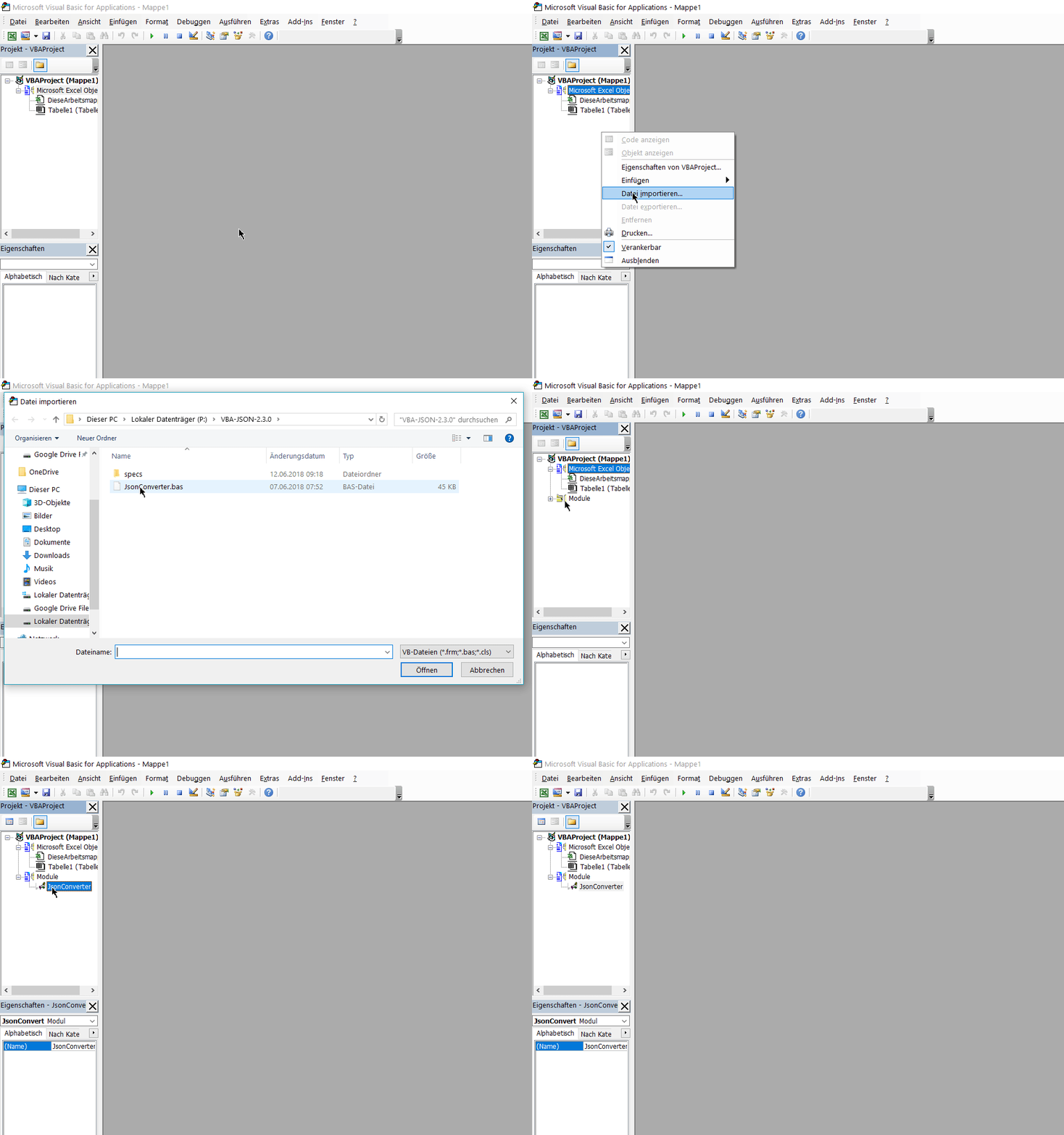
Import the VBA-JSON code as shown in the GIF
-
Under Tools/References, enable
Microsoft Scripting Runtime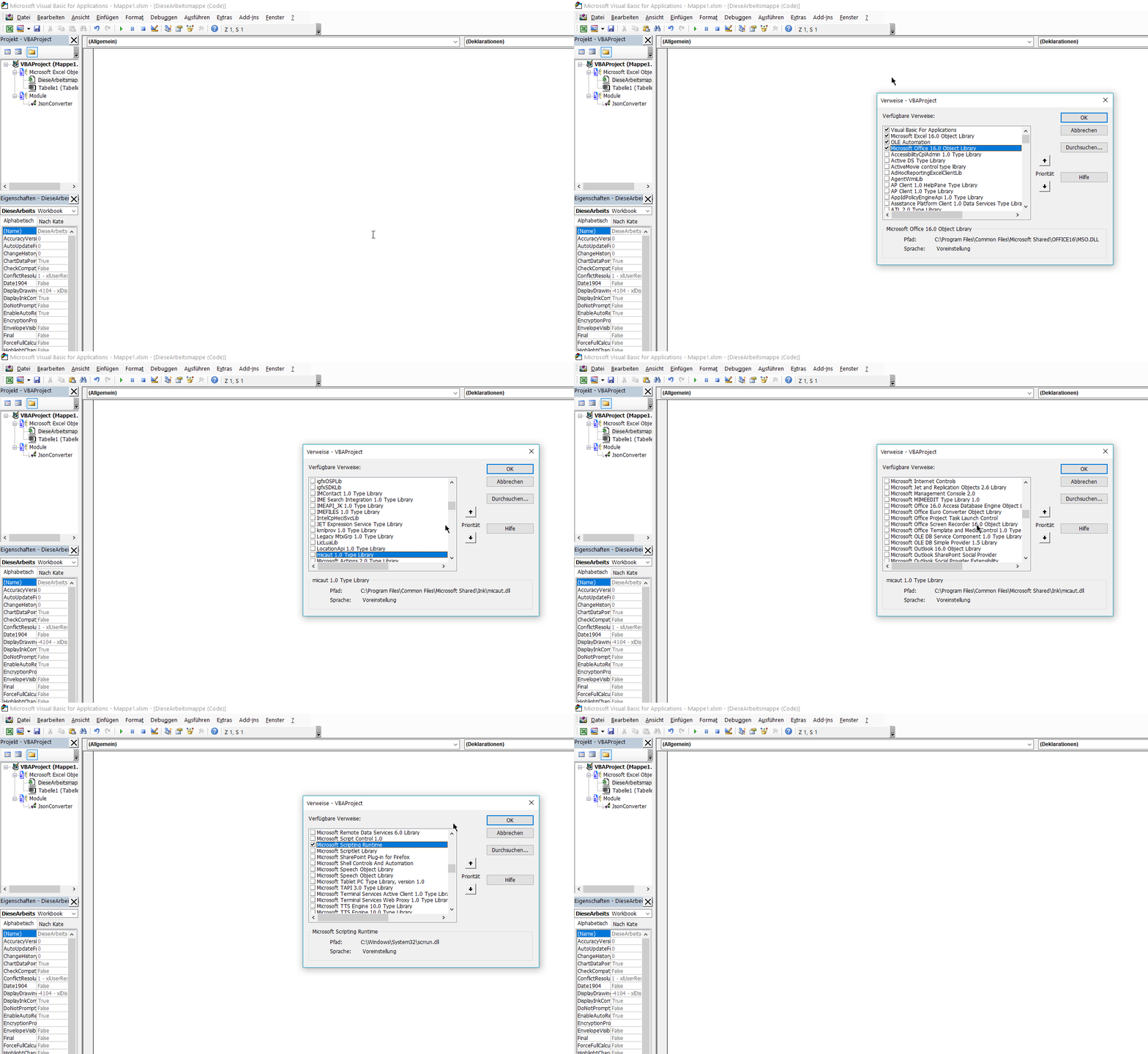
-
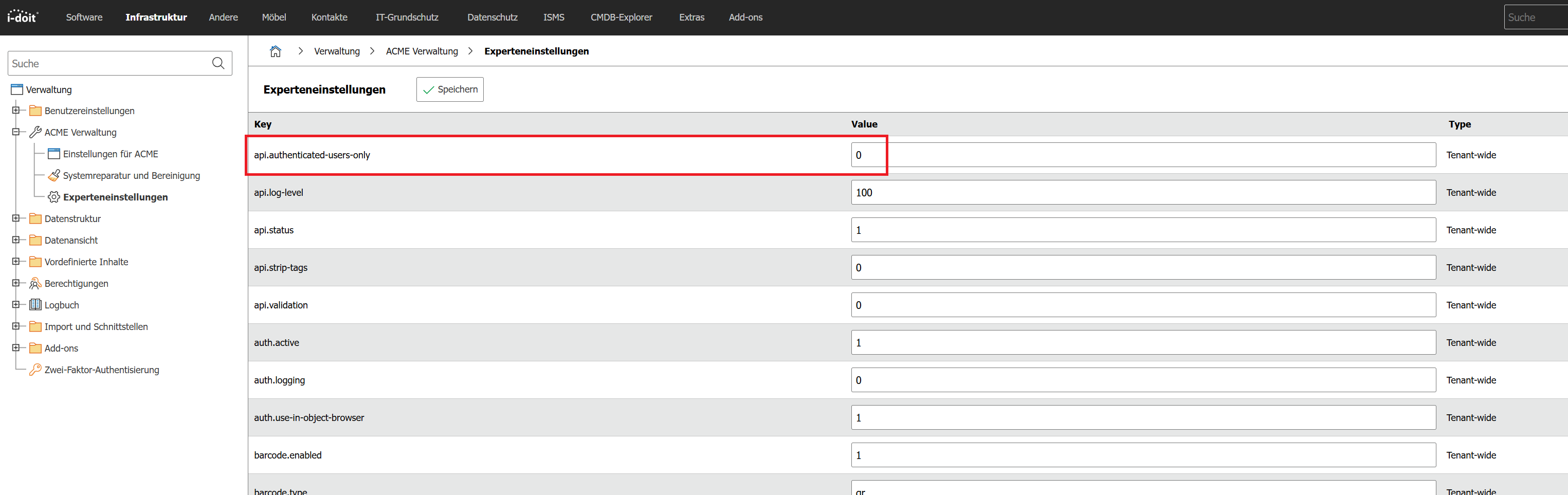
In i-doit under settings in Expert Settings, the key api.authenticated-users-only must be set to 0
-
Insert the code into the workbook and adjust both the URL and the apikey:
 1
 2
 3
 4
 5
 6
 7
 8
 9
10
11
12
13
14
15
16
17
18
19
20
21
Public Sub idoitapi() Dim http As Object, JSON As Object, i As Integer, Item As Object Dim URL$, postData$ Set http = CreateObject("MSXML2.XMLHTTP") URL = "https://demo.i-doit.com/src/jsonrpc.php" postData = "{""jsonrpc"":""2.0"",""id"":""1"",""method"":""cmdb.reports"",""params"":{""apikey"":""c1ia5q"",""id"": 2}}" http.Open "POST", URL, False http.setRequestHeader "Content-Type", "application/json" http.send postData Set JSON = ParseJson(http.responseText) i = 1 'Debug.Print http.responseText For Each Item In JSON("result") Sheets(1).Cells(i, 1).Value = Item("Title") Sheets(1).Cells(i, 2).Value = Item("Object type") Sheets(1).Cells(i, 3).Value = Item("Host address") Sheets(1).Cells(i, 4).Value = Item("Contact") Sheets(1).Cells(i, 5).Value = Item("Location") i = i + 1 Next End Sub -
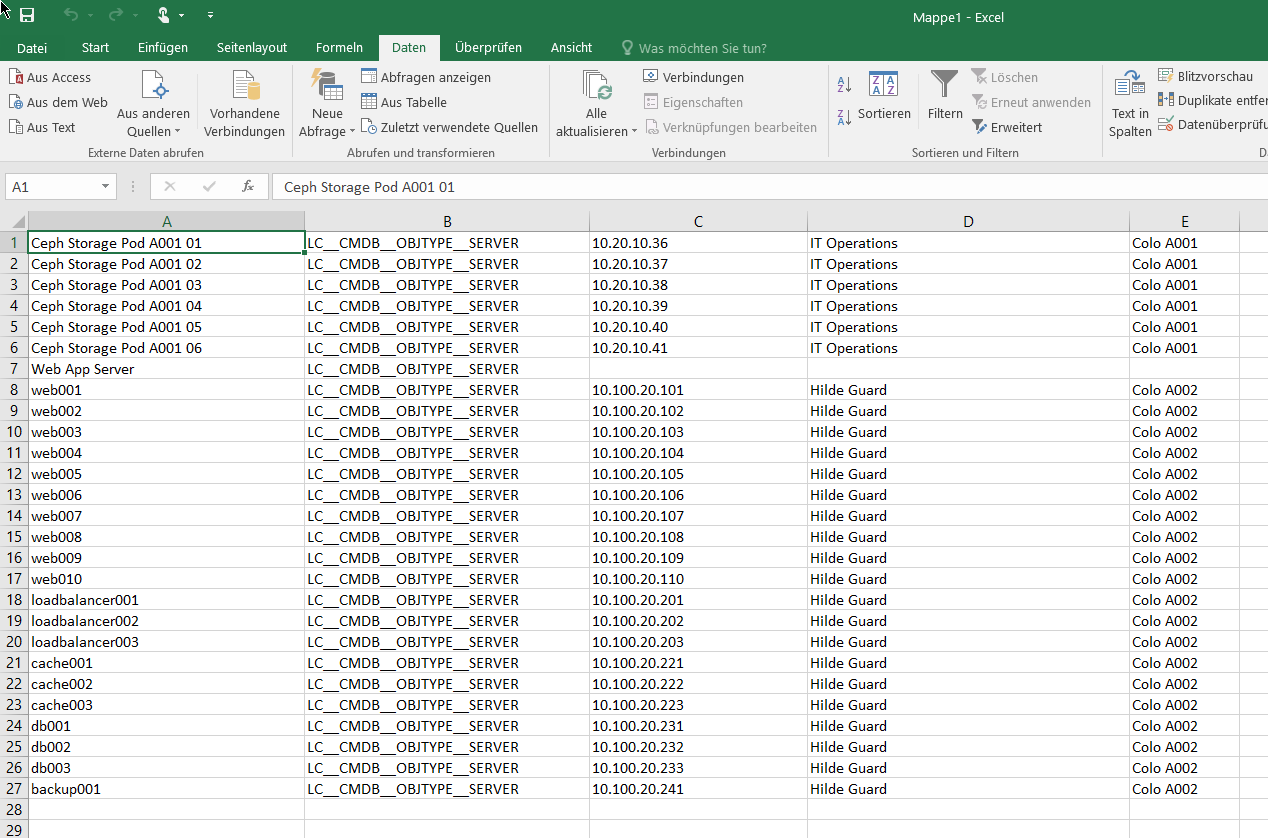
Execute the code in the VBA editor by pressing F5. The result should look as follows:
Code Explanation#
In the first part, the necessary variables are declared:
1 2 3 | |
Next, an object of type MSXML2.XMLHTTP is initialized to establish the HTTP connection
1 | |
Here the target URL of the API to be called is entered
1 | |
Now the API call is prepared. The method cmdb.reports is called and the report with number 2 is queried.
No user/password authentication is used, only the API key. For this to work, the settings shown in step 6 must be configured.
When formatting the JSON string, all quotation marks within the JSON string must be doubled.
1 | |
These instructions execute the HTTP POST request and send the specified JSON string to the API
1 2 3 | |
The JSON string returned by the API is passed to an object and parsed. This is handled by the JSON VBA library downloaded from GitHub.
1 | |
We need this counter to address the different columns in the sheet
1 | |
The returned JSON string has two levels (content shortened for better readability):
1 2 3 4 5 6 7 8 9 10 11 12 13 14 15 16 17 18 19 20 21 | |
This output can be generated by uncommenting the line
1 | |
in the Immediate window of the VBA editor.
In the first level, which we never see, are the values "jsonrpc", "result", and "id". Since we are only interested in the results, the values from the second level located below "result" are iterated in a loop.
1 | |
In the data, we find the column titles from the targeted report with ID 2.

Now, for each record in the result set, the titles are addressed and written to an Excel row.
1 2 3 4 5 6 7 8 | |