User/Group Synchronization
Please create a complete backup before making any changes to an interface/import. If the result is not satisfactory, the backup can then be restored
This article shows you how to import users and groups from Active Directory into i-doit in a targeted manner. The import described here is performed via the console.php command ldap-sync. Independently of this, a user who logs in through LDAP is created in i-doit at that moment, with the attributes from the LDAP mapping of the directory. At the end of this article you will find a complete example of an extended configuration.
Prerequisites:
- You have already set up the basic LDAP/AD configuration.
- You have basic knowledge in the area of AD/LDAP.
In the following examples, objectClass = user is used for persons and objectClass = group for groups. If you do not want to synchronize all users or groups of the domain, enter the DN/CN of an OU or container under Search for users in (OU).
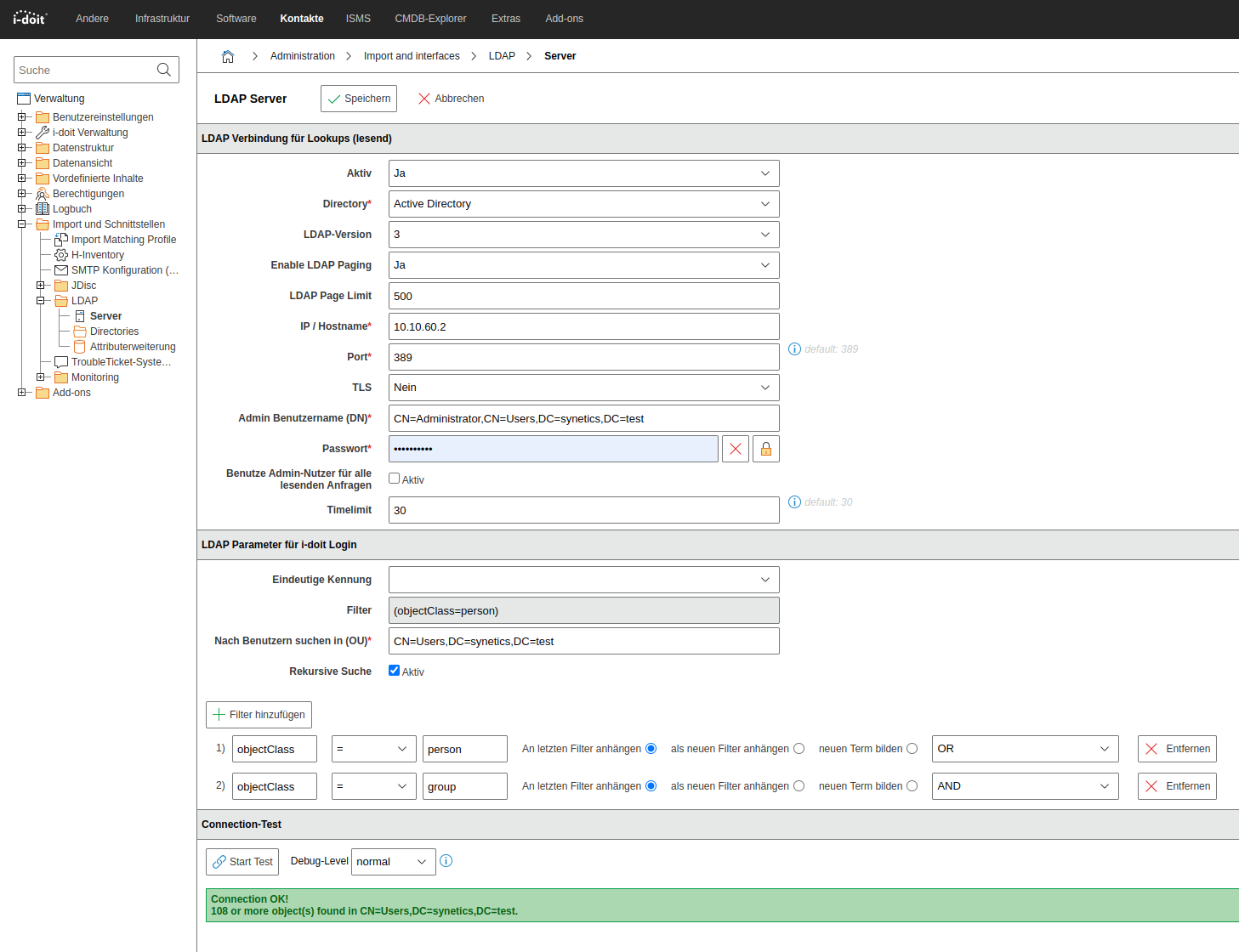
Configuring the filters#
Import of all users#
With this filter you synchronize exclusively users -- groups are not created in this process:

1 | |
Import of users with specific attributes#
You can filter for a specific attribute. In the following example, only the user whose sAMAccountName has the value MichaelO is synchronized:

1 | |
Import of all users and all groups#
This filter creates both users and groups and assigns the users to the respective groups:

1 | |
Import of users who are members of the group idoit-read#
With this filter you synchronize only users who are members of the group idoit-read:

1 | |
Import of users who are members of both idoit-read and idoit-write#
This filter synchronizes only users who are simultaneously members of the groups idoit-read and idoit-write:

1 | |
Import of users and groups that are below a nested group#
Assume you have a group idoit in which the groups idoit-read and idoit-write are members. With this filter, the subordinate groups and their users are automatically created.
The parent group idoit itself is not created in this process. Note that groups in i-doit cannot have other groups as members.

1 | |
How to filter users with more than one objectClass#
If users are distinguished by having two objectClass attributes (e.g. person and user), build the filter as follows:

1 | |
Import of users whose attribute is filled#
LDAP has no concept of an empty value. An attribute without content simply does not exist on the object, so you check it with the presence filter =*. In the following example only users with a value in company are synchronized:
1 | |
The negation gives you exactly the opposite, so only users without a company:
1 | |
How to exclude a single OU#
An OU cannot be excluded by its path. Active Directory does not support wildcards on attributes with DN syntax, so a filter such as (!(distinguishedName=*OU=External*)) never returns a result. Use one of the following approaches instead.
Enter the OU you want to synchronize under Search for users in (OU) and switch off Recursive search, so that subordinate OUs are not read.
Or exclude the objects by group membership:
1 | |
Or exclude them by an attribute that is only set on these objects:
1 | |
Which additional attributes can be imported via the ldap.ini#
Make sure you are familiar with the ldap.ini configuration and have already configured the attribute extensions. The following settings use the [additional] section of the .ini file.
Configuring the attribute extensions#
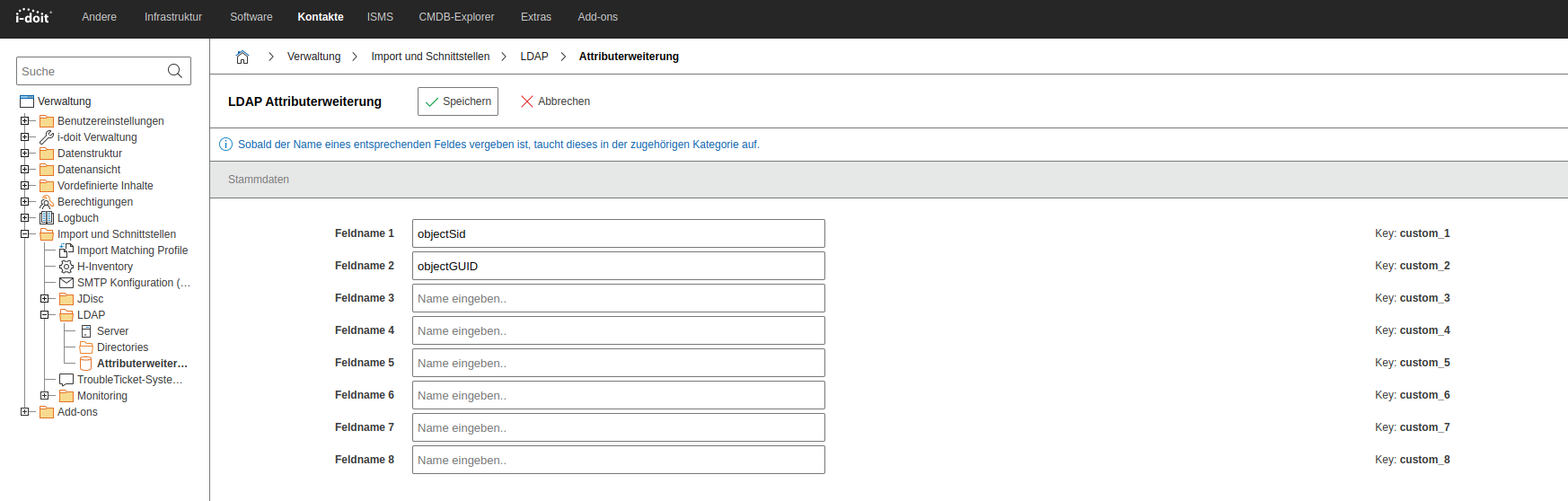
The configuration as a table:
| Field name | Attribute | Mapping with |
|---|---|---|
| Field name 1 | objectSid | Key: custom_1 |
| Field name 2 | objectGUID | Key: custom_2 |
| Field name 3 | - | Key: custom_3 |
| Field name 4 | - | Key: custom_4 |
| Field name 5 | - | Key: custom_5 |
| Field name 6 | - | Key: custom_6 |
| Field name 7 | - | Key: custom_7 |
| Field name 8 | - | Key: custom_8 |
Statically assign users to rooms#
In the ldap.ini you can enter fixed assignments of users to rooms. The users are then assigned to the respective room as a contact. If a room with this title does not exist yet, i-doit creates it.
1 2 | |
Assign users as contacts to rooms#
It is possible to assign persons as contacts to rooms via the import_rooms function. To do so, the option must be set to true. Rooms are automatically created, however without a location.
1 2 3 | |
Setting the salutation#
To automatically set the salutation during import, configure the option attributes[salutation]= in the .ini file. In the following example, the AD attribute displayNamePrintable is used. You can also use other attributes, as long as they are present in the AD.
The value of the attribute displaynamePrintable could be e.g. "Herr", "Mr", "Mr." or "Frau", "Mrs.", "Mrs", "Ms.", "Ms", "Miss". These values can be configured in the Administration under [tenant-name] Administration > Settings for [tenant-name] > LDAP.
1 | |
This setting has been included in the example of the complete .ini file at the end of this article.
How to import attributes from LDAP#
If you have already configured the attribute extensions, you must next adjust the configuration file of the LDAP sync (ldap.ini).
The available attributes can be found in your AD configuration. An overview of which attributes belong to which field can be found e.g. at SelfADSI.
The following example shows a typical attribute mapping:
1 2 3 4 5 6 7 8 9 10 11 12 13 14 15 16 17 18 19 20 21 22 23 24 25 | |
In this example, the master data attribute department is mapped to the LDAP attribute of the same name. Additionally, the attribute extension is used. The structure for e.g.
1 | |
works as follows:
attributes instructs the handler to synchronize the i-doit attribute [custom_1] with the LDAP attribute objectSid. After synchronization you will find the following master data:
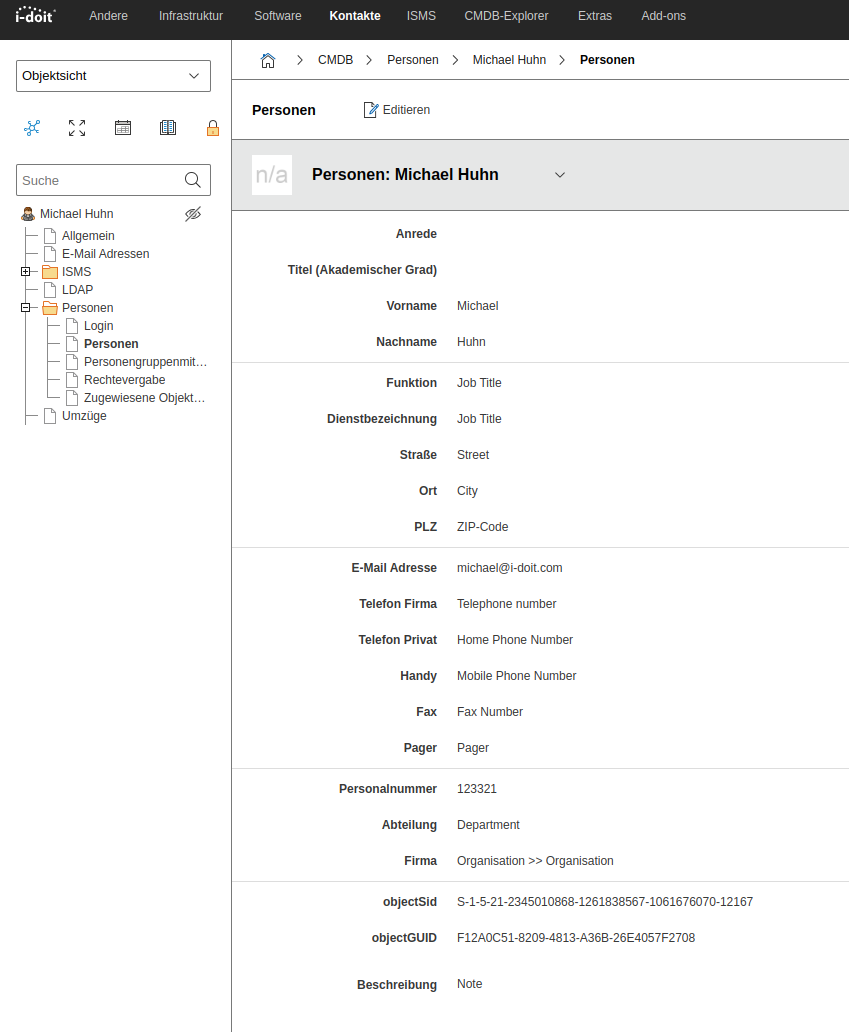
Additional options#
autoReactivateUsers#
This setting sets every user that is found during synchronization back to the status "normal". This is helpful if users have been archived accidentally.
Info
For Active Directory this happens anyway, so the option is only relevant for NDS and OpenLDAP. The reason is that these directories provide no flag for a disabled account, so i-doit cannot tell there whether a user was disabled on purpose. Users that are gone from the directory are recognized regardless of the directory type and are handled by deletedUsersBehaviour.
1 | |
ignoreUsersWithAttributes#
With this option you prevent the synchronization of unwanted directory objects. The check runs after the LDAP search, on the objects that the filter returned.
ignoreFunction is executed against every attribute listed here. The user is skipped only if the function applies to all of them. As soon as it does not apply to one attribute, the user is synchronized.
By default ignoreUsersWithAttributes=[] is set, so nothing is ignored.
In the following example, together with ignoreFunction=empty, a user is skipped only when samaccountname, sn, givenname and mail are empty at the same time. A user with an empty sn but a filled mail is still synchronized:
1 2 3 4 | |
If a user should already be skipped when one of several attributes is empty, use the LDAP filter of the server configuration instead:
1 | |
Skipped users are reported in the output as Validation for <DN> failed: ignoreFunction prohibited syncing user. and the run continues with the next object.
Info
Users that are skipped here count as orphaned afterwards, because they no longer carry a current DN in i-doit. On the next run deletedUsersBehaviour applies to them. Persons that were imported earlier and only later fall under the ignore rule are therefore archived by default.
ignoreFunction#
The check function for ignoring users (see ignoreUsersWithAttributes). Either one of the following language constructs or any function name callable via call_user_func:
1 2 3 4 | |
empty is executed as empty($value). If the attribute is missing from the directory object, the checked value is null.
Do not synchronize users without a company:
1 2 | |
Do not synchronize users that have a company, so only persons without a company assignment are imported:
1 2 | |
Sort out records where company and department are empty at the same time:
1 2 3 | |
Sort out users where the attribute does not exist at all, while an attribute that is present but empty still passes:
1 2 | |
Own functions work the other way round
For a function called via call_user_func the result is negated. Such a function has to return true for the user to be synchronized, whereas for the language constructs above true means the user is skipped. The function is called as function($value, $allAttributes).
Synchronize empty attributes#
This option decides whether emptied attributes from AD should be synchronized with i-doit or not.
1 | |
defaultCompany#
Company that is assigned when attributes[organization] did not deliver a value. Object title or object ID. If no object with this title exists, i-doit creates a new object of the type Organization.
Write the value without quotes or in double quotes. Single quotes are kept as part of the value and would end up in the object title. The one exception is defaultCompany='', which the command translates into an empty value.
1 | |
deletedUsersBehaviour#
What happens to persons that are no longer found in the directory.
| Value | Effect |
|---|---|
archive | The object is archived. Default, and also used for any unknown value. |
delete | The object is set to the status deleted. |
disable_login | The object stays normal, the login is disabled. |
1 | |
disabledUsersBehaviour#
What happens to persons whose account is disabled in the directory. Same three values as above, the default is archive as well.
This option is only evaluated for Active Directory. OpenLDAP and NDS have no comparable flag, disabled accounts are not recognized there. Objects that have a value in the Constant field are never touched.
1 | |
Parameter reference#
The .ini file is passed with -c, the long form is --config. It is read with the sections [commandArguments], [commandOptions] and [additional]. ldap-sync has no arguments, so [commandArguments] stays empty.
Values are read literally. Surrounding double quotes are removed, single quotes are not and stay part of the value. true and false become booleans, [] becomes an empty array, and the literal '' becomes an empty string. Comments start with ;.
To check what the command actually read, run it with --dumpConfig. This prints the parsed configuration and exits without synchronizing.
Options in [commandOptions]#
| Option | Short form | Values | Meaning |
|---|---|---|---|
user | -u | login | i-doit user for the login. |
password | -p | password | Password for this user. |
tenantId | -i | number, default 1 | Tenant ID. |
ldapServerId | -l | number | Synchronize only this LDAP server configuration. Without it, every active configuration is processed. |
dumpConfig | switch | Print the parsed configuration and exit. | |
connectionRankingActive | 0 or 1 | When the status of a person object changes, the category entries that reference this object are set to the same status. The default comes from the tenant setting ldap.connection-ranking-active. | |
dropExistingRelations | 0 or 1 | 1 detaches all members of an LDAP group that do not come from the current run. Passing the option without a value also means 1. | |
archiveDeletedGroups | archive or delete | What happens to groups in i-doit that no longer exist in the directory. Passing the option without a value means archive. Without the option nothing happens. | |
useDefaultTemplates | switch | Objects that the run creates, so persons, person groups, organizations and rooms, are created from the default object template of their object type, provided one is defined. |
Warning
connectionRankingActive, dropExistingRelations and archiveDeletedGroups belong in [commandOptions]. In [additional] they have no effect, because the command options overwrite them.
Options in [additional]#
| Parameter | Values | Meaning |
|---|---|---|
attributes[<field>] | LDAP attribute | Maps an i-doit person field to a directory attribute. |
defaultCompany | object title or ID | Company for users without a company from the directory. |
syncEmptyAttributes | true / false | Whether emptied attributes are written to i-doit. |
deletedUsersBehaviour | archive / delete / disable_login | Persons that no longer exist in the directory. |
disabledUsersBehaviour | archive / delete / disable_login | Disabled accounts, Active Directory only. |
autoReactivateUsers | true / false | Sets persons that were found back to the status normal. |
import_rooms | true / false | Creates rooms from attributes[office] and attaches the person as a contact. |
rooms["<room>"] | JSON array | Static assignment of users to rooms. Missing rooms are created. |
ignoreUsersWithAttributes[] | attribute name | Attributes that ignoreFunction checks. |
ignoreFunction | empty / !empty / isset / !isset / function name | Check function for the option above. |
These field names are valid for attributes[...]: academic_degree, city, custom_1 to custom_8, department, description, fax, first_name, function, last_name, mail, organization, pager, personnel_number, phone_company, phone_home, phone_mobile, salutation, service_designation, street, title, zip_code.
The user name and the group used for the login are not configured here, they come from the LDAP mapping of the directory. First name, last name and mail address also come from that mapping, but an entry in attributes[...] overrides them.
Info
The LDAP filter and the base DN are not part of this file either. ldap-sync reads both from the server configuration under Administration > Import and Interfaces > LDAP > Server.
The complete ldap.ini#
Here you will find a complete, customizable .ini file. The first part is based on the configuration file for console commands.
1 2 3 4 5 6 7 8 9 10 11 12 13 14 15 16 17 18 19 20 21 22 23 24 25 26 27 28 29 30 31 32 33 34 35 36 37 38 39 40 41 42 43 44 45 46 47 48 49 50 51 52 53 54 55 56 57 58 59 60 | |
For the .ini file to be used, it must be specified with the -c parameter.
1 | |